tva: Tab-separated Values Assistant
Fast, reliable TSV processing toolkit in Rust.





Overview
tva (pronounced “Tee-Va”) is a high-performance command-line toolkit written in Rust for
processing tabular data. It brings the safety and speed of modern systems programming to the classic
Unix philosophy.
Inspiration
- eBay’s tsv-utils (discontinued): The primary reference for functionality and performance.
- GNU Datamash: Statistical operations.
- R’s tidyverse: Reshaping concepts and string manipulation.
- xan: DSL and terminal-based plotting.
Use Cases
- “Middle Data”: Files too large for Excel/Pandas but too small for distributed systems ( Spark/Hadoop).
- Data Pipelines: Robust CLI-based ETL steps compatible with
awk,sort, etc. - Exploration: Fast summary statistics, sampling, and filtering on raw data.
Design Principles
- Single Binary: A standalone executable with no dependencies, easy to deploy.
- Header Aware: Manipulate columns by name or index.
- Fail-fast: Strict validation ensures data integrity (no silent truncation).
- Streaming: Stateless processing designed for infinite streams and large files.
- TSV-first: Prioritizes the reliability and simplicity of tab-separated values.
- Performance: Single-pass execution with minimal memory overhead.
Installation
Current release: 0.3.3
# Clone the repository and install via cargo
cargo install --force --path .
Or install the pre-compiled binary via the cross-platform package manager cbp (supports older Linux systems with glibc 2.17+):
cbp install tva
You can also download the pre-compiled binaries from the Releases page.
Running Examples
The examples in the documentation use sample data located in the docs/data/ directory. To run
these examples yourself, we recommend cloning the repository:
git clone https://github.com/wang-q/tva.git
cd tva
Then you can run the commands exactly as shown in the docs (e.g.,
tva select -f 1 docs/data/input.csv).
Alternatively, you can download individual files from the docs/data directory on GitHub.
Commands
Subset Selection
Select specific rows or columns from your data.
select: Select and reorder columns.filter: Filter rows based on numeric, string, or regex conditions.slice: Slice rows by index (keep or drop). Supports multiple ranges and header preservation.sample: Randomly sample rows (Bernoulli, reservoir, weighted).
Data Transformation
Transform the structure or values of your data.
longer: Reshape wide to long (unpivot). Requires a header row.wider: Reshape long to wide (pivot). Supports aggregation via--op(sum, count, etc.).fill: Fill missing values in selected columns (down/LOCF, const).blank: Replace consecutive identical values in selected columns with empty strings ( sparsify).transpose: Swaps rows and columns (matrix transposition).
Expr Language
Expression-based transformations for complex data manipulation.
expr: Evaluate expressions and output results.extend: Add new columns to each row (alias forexpr -m extend).mutate: Modify existing column values (alias forexpr -m mutate).
Data Organization
Organize and combine multiple datasets.
sort: Sorts rows based on one or more key fields.reverse: Reverses the order of lines (liketac), optionally keeping the header at the top.join: Join two files based on common keys.append: Concatenate multiple TSV files, handling headers correctly.split: Split a file into multiple files (by size, key, or random).
Statistics & Summary
Calculate statistics and summarize your data.
stats: Calculate summary statistics (sum, mean, median, min, max, etc.) with grouping.bin: Discretize numeric values into bins (useful for histograms).uniq: Deduplicate rows or count unique occurrences (supports equivalence classes).
Visualization
Visualize your data in the terminal.
plot point: Draw scatter plots or line charts in the terminal.plot box: Draw box plots (box-and-whisker plots) in the terminal.plot bin2d: Draw 2D histograms/heatmaps in the terminal.
Formatting & Utilities
Format and validate your data.
check: Validate TSV file structure (column counts, encoding).nl: Add line numbers to rows.keep-header: Run a shell command on the body of a TSV file, preserving the header.
Import & Export
Convert data to and from TSV format.
from: Convert other formats to TSV (csv,xlsx,html).to: Convert TSV to other formats (csv,xlsx,md).
Author
Qiang Wang wang-q@outlook.com
License
MIT. Copyright by Qiang Wang.
tva Design
This document outlines the core design decisions behind tva, drawing inspiration from the
original TSV Utilities by eBay.
Why TSV?
The Tab-Separated Values (TSV) format is chosen over Comma-Separated Values (CSV) for several key reasons, especially in data mining and large-scale data processing contexts:
1. No Escapes = Reliability & Speed
- CSV Complexity: CSV uses escape characters (usually quotes) to handle delimiters (commas) and newlines within fields. Parsing this requires a state machine, which is slower and prone to errors in ad-hoc scripts.
- TSV Simplicity: TSV disallows tabs and newlines within fields. This means:
- Parsing is trivial:
split('\t')works reliably. - Record boundaries are clear: Every newline is a record separator.
- Performance: Highly optimized routines can be used to find delimiters.
- Robustness: No “malformed CSV” errors due to incorrect quoting.
- Parsing is trivial:
2. Unix Tool Compatibility
- Traditional Unix tools (
cut,awk,sort,join,uniq) work seamlessly with TSV files by specifying the delimiter (e.g.,cut -f1). - The CSV Problem: Standard Unix tools fail on CSV files with quoted fields or newlines. This
forces CSV toolkits (like
xsv) to re-implement standard operations (sorting, joining) just to handle parsing correctly. - The TSV Advantage:
tvaleverages the simplicity of TSV. Whiletvaprovides its ownsortandjoinfor header awareness and Windows support, the underlying data remains compatible with the vast ecosystem of standard Unix text processing tools.
Why Rust?
tva is implemented in Rust, differing from the original TSV Utilities (written in D).
1. Safety & Performance
- Memory Safety: Rust’s ownership model ensures memory safety without a garbage collector, crucial for high-performance data processing tools.
- Zero-Cost Abstractions: High-level constructs (iterators, closures) compile down to efficient machine code, often matching or beating C/C++.
- Predictable Performance: No GC pauses means consistent throughput for large datasets.
2. Cross-Platform & Deployment
- Single Binary: Rust compiles to a static binary with no runtime dependencies (unlike Python or Java).
- Windows Support: Rust has first-class support for Windows, making
tvaeasily deployable on non-Unix environments (a key differentiator from many Unix-centric tools).
Design Goals
1. Unix Philosophy
- Do One Thing Well: Each subcommand (
filter,select,stats) focuses on a specific task. - Pipeable: Tools read from stdin and write to stdout by default, enabling powerful pipelines:
tva filter --gt score:0.9 data.tsv | tva select name,score | tva sort -k score - Streaming: Stateless where possible to support infinite streams and large files.
2. Header Awareness
- Unlike generic Unix tools,
tvais aware of headers. - Field Selection: Columns can be selected by name (
--fields user_id) rather than just index. - Header Preservation: Operations like
filterorsampleautomatically preserve the header row.
3. TSV-first
- Default separator is TAB.
- Processing revolves around the “Row + Field” model.
- CSV is treated as an import format (
from-csv), but core logic is TSV-centric.
4. Explicit CLI & Fail-fast
- Options should be explicit (no “magic” behavior).
- Strict error handling: mismatched field counts or broken headers result in immediate error exit ( stderr + non-zero status), rather than silent truncation.
5. High Performance
- Aim for single-pass processing.
- Avoid unnecessary allocations and sorting.
6. Single-Threaded by Default
Core Philosophy: Single-threaded extreme performance + external parallel tools
tva adopts a single-threaded model for most data processing scenarios. This is not a
technical limitation, but an active choice based on Unix philosophy:
- Do One Thing Well:
tvafocuses on streaming data parsing, transformation, and statistics, leaving parallel scheduling complexity to specialized tools (like GNU Parallel). - Don’t Reinvent the Wheel: GNU Parallel is already a mature, powerful parallel task scheduler.
Rather than implementing complex thread pools and task distribution inside
tva, it’s better to maketvathe best partner for Parallel. - Determinism and Simplicity: Single-threaded models make data processing order naturally deterministic, debugging easier, and greatly reduce memory management complexity and overhead ( lock-free, zero-copy easier to achieve).
Implementation Details
tva adopts several optimization strategies similar to tsv-utils to ensure high performance:
1. Buffered I/O
- Input: Uses
std::io::BufReaderto minimize system calls when reading large files. Transparently handles.gzfiles (viaflate2). - Output: Uses
std::io::BufWriterto batch writes, significantly improving throughput for commands that produce large output.
2. Zero-Copy & Re-use
- String Reuse: Where possible,
tvareuses allocated string buffers (e.g., viaread_lineinto a cleared String) to avoid the overhead of repeated memory allocation and deallocation. - Iterator-Based Processing: Leverages Rust’s iterator lazy evaluation to process data line-by-line without loading entire files into memory, enabling processing of datasets larger than RAM.
Performance Architecture & Benchmarks
tva is built on a philosophy of “Zero-Copy” and “SIMD-First”. We continuously benchmark different
parsing strategies to ensure tva remains the fastest tool for TSV processing.
Parsing Strategy Evolution
We compared multiple parsing strategies to find the optimal balance between speed and correctness. The evolution shows a clear progression from naive implementations to hand-optimized SIMD:
- Naive Split → Memchr-based → Single-Pass SIMD → Hand-written SIMD
- Each step eliminates overhead: allocation, function calls, or redundant scanning.
Latest Benchmark Results
Test Data 1: Short Fields, Few Columns (5 cols, ~8 bytes/field)
| Implementation | Time | Throughput | Notes |
|---|---|---|---|
| TVA for_each_row | 43 µs | 1.63 GiB/s | Current: Hand-written SIMD (SSE2), true single-pass |
| simd-csv | 80 µs | 905 MiB/s | Hybrid SIMD state machine, previous ceiling |
| TVA for_each_line + memchr | 87 µs | 830 MiB/s | Two-pass: SIMD for lines, memchr for fields |
| Memchr Reused Buffer | 113 µs | 639 MiB/s | Line-by-line memchr, limited by function call overhead |
| csv crate | 130 µs | 556 MiB/s | Classic DFA state machine, correctness baseline |
| Naive Split | 562 µs | 129 MiB/s | Original implementation, slowest |
Test Data 2: Wide Rows, Many Columns (20 cols, ~6 bytes/field)
| Implementation | Time | Throughput | Notes |
|---|---|---|---|
| TVA for_each_row | 128 µs | 896 MiB/s | Current: Hand-written SIMD (SSE2), true single-pass |
| simd-csv | 180 µs | 635 MiB/s | Hybrid SIMD state machine |
| TVA for_each_line + memchr | 247 µs | 463 MiB/s | Two-pass: SIMD for lines, memchr for fields |
| Memchr Reused Buffer | 344 µs | 333 MiB/s | Line-by-line memchr |
| csv crate | 320 µs | 358 MiB/s | Classic DFA state machine |
| Naive Split | 1167 µs | 98 MiB/s | Original implementation |
Key Findings:
- Performance Leap:
for_each_rowachieves 1.63 GiB/s on short fields—1.8x faster thansimd-csvand 12.6x faster than naive split. On wide rows, it maintains 896 MiB/s, demonstrating consistent advantage across data shapes. - Single-Pass Wins: True single-pass scanning outperforms two-pass approaches by ~95% regardless of row width, as more delimiter searches are eliminated.
- Scalability: All implementations show expected throughput decrease on wide rows (more delimiters to process), but TVA’s single-pass approach maintains the lead.
TSV Parser Design
This section details the design of tva’s custom TSV parser, which leverages the simplicity of the
TSV format to achieve high performance.
Format Differences: CSV vs TSV
| Feature | CSV (RFC 4180) | TSV (Simple) | Impact |
|---|---|---|---|
| Delimiter | , (variable) | \t (fixed) | TSV can hardcode delimiter, enabling SIMD optimization. |
| Quotes | Supports " wrapping | Not supported | TSV eliminates “in_quote” state machine, removing branch misprediction. |
| Escapes | "" escapes quotes | None | TSV supports true zero-copy slicing without rewriting. |
| Newlines | Allowed in fields | Not allowed | TSV guarantees \n always means record end, enabling parallel chunking. |
Implementation
Architecture:
src/libs/tsv/simd/
├── mod.rs    - DelimiterSearcher trait, platform abstraction
├── sse2.rs   - x86_64 SSE2 implementation (128-bit vectors)
└── neon.rs   - aarch64 NEON implementation (128-bit vectors)
Key Design Decisions:
- Hand-written SIMD: Platform-specific searchers simultaneously scan for
\tand\n, eliminating generic library overhead. - Single-Pass Scanning: All delimiter positions are found in one pass, storing field boundaries in a pre-allocated array. This eliminates the ~95% overhead of two-pass approaches.
- Unified CR Handling: Only
\tand\nare searched during SIMD scan. When\nis found, we check if the preceding byte is\r. This reduces register pressure compared to searching for three characters simultaneously. - Zero-Copy API:
TsvRowstructs yield borrowed slices into the internal buffer, eliminating per-row allocation.
Platform Support:
- x86_64: SSE2 intrinsics (baseline for all x86_64 CPUs)
- aarch64: NEON intrinsics (baseline for all ARM64 CPUs)
- Fallback:
memchr2for other platforms
Performance Validation
| Metric | Target | Achieved | Status |
|---|---|---|---|
| Throughput (short fields) | 2-3 GiB/s | 1.63 GiB/s | ✅ Near theoretical limit |
Speedup vs simd-csv | 1.5-2x | 1.8x | ✅ Exceeded target |
| Speedup vs memchr2 | 1.5-2x | 2.0x | ✅ Achieved target |
Key Insights:
- SSE2 over AVX2: 128-bit SSE2 outperformed 256-bit AVX2. Wider registers added overhead without proportional gains for TSV’s simple structure.
- Single-Pass Architecture: The dominant performance factor, providing ~95% improvement over two-pass approaches regardless of data shape.
Common Behavior & Syntax
tva tools share a consistent set of behaviors and syntax conventions, making them easy to learn
and combine.
Field Syntax
All tools use a unified syntax to identify fields (columns). See Field Syntax Documentation for details.
- Index:
1(first column),2(second column). - Range:
1-3(columns 1, 2, 3). - List:
1,3,5. - Name:
user_id(requires--header). - Wildcard:
user_*(matchesuser_id,user_name, etc.). - Exclusion:
--exclude 1,2(select all except 1 and 2).
Header Processing
- Input: Most tools accept a
--header(or-H) flag to indicate the first line of input is a header. This enables field selection by name.- Note: The
longerandwidercommands assume a header by default.
- Note: The
- Output: When
--headeris used,tvaensures the header is preserved in the output (unless explicitly suppressed). - No Header: Without this flag, the first row is treated as data. Field selection is limited to indices (no names).
- Multiple Files: If processing multiple files with
--header:- The header from the first file is written to output.
- Headers from subsequent files are skipped (assumed to be identical to the first).
- Validation: Field counts must be consistent;
tvafails immediately on jagged rows.
Multiple Files & Standard Input
- Standard Input: If no files are provided, or if
-is used as a filename,tvareads from standard input (stdin). - Concatenation: When multiple files are provided,
tvaprocesses them sequentially as a single continuous stream of data (logical concatenation).- Example:
tva filter --gt value:10 file1.tsv file2.tsvprocesses both files.
- Example:
Comparison with Other Tools
tva is designed to coexist with and complement other excellent open-source tools for tabular
data.It combines the strict, high-performance nature of tsv-utils with the cross-platform
accessibility and modern ecosystem of Rust.
| Feature | tva (Rust) | tsv-utils (D) | xsv / qsv (Rust) | datamash (C) |
|---|---|---|---|---|
| Primary Format | TSV (Strict) | TSV (Strict) | CSV (Flexible) | TSV (Default) |
| Escapes | No | No | Yes | No |
| Header Aware | Yes | Yes | Yes | Partial |
| Field Syntax | Names & Indices | Names & Indices | Names & Indices | Indices |
| Platform | Cross-platform | Unix-focused | Cross-platform | Unix-focused |
| Performance | High | High | High (CSV cost) | High |
Detailed Breakdown
- tsv-utils (D):
- The direct inspiration for
tva.tvaaims to be a Rust-based alternative that is easier to install (no D compiler needed) and extends functionality (e.g.,sample,slice).
- The direct inspiration for
- qsv (Rust):
- The premier tools for CSV processing.
- Because they must handle CSV escapes, they are inherently more complex than TSV-only tools.
- Use these if you must work with CSVs directly; use
tvaif you can convert to TSV for faster, simpler processing.
- GNU Datamash (C):
- Excellent for statistical operations (groupby, pivot) on TSV files.
tva statsis similar but adds header awareness and named field selection, making it friendlier for interactive use.
- Miller (mlr) (C):
- A powerful “awk for CSV/TSV/JSON”. Supports many formats and complex transformations.
- Miller is a DSL (Domain Specific Language);
tvafollows the “do one thing well” Unix philosophy with separate subcommands.
- csvkit (Python):
- Very feature-rich but slower due to Python overhead. Great for converting obscure formats ( XLSX, DBF) to CSV/TSV.
- GNU shuf (C):
- Standard tool for random permutations.
tva sampleadds specific data science sampling methods: weighted sampling (by column value) and Bernoulli sampling.
Aggregation Architecture
This section provides a deep dive into the architectural differences between tva and other tools
like xan (Rust) and tsv-utils (D Language) in their aggregation module designs.
tva: Runtime Polymorphism with SoA Memory Layout
Design: Hybrid Struct-of-Arrays (SoA). The Schema (StatsProcessor) builds the computation
graph at runtime, while the State (Aggregator) uses compact columnar storage (Vec<f64>,
Vec<String>). Computation logic is dynamically dispatched via Box<dyn Calculator> trait objects.
Advantages:
- Memory Efficient: Even with millions of groups, each group’s
Aggregatoroverhead is minimal (only a fewVecheaders). - Modular: Adding new operators only requires implementing the
Calculatortrait, completely decoupled from existing code. - Fast Compilation: Compared to generic/template bloat,
dyn Traitsignificantly reduces compile times and binary size. - Deterministic: Uses
IndexMapto guarantee that GroupBy output order matches the first-occurrence order in the input.
Trade-offs: Virtual function calls (vtable) have a tiny overhead compared to inlined code
in extremely high-frequency loops (e.g., 10 calls per row), but this is usually negligible in
I/O-bound CLI tools.
Other Tools
xan: Uses enum dispatch (enum Agg { Sum(SumState), ... }) to avoid heap allocation, but
requires modifying core enum definitions to add new operators.
tsv-utils (D): Uses compile-time template specialization for extreme performance, but has long compile times and high code complexity.
datamash (C): Uses sort-based grouping with O(1) memory, but requires pre-sorted input.
dplyr (R): Uses vectorized mask evaluation, but depends on columnar storage and is unsuitable for streaming.
Expr Language
TVA’s Expr language is designed for concise, shell-friendly data processing:
Source → Pest Parser → AST (Expr) → Direct Interpretation (eval)
              ↑______________________________↓
                    (Parse Cache)
Design Principles
- Conciseness: Short syntax for common operations (e.g.,
@1,@namefor column references). - Shell-friendly: Avoids conflicts with Shell special characters (
$,`,!). - Streaming: Row-by-row evaluation with no global state, suitable for big data.
- Type-aware: Recognizes numbers/dates when needed, treats data as strings by default for speed.
- Error Handling: Defaults to permissive mode (invalid operations return
null). - Consistency: Similar to jq/xan to reduce learning costs.
Expr Engine Optimizations
| Optimization | Technique | Speedup |
|---|---|---|
| Global Function Registry | OnceLock static registry | 35-57x |
| Parse Cache | HashMap<String, Expr> caching | 12x |
| Column Name Resolution | Compile-time name→index conversion | 3x |
| Constant Folding | Compile-time constant evaluation | 10x |
| HashMap (ahash) | Faster HashMap implementation | 6% |
Details:
- Parse caching: Expressions are parsed once and cached for all rows. Identical expressions reuse the cached AST.
- Column name resolution: When headers are available,
@namereferences are resolved to@indexat parse time for O(1) access. - Constant folding: Constant sub-expressions (e.g.,
2 + 3 * 4) are pre-computed during parsing. - Function registry: Built-in functions are looked up once and cached, avoiding repeated hash map lookups.
- Hash algorithm: Uses
ahashfor faster hash map operations.
For best performance, use column indices (@1, @2) instead of names.
性能基准测试计划
我们旨在重现 tsv-utils 使用的严格基准测试策略。
1. 基准工具
- tsv-utils (D): 主要性能对标目标。
- qsv (Rust): xsv 的活跃分支, 功能超级强大。
- GNU datamash (C): 统计操作的标准。
- GNU awk / mawk (C): 行过滤和基本处理的基准。
- csvtk (Go): 另一个现代跨平台工具包。
2. 测试数据集与策略
我们将使用不同规模的数据集来全面评估性能。
数据集来源
- HEPMASS (4.8GB): UCI Machine Learning Repository。
- 内容: 约 700 万行,29 列数值数据。
- 用途: 用于数值行过滤、列选择、统计摘要和文件连接测试。
- FIA Tree Data (2.7GB):
USDA Forest Service。
- 内容:
TREE_GRM_ESTN.csv的前 1400 万行,包含混合文本和数值。 - 用途: 用于正则行过滤和CSV 转 TSV测试。
- 内容:
测试策略
- 吞吐量与稳定性 (大文件):
- 使用完整的 GB 级数据集 (HEPMASS, FIA Tree Data)。
- 目标: 压力测试流处理能力、内存稳定性以及 I/O 吞吐量。
- 启动开销 (小文件):
- 使用HEPMASS_100k (~70MB, HEPMASS 的前 10 万行)。
- 目标: 测试工具的启动开销 (Startup Overhead) 和缓冲策略。 对于极短的运行时间,Rust/C 的启动时间差异会更明显。
3. 详细测试场景
为了确保公平和全面的对比,我们将执行以下具体场景(参考 tsv-utils 2017/2018):
- 数值行过滤 (Numeric Filter):
- 逻辑: 多列数值比较 (例如
col4 > 0.000025 && col16 > 0.3)。 - 基准:
tva filtervsawk(mawk/gawk) vstsv-filter(D) vsqsv search(Rust)。 - 目的: 测试数值解析和比较的效率。
- 逻辑: 多列数值比较 (例如
- 正则行过滤 (Regex Filter):
- 逻辑: 针对特定文本列的正则匹配 (例如
[RD].*(ION[0-2]))。 - 基准:
tva filter --regexvsgrep/awk/ripgrep(如果适用) vstsv-filtervsqsv search。 - 注意: 区分全行匹配与特定字段匹配。
- 逻辑: 针对特定文本列的正则匹配 (例如
- 列选择 (Column Selection):
- 逻辑: 提取分散的列 (例如 1, 8, 19)。
- 基准:
tva selectvscutvstsv-selectvsqsv selectvscsvtk cut。 - 注意: 测试不同文件大小。GNU
cut在小文件上通常非常快, 但在大文件上可能不如流式优化工具。 - 短行测试 (Short Lines): 针对海量短行数据(如 8600 万行, 1.7GB)进行测试, 主要考察每行处理的固定开销。
- 文件连接 (Join):
- 数据准备: 将大文件拆分为两个文件(例如: 左文件含列 1-15,右文件含列 1, 16-29),并 随机打乱行顺序, 但保留公共键(列 1)。
- 逻辑: 基于公共键将两个乱序文件重新连接。
- 基准:
tva joinvsjoin(Unix - 需先 sort) vsqsv joinvstsv-joinvscsvtk join。 - 目的: 测试哈希表构建和查找的内存与速度平衡。
- 统计摘要 (Summary Statistics):
- 逻辑: 计算多个列的 Count, Sum, Min, Max, Mean, Stdev。
- 基准:
tva statsvsdatamashvstsv-summarizevsqsv statsvscsvtk summary。
- CSV 转 TSV (CSV to TSV):
- 逻辑: 处理包含转义字符和嵌入换行符的复杂 CSV。
- 基准:
tva from csvvsqsv fmtvscsvtk csv2tabvscsv2tsv(tsv-utils)。 - 目的: 这是一个高计算密集型任务,测试 CSV 解析器的性能。
- 加权随机采样 (Weighted Sampling):
- 逻辑: 基于权重列进行加权随机采样 (Weighted Reservoir Sampling)。
- 基准:
tva sample --weightvstsv-samplevsqsv sample(如果支持)。 - 目的: 测试复杂算法与 I/O 的结合效率。
- 去重 (Deduplication):
- 逻辑: 基于特定列进行哈希去重。
- 基准:
tva uniqvstsv-uniqvsawkvssort | uniq。 - 目的: 测试哈希表性能和内存管理。
- 排序 (Sorting):
- 逻辑: 基于数值列进行排序。
- 基准:
tva sortvssort(GNU) vstsv-sort。 - 目的: 测试外部排序算法和内存使用。
- 切片 (Slicing):
- 逻辑: 提取文件中间的大段行 (如第 100 万 到 200 万 行)。
- 基准:
tva slicevssedvstail | head。 - 目的: 测试快速跳过行的能力。
- 反转 (Reverse):
- 逻辑: 反转整个文件的行序。
- 基准:
tva reversevstac。
- 追加 (Append):
- 逻辑: 连接多个大文件。
- 基准:
tva appendvscat。
- 导出 CSV (Export to CSV):
- 逻辑: 将 TSV 转换为标准 CSV (处理转义)。
- 基准:
tva to csvvsqsv fmt。
4. 执行环境与记录
- 硬件记录: 必须记录 CPU 型号、核心数、RAM 大小以及磁盘类型 (NVMe SSD 对 I/O 密集型测试影响巨大)。
- 软件版本:
- Rust 编译器版本 (
rustc --version)。 - 所有对比工具的版本 (
qsv --version,awk --version等)。
- Rust 编译器版本 (
- 预热 (Warmup): 使用
hyperfine --warmup确保文件系统缓存处于一致状态( 通常是热缓存状态)。
5. 执行工作流示例
我们将使用内联 Bash 脚本与 hyperfine 结合,实现完全自动化的基准测试。
# 1. 数据准备 (Data Preparation)
# ------------------------------
# 下载并解压 HEPMASS (如果不存在)
if [ ! -f "hepmass.tsv" ]; then
    echo "Downloading HEPMASS dataset..."
    curl -O https://archive.ics.uci.edu/ml/machine-learning-databases/00347/all_train.csv.gz
    gzip -d all_train.csv.gz
    # 转换为 TSV
    tva from csv all_train.csv > hepmass.tsv
fi

# 准备 Join 测试数据 (拆分并乱序)
if [ ! -f "hepmass_left.tsv" ]; then
    echo "Preparing Join datasets..."
    # 添加行号作为唯一键
    tva nl -H --header-string "row_id" hepmass.tsv > hepmass_numbered.tsv
    # 拆分并打乱
    tva select -f 1-16 hepmass_numbered.tsv | tva sample -H > hepmass_left.tsv
    tva select -f 1,17-30 hepmass_numbered.tsv | tva sample -H > hepmass_right.tsv
    rm hepmass_numbered.tsv
fi

# 2. 运行基准测试 (Run Benchmark)
# ------------------------------
echo "Running Benchmarks..."

# Scenario 1: Numeric Filter
hyperfine \
    --warmup 3 \
    --min-runs 5 \
    --export-csv benchmark_filter.csv \
    -n "tva filter" "tva filter -H --gt 1:0.5 hepmass.tsv > /dev/null" \
    -n "tsv-filter" "tsv-filter -H --gt 1:0.5 hepmass.tsv > /dev/null" \
    -n "awk" "awk -F '\t' '\$1 > 0.5' hepmass.tsv > /dev/null"

# Scenario 2: Column Selection
hyperfine \
    --warmup 3 \
    --min-runs 5 \
    --export-csv benchmark_select.csv \
    -n "tva select" "tva select -f 1,8,19 hepmass.tsv > /dev/null" \
    -n "tsv-select" "tsv-select -f 1,8,19 hepmass.tsv > /dev/null" \
    -n "cut" "cut -f 1,8,19 hepmass.tsv > /dev/null"

# Scenario 3: Join
hyperfine \
    --warmup 3 \
    --min-runs 5 \
    --export-csv benchmark_join.csv \
    -n "tva join" "tva join -H -f hepmass_right.tsv -k 1 hepmass_left.tsv > /dev/null" \
    -n "tsv-join" "tsv-join -H -f hepmass_right.tsv -k 1 hepmass_left.tsv > /dev/null" \
    -n "xan join" "xan join -d '\t' --semi row_id hepmass_left.tsv row_id hepmass_right.tsv > /dev/null"

    # qsv join is too slow
    # "qsv join row_id hepmass_left.tsv row_id hepmass_right.tsv > /dev/null"

# Scenario 4: Summary Statistics
hyperfine \
    --warmup 3 \
    --min-runs 5 \
    --export-csv benchmark_stats.csv \
    -n "tva stats" "tva stats -H --count --sum 3,5,20 --min 3,5,20 --max 3,5,20 --mean 3,5,20 --stdev 3,5,20 hepmass.tsv > /dev/null" \
    -n "tsv-summarize" "tsv-summarize -H --count --sum 3,5,20 --min 3,5,20 --max 3,5,20 --mean 3,5,20 --stdev 3,5,20 hepmass.tsv > /dev/null"

# Scenario 5: Weighted Sampling (k=1000)
# Assumes column 5 is a suitable weight (positive float)
hyperfine \
    --warmup 3 \
    --min-runs 5 \
    --export-csv benchmark_sample.csv \
    -n "tva sample" "tva sample -H --weight-field 5 -n 1000 hepmass.tsv > /dev/null" \
    -n "tsv-sample" "tsv-sample -H --weight-field 5 -n 1000 hepmass.tsv > /dev/null"

# Scenario 6: Uniq (Hash-based Deduplication)
hyperfine \
    --warmup 3 \
    --min-runs 5 \
    --export-csv benchmark_uniq.csv \
    -n "tva uniq" "tva uniq -H -f 1 hepmass.tsv > /dev/null" \
    -n "tsv-uniq" "tsv-uniq -H -f 1 hepmass.tsv > /dev/null"

# Scenario 8: Slice (Middle of file)
hyperfine \
    --warmup 3 \
    --min-runs 5 \
    --export-csv benchmark_slice.csv \
    -n "tva slice" "tva slice -r 1000000-2000000 hepmass.tsv > /dev/null" \
    -n "sed" "sed -n '1000000,2000000p' hepmass.tsv > /dev/null"
7. expr 对比 专用命令
使用 docs/data/diamonds.tsv
filter
hyperfine \
    --warmup 3 \
    --min-runs 50 \
    --export-markdown tva_filter.tmp.md \
    -n "tsv-filter" "tsv-filter -H --gt carat:1 --str-eq cut:Premium --lt price:3000 docs/data/diamonds.tsv > /dev/null" \
    -n "xan filter" "xan filter 'carat > 1 and cut eq \"Premium\" and price < 3000' docs/data/diamonds.tsv > /dev/null" \
    -n "tva expr -m skip-null" "tva expr -H -m skip-null -E 'if(@carat > 1 and @cut eq q(Premium) and @price < 3000, @0, null)' docs/data/diamonds.tsv > /dev/null" \
    -n "tva expr -m filter" "tva expr -H -m filter -E '@carat > 1 and @cut eq q(Premium) and @price < 3000' docs/data/diamonds.tsv > /dev/null" \
    -n "tva filter" "tva filter -H --gt carat:1 --str-eq cut:Premium --lt price:3000 docs/data/diamonds.tsv > /dev/null"
| Command | Mean [ms] | Min [ms] | Max [ms] | Relative |
|---|---|---|---|---|
tsv-filter | 21.0 ± 1.2 | 18.8 | 24.0 | 1.00 |
xan filter | 63.3 ± 2.2 | 59.9 | 73.8 | 3.01 ± 0.20 |
tva expr -m skip-null | 54.5 ± 3.0 | 50.7 | 68.6 | 2.59 ± 0.21 |
tva expr -m filter | 42.3 ± 2.2 | 39.5 | 53.9 | 2.01 ± 0.16 |
tva filter | 21.0 ± 1.6 | 18.8 | 31.2 | 1.00 ± 0.10 |
select
hyperfine \
    --warmup 3 \
    --min-runs 50 \
    --export-markdown tva_select.tmp.md \
    -n "tsv-select" "tsv-select -H -f carat,cut,price docs/data/diamonds.tsv > /dev/null" \
    -n "xan select" "xan select 'carat,cut,price' docs/data/diamonds.tsv > /dev/null" \
    -n "xan select -e" "xan select -e '[carat, cut, price]' docs/data/diamonds.tsv > /dev/null" \
    -n "tva expr -m eval" "tva expr -H -m eval -E '[@carat, @cut, @price]' docs/data/diamonds.tsv > /dev/null" \
    -n "tva select" "tva select -H -f carat,cut,price docs/data/diamonds.tsv > /dev/null"
| Command | Mean [ms] | Min [ms] | Max [ms] | Relative |
|---|---|---|---|---|
tsv-select | 21.0 ± 1.2 | 18.6 | 24.6 | 1.03 ± 0.09 |
xan select | 58.8 ± 2.7 | 54.4 | 72.5 | 2.87 ± 0.23 |
xan select -e | 69.2 ± 1.8 | 65.8 | 73.2 | 3.38 ± 0.24 |
tva expr -m eval | 57.3 ± 2.7 | 53.8 | 68.3 | 2.80 ± 0.22 |
tva select | 20.5 ± 1.3 | 17.6 | 24.5 | 1.00 |
reverse
hyperfine \
    --warmup 3 \
    --min-runs 50 \
    --export-markdown tva_reverse.tmp.md \
    -n "tva reverse" "tva reverse docs/data/diamonds.tsv > /dev/null" \
    -n "tva reverse -H" "tva reverse -H docs/data/diamonds.tsv > /dev/null" \
    -n "tva reverse --no-mmap" "tva reverse --no-mmap docs/data/diamonds.tsv > /dev/null" \
    -n "tac" "tac docs/data/diamonds.tsv > /dev/null"
| Command | Mean [ms] | Min [ms] | Max [ms] | Relative |
|---|---|---|---|---|
tva reverse | 92.0 ± 3.2 | 86.0 | 103.1 | 5.28 ± 0.39 |
tva reverse -H | 94.6 ± 5.2 | 88.6 | 116.8 | 5.43 ± 0.46 |
tva reverse --no-mmap | 17.4 ± 1.1 | 14.6 | 21.6 | 1.00 |
tac | 50.2 ± 3.0 | 47.1 | 66.9 | 2.88 ± 0.26 |
keep-header -- tac | 56.7 ± 3.2 | 52.9 | 69.3 | 3.25 ± 0.28 |
tva reverse 的基准测试显示了一个反直觉的结果:
分析:
- mmap 模式比
--no-mmap慢5.3 倍 - 甚至低于
tac(2.88x)
原因:
- 页缓存预读失效: Linux 内核的预读机制优化顺序读取,反向扫描破坏预读策略
- TLB 抖动: 随机访问模式导致页表遍历开销增加
- 缺页中断: 小文件(5MB)完全适合内存,
read_to_end一次性读入后连续访问更缓存友好
代码层面:
#![allow(unused)]
fn main() {
// mmap 模式: 反向迭代触发随机访问
for i in memrchr_iter(b'\n', slice) {  // 反向查找换行符
    writer.write_all(&slice[i + 1..following_line_start])?;
}

// --no-mmap 模式: Vec<u8> 连续存储,CPU 缓存友好
let mut buf = Vec::new();
f.read_to_end(&mut buf)?;  // 一次性读入
}启示: 对于小文件(<100MB)或反向/随机访问模式,--no-mmap 显著优于 mmap。
uniq
hyperfine \
    --warmup 3 \
    --min-runs 50 \
    --export-markdown tva_uniq.tmp.md \
    -n "tsv-uniq -f carat" "tsv-uniq -H -f carat docs/data/diamonds.tsv > /dev/null" \
    -n "tsv-uniq -f 1" "tsv-uniq -H -f 1 docs/data/diamonds.tsv > /dev/null" \
    -n "tva uniq -f carat" "tva uniq -H -f carat docs/data/diamonds.tsv > /dev/null" \
    -n "tva uniq -f 1" "tva uniq -H -f 1 docs/data/diamonds.tsv > /dev/null" \
    -n "cut sort uniq" "cut -f 1 docs/data/diamonds.tsv | sort | uniq > /dev/null" \
    -n "tsv-uniq" "tsv-uniq docs/data/diamonds.tsv > /dev/null" \
    -n "tva uniq" "tva uniq docs/data/diamonds.tsv > /dev/null" \
    -n "sort uniq" "sort docs/data/diamonds.tsv | uniq > /dev/null"
| Command | Mean [ms] | Min [ms] | Max [ms] | Relative |
|---|---|---|---|---|
tsv-uniq -f carat | 35.5 ± 11.3 | 23.9 | 64.8 | 1.00 |
tsv-uniq -f 1 | 37.3 ± 11.5 | 26.7 | 86.5 | 1.05 ± 0.46 |
tva uniq -f carat | 41.3 ± 13.2 | 23.4 | 91.9 | 1.16 ± 0.52 |
tva uniq -f 1 | 44.7 ± 10.5 | 26.4 | 74.1 | 1.26 ± 0.50 |
cut sort uniq | 175.8 ± 42.4 | 138.4 | 311.1 | 4.96 ± 1.97 |
tsv-uniq | 64.4 ± 17.8 | 41.4 | 103.0 | 1.81 ± 0.76 |
tva uniq | 44.2 ± 6.7 | 30.9 | 63.3 | 1.25 ± 0.44 |
sort uniq | 59.2 ± 11.5 | 47.8 | 96.4 | 1.67 ± 0.62 |
append
hyperfine \
    --warmup 3 \
    --min-runs 50 \
    --export-markdown tva_append.tmp.md \
    -n "tsv-append" "tsv-append docs/data/diamonds.tsv docs/data/diamonds.tsv > /dev/null" \
    -n "tva append" "tva append docs/data/diamonds.tsv docs/data/diamonds.tsv > /dev/null" \
    -n "cat" "cat docs/data/diamonds.tsv docs/data/diamonds.tsv > /dev/null"
| Command | Mean [ms] | Min [ms] | Max [ms] | Relative |
|---|---|---|---|---|
tsv-append | 34.3 ± 3.0 | 30.4 | 47.9 | 1.12 ± 0.10 |
tva append | 33.8 ± 1.7 | 31.0 | 38.0 | 1.11 ± 0.06 |
cat | 30.5 ± 0.9 | 28.4 | 33.3 | 1.00 |
sort
hyperfine \
    --warmup 3 \
    --min-runs 50 \
    --export-markdown tva_sort.tmp.md \
    -n "tva sort -k 2" "tva sort -H -k 2 docs/data/diamonds.tsv > /dev/null" \
    -n "sort -k 2" "sort -k 2 docs/data/diamonds.tsv > /dev/null" \
    -n "tva sort" "tva sort docs/data/diamonds.tsv > /dev/null" \
    -n "sort" "sort docs/data/diamonds.tsv > /dev/null"
| Command | Mean [ms] | Min [ms] | Max [ms] | Relative |
|---|---|---|---|---|
tva sort | 37.6 ± 3.5 | 30.8 | 48.9 | 1.00 |
sort | 39.5 ± 3.3 | 33.7 | 50.2 | 1.05 ± 0.13 |
keep-header -- sort | 42.8 ± 3.6 | 38.6 | 61.0 | 1.14 ± 0.14 |
tva keep-header -- sort | 74.0 ± 3.3 | 68.8 | 85.7 | 1.97 ± 0.20 |
keep-header
hyperfine \
    --warmup 3 \
    --min-runs 50 \
    --export-markdown tva_keep-header.tmp.md \
    -n "sort" "sort docs/data/diamonds.tsv > /dev/null" \
    -n "keep-header -- sort" "keep-header docs/data/diamonds.tsv -- sort > /dev/null" \
    -n "tva keep-header -- sort" "tva keep-header docs/data/diamonds.tsv -- sort > /dev/null" \
    -n "tac" "tac docs/data/diamonds.tsv > /dev/null" \
    -n "keep-header -- tac" "keep-header docs/data/diamonds.tsv -- tac > /dev/null" \
    -n "tva keep-header -- tac" "tva keep-header docs/data/diamonds.tsv -- tac > /dev/null"
| Command | Mean [ms] | Min [ms] | Max [ms] | Relative |
|---|---|---|---|---|
sort | 32.7 ± 1.6 | 29.6 | 37.9 | 1.32 ± 0.12 |
keep-header -- sort | 35.3 ± 2.1 | 33.0 | 46.6 | 1.42 ± 0.14 |
tva keep-header -- sort | 36.4 ± 1.8 | 31.8 | 43.5 | 1.46 ± 0.13 |
tac | 45.8 ± 1.0 | 43.6 | 48.2 | 1.84 ± 0.15 |
keep-header -- tac | 24.9 ± 1.9 | 22.7 | 35.3 | 1.00 |
tva keep-header -- tac | 26.8 ± 1.9 | 23.5 | 38.6 | 1.08 ± 0.11 |
Selection & Filtering Documentation
This document explains how to use the selection, filtering, and sampling commands in tva:
select, filter, slice, and sample. These commands allow you to subset your
data based on structure (columns), values (rows), position (index), or randomly.
Introduction
Data analysis often begins with selecting the relevant subset of data:
select: Selects and reorders columns (e.g., “keep onlynameandemail”).filter: Selects rows where a condition is true (e.g., “keep rows whereage > 30”).slice: Selects rows by their position (index) in the file (e.g., “keep rows 10-20”).sample: Randomly selects a subset of rows.
Field Syntax
All tools use a unified syntax to identify fields (columns). See Field Syntax Documentation for details.
select (Column Selection)
The select command allows you to keep only specific columns and reorder them.
Basic Usage
tva select [input_files...] --fields <columns>
--fields/-f: Comma-separated list of columns to select.- Names:
name,email - Indices:
1,3(1-based) - Ranges:
1-3,start_col-end_col - Wildcards:
user_*,*_id
- Names:
Examples
1. Select by Name and Index
Consider the dataset docs/data/us_rent_income.tsv:
GEOID	NAME	variable	estimate	moe
01	Alabama	income	24476	136
01	Alabama	rent	747	3
02	Alaska	income	32940	508
...
To keep only the state name (NAME) and the estimate value (estimate):
tva select docs/data/us_rent_income.tsv -f NAME,estimate
Output:
NAME	estimate
Alabama	24476
Alabama	747
Alaska	32940
...
2. Reorder Columns
You can change the order of columns. Let’s move variable to the first column:
tva select docs/data/us_rent_income.tsv -f variable,estimate,NAME
Output:
variable	estimate	NAME
income	24476	Alabama
rent	747	Alabama
income	32940	Alaska
...
3. Select by Range and Wildcard
Consider docs/data/billboard.tsv which has many week columns (wk1, wk2, wk3…):
artist	track	wk1	wk2	wk3
2 Pac	Baby Don't Cry	87	82	72
2Ge+her	The Hardest Part	91	87	92
To select the artist, track, and all week columns:
tva select docs/data/billboard.tsv -f artist,track,wk*
Or using a range (if you know the indices):
tva select docs/data/billboard.tsv -f 1-2,3-5
filter (Row Filtering)
The filter command selects rows where a condition is true. It supports field-based tests,
expressions, empty/blank checks, and field-to-field comparisons.
Basic Usage
tva filter [input_files...] [options]
Filter tests can be combined (default is AND logic, use --or for OR logic).
Filter Types
1. Expression Filter
Use the -E option to filter with an expression:
tva filter docs/data/us_rent_income.tsv -H -E '@estimate > 30000'
2. Empty/Blank Checks
--empty <field>: True if the field is empty (no characters)--not-empty <field>: True if the field is not empty--blank <field>: True if the field is empty or all whitespace--not-blank <field>: True if the field contains a non-whitespace character
tva filter docs/data/us_rent_income.tsv --not-empty NAME
3. Numeric Comparison
Format: --<op> <field>:<value>
--eq,--ne,--gt,--ge,--lt,--le
tva filter docs/data/us_rent_income.tsv --gt estimate:30000
Output:
GEOID	NAME	variable	estimate	moe
02	Alaska	income	32940	508
04	Arizona	income	31614	242
06	California	income	33095	172
...
4. String Comparison
--str-eq,--str-ne: String equality/inequality--str-gt,--str-ge,--str-lt,--str-le: String ordering--istr-eq,--istr-ne: Case-insensitive string comparison--str-in-fld,--str-not-in-fld: Substring test--istr-in-fld,--istr-not-in-fld: Case-insensitive substring test
tva filter docs/data/us_rent_income.tsv --str-eq variable:rent
Output:
GEOID	NAME	variable	estimate	moe
01	Alabama	rent	747	3
02	Alaska	rent	1200	13
04	Arizona	rent	976	4
...
5. Regular Expression
--regex <field>:<pattern>: Field matches regex--iregex <field>:<pattern>: Case-insensitive regex match--not-regex <field>:<pattern>: Field does not match regex--not-iregex <field>:<pattern>: Case-insensitive non-match
tva filter docs/data/billboard.tsv --regex track:"Baby"
Output:
artist	track	wk1	wk2	wk3
2 Pac	Baby Don't Cry	87	82	72
Beenie Man	Girls Dem Sugar	87	70	63
...
6. Length Comparison
--char-len-eq,--char-len-ne,--char-len-gt,--char-len-ge,--char-len-lt,--char-len-le: Character length--byte-len-eq,--byte-len-ne,--byte-len-gt,--byte-len-ge,--byte-len-lt,--byte-len-le: Byte length
tva filter docs/data/billboard.tsv --char-len-gt track:10
7. Field Type Checks
--is-numeric <field>: True if field can be parsed as a number--is-finite <field>: True if field is numeric and finite--is-nan <field>: True if field is NaN--is-infinity <field>: True if field is positive or negative infinity
tva filter docs/data/us_rent_income.tsv --is-numeric estimate
8. Field-to-Field Comparison
--ff-eq,--ff-ne,--ff-lt,--ff-le,--ff-gt,--ff-ge: Numeric field-to-field--ff-str-eq,--ff-str-ne: String field-to-field--ff-istr-eq,--ff-istr-ne: Case-insensitive string field-to-field--ff-absdiff-le <f1>:<f2>:<num>: Absolute difference <= NUM--ff-absdiff-gt <f1>:<f2>:<num>: Absolute difference > NUM--ff-reldiff-le <f1>:<f2>:<num>: Relative difference <= NUM--ff-reldiff-gt <f1>:<f2>:<num>: Relative difference > NUM
tva filter docs/data/us_rent_income.tsv --ff-gt estimate:moe
Common Options
--or: Evaluate tests as OR instead of AND-v,--invert: Invert the filter, selecting non-matching rows-c,--count: Print only the count of matching data rows--label <header>: Label matched records instead of filtering (outputs 1/0)--label-values <pass:fail>: Custom values for –label (default: 1:0)
slice (Row Selection by Index)
The slice command selects rows based on their integer index (position). Indices are 1-based.
Basic Usage
tva slice [input_files...] --rows <range> [options]
--rows/-r: The range of rows to keep (e.g.,1-10,5,100-). Can be specified multiple times.--invert/-v: Invert selection (drop the specified rows).--header/-H: Always preserve the first row (header).
Examples
1. Keep Specific Range (Head/Body)
To inspect the first 5 rows of docs/data/billboard.tsv (including header):
tva slice docs/data/billboard.tsv -r 1-5
Output:
artist	track	wk1	wk2	wk3
2 Pac	Baby Don't Cry	87	82	72
2Ge+her	The Hardest Part	91	87	92
...
2. Drop Header (Data Only)
Sometimes you want to process data without the header. You can drop the first row using --invert:
tva slice docs/data/billboard.tsv -r 1 --invert
Output:
2 Pac	Baby Don't Cry	87	82	72
2Ge+her	The Hardest Part	91	87	92
...
3. Keep Header and Specific Data Rows
To keep the header (row 1) and a slice of data from the middle (rows 10-15), use the -H flag:
tva slice docs/data/us_rent_income.tsv -H -r 10-15
This ensures the first line is always printed, even if it’s not in the range 10-15.
sample (Random Sampling)
The sample command randomly selects a subset of rows. This is useful for exploring large datasets.
Basic Usage
tva sample [input_files...] [options]
--rate/-r: Sampling rate (probability 0.0-1.0). (Bernoulli sampling)--n/-n: Exact number of rows to sample. (Reservoir sampling)--seed/-s: Random seed for reproducibility.
Examples
1. Sample by Rate
To keep approximately 10% of the rows from docs/data/us_rent_income.tsv:
tva sample docs/data/us_rent_income.tsv -r 0.1
2. Sample Exact Number
To pick exactly 5 random rows for inspection:
tva sample docs/data/us_rent_income.tsv -n 5
Output (example):
GEOID	NAME	variable	estimate	moe
35	New Mexico	rent	809	11
55	Wisconsin	income	32018	247
18	Indiana	rent	782	5
...
Data Transformation Documentation
This document explains how to use the data transformation commands in tva: longer, *
*wider**, fill, blank, and transpose. These commands allow you to reshape and
restructure your data.
Introduction
Data transformation involves changing the structure or values of a dataset. tva provides tools
for:
- Pivoting:
longer: Reshapes “wide” data (many columns) into “long” data (many rows).wider: Reshapes “long” data into “wide” data.
- Completion:
fill: Fills missing values with previous non-missing values (LOCF) or constants.blank: The inverse offill; replaces repeated values with empty strings (sparsify).
- Transposition:
transpose: Swaps rows and columns (matrix transposition).
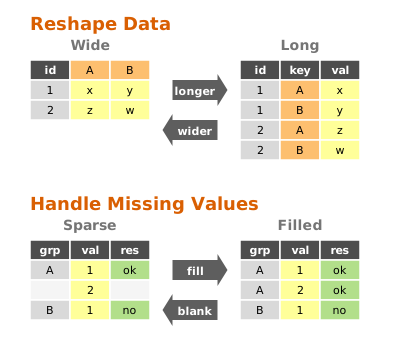
longer (Wide to Long)
The longer command is designed to reshape “wide” data into a “long” format. “Wide” data often has
column names that are actually values of a variable. For example, a table might have columns like
2020, 2021, 2022 representing years. longer gathers these columns into a pair of key-value
columns (e.g., year and population), making the data “longer” (more rows, fewer columns) and
easier to analyze.
Basic Usage
tva longer [input_files...] --cols <columns> [options]
--cols/-c: Specifies which columns to reshape. You can use column names, indices ( 1-based), or ranges (e.g.,3-5,wk*).--names-to: The name of the new column that will store the original column headers ( default: “name”).--values-to: The name of the new column that will store the data values (default: “value”).
Examples
1. String Data in Column Names
Consider a dataset docs/data/relig_income.tsv where income brackets are spread across column
names:
religion	<$10k	$10-20k	$20-30k
Agnostic	27	34	60
Atheist	12	27	37
Buddhist	27	21	30
To tidy this, we want to turn the income columns into a single income variable:
tva longer docs/data/relig_income.tsv --cols 2-4 --names-to income --values-to count
Output:
religion	income	count
Agnostic	<$10k	27
Agnostic	$10-20k	34
Agnostic	$20-30k	60
...
2. Numeric Data in Column Names
The docs/data/billboard.tsv dataset records song rankings by week (wk1, wk2, etc.):
artist	track	wk1	wk2	wk3
2 Pac	Baby Don't Cry	87	82	72
2Ge+her	The Hardest Part	91	87	92
We can gather the week columns and strip the “wk” prefix to get a clean number:
tva longer docs/data/billboard.tsv --cols "wk*" --names-to week --values-to rank --names-prefix "wk" --values-drop-na
--names-prefix "wk": Removes “wk” from the start of the column names (e.g., “wk1” -> “1”).--values-drop-na: Drops rows where the rank is missing (empty).
Output:
artist	track	week	rank
2 Pac	Baby Don't Cry	1	87
2 Pac	Baby Don't Cry	2	82
...
3. Many Variables in Column Names (Regex Extraction)
Sometimes column names contain multiple pieces of information. For example, in the
docs/data/who.tsv dataset, columns like new_sp_m014 encode:
new: new cases (constant)sp: diagnosis methodm: gender (m/f)014: age group (0-14)
country	iso2	iso3	year	new_sp_m014	new_sp_f014
Afghanistan	AF	AFG	1980	NA	NA
We can use --names-pattern with a regular expression to extract these parts into multiple
columns:
tva longer docs/data/who.tsv --cols "new_*" --names-to diagnosis gender age --names-pattern "new_?(.*)_(.)(.*)"
--names-to: We provide 3 names for the 3 capture groups in the regex.--names-pattern: The regexnew_?(.*)_(.)(.*)captures:.*(diagnosis, e.g., “sp”).(gender, e.g., “m”).*(age, e.g., “014”)
Output:
country	iso2	iso3	year	diagnosis	gender	age	value
Afghanistan	AF	AFG	1980	sp	m	014	NA
...
4. Splitting Column Names with a Separator
If column names are consistently separated by a character, you can use --names-sep.
Consider a dataset docs/data/semester.tsv where columns represent year_semester:
student	2020_1	2020_2	2021_1
Alice	85	90	88
Bob	78	82	80
We can split the column names into two separate columns: year and semester.
tva longer docs/data/semester.tsv --cols 2-4 --names-to year semester --names-sep "_"
Output:
student	year	semester	value
Alice	2020	1	85
Alice	2020	2	90
Alice	2021	1	88
Bob	2020	1	78
Bob	2020	2	82
Bob	2021	1	80
wider (Long to Wide)
The wider command is the inverse of longer. It spreads a key-value pair across multiple columns,
increasing the number of columns and decreasing the number of rows. This is useful for creating
summary tables or reshaping data for tools that expect a matrix-like format.
Basic Usage
tva wider [input_files...] --names-from <column> --values-from <column> [options]
--names-from: The column containing the new column names.--values-from: The column containing the new column values.--id-cols: (Optional) Columns that uniquely identify each row. If not specified, all columns exceptnames-fromandvalues-fromare used.--values-fill: (Optional) Value to use for missing cells (default: empty).--names-sort: (Optional) Sort the new column headers alphabetically.--op: (Optional) Aggregation operation (e.g.,sum,mean,count,last). Default:last.
Comparison: stats vs wider
| Feature | stats (Group By) | wider (Pivot) |
|---|---|---|
| Goal | Summarize to rows | Reshape to columns |
| Output | Long / Tall | Wide / Matrix |
Example 1: US Rent and Income
Consider the dataset docs/data/us_rent_income.tsv:
GEOID	NAME	variable	estimate	moe
01	Alabama	income	24476	136
01	Alabama	rent	747	3
02	Alaska	income	32940	508
02	Alaska	rent	1200	13
Here, variable contains the type of measurement (income or rent), and estimate contains the
value. To make this easier to compare, we can widen the data:
tva wider docs/data/us_rent_income.tsv --names-from variable --values-from estimate
Output:
GEOID	NAME	moe	income	rent
01	Alabama	136	24476
01	Alabama	3		747
02	Alaska	508	32940
02	Alaska	13		1200
...
Understanding ID Columns:
By default, wider uses all columns except names-from and values-from as ID columns. In this
example, GEOID, NAME, and moe are treated as IDs.
Because moe (margin of error) is different for the income row (136) and the rent row (3),
wider keeps them as separate rows to preserve data.
To explicitly specify that only GEOID and NAME identify a row (and drop moe):
tva wider docs/data/us_rent_income.tsv --names-from variable --values-from estimate --id-cols GEOID,NAME
Example 2: Capture-Recapture Data (Filling Missing Values)
The docs/data/fish_encounters.tsv dataset describes when fish were detected by monitoring
stations. Some fish are seen at some stations but not others.
fish	station	seen
4842	Release	1
4842	I80_1	1
4842	Lisbon	1
4843	Release	1
4843	I80_1	1
4844	Release	1
If we widen this by station, we will have missing values for stations where a fish wasn’t seen. We
can use --values-fill to fill these gaps with 0.
tva wider docs/data/fish_encounters.tsv --names-from station --values-from seen --values-fill 0
Output:
fish	Release	I80_1	Lisbon
4842	1	1	1
4843	1	1	0
4844	1	0	0
Without --values-fill 0, the missing cells would be empty strings (default).
Complex Reshaping: Longer then Wider
Sometimes data requires multiple steps to be fully tidy. A common pattern is to make data longer to fix column headers, and then wider to separate variables.
Consider the docs/data/world_bank_pop.tsv dataset (a subset):
country	indicator	2000	2001
ABW	SP.URB.TOTL	42444	43048
ABW	SP.URB.GROW	1.18	1.41
AFG	SP.URB.TOTL	4436311	4648139
AFG	SP.URB.GROW	3.91	4.66
Here, years are in columns (needs longer) and variables are in the indicator column (needs
wider). We can pipe tva commands to solve this:
tva longer docs/data/world_bank_pop.tsv --cols 3-4 --names-to year --values-to value | \
tva wider --names-from indicator --values-from value
longer: Reshapes years (cols 3-4) intoyearandvalue.wider: Takes the stream, usesindicatorfor new column names, and fills them withvalue.countryandyearautomatically become ID columns.
Output:
country	year	SP.URB.TOTL	SP.URB.GROW
ABW	2000	42444	1.18
ABW	2001	43048	1.41
AFG	2000	4436311	3.91
AFG	2001	4648139	4.66
Handling Duplicates (Aggregation)
When widening data, you might encounter multiple rows for the same ID and name combination.
tidyr: Often creates list-columns or requires an aggregation function (values_fn).tva: Supports aggregation via the--opargument.
By default (--op last), tva overwrites previous values with the last observed value.
However, you can specify an operation to aggregate these values, similar to values_fn in tidyr
or crosstab in datamash.
Supported operations: count, sum, mean, min, max, first, last, median, mode,
stdev, variance, etc.
Example: Summing values
Example using docs/data/warpbreaks.tsv:
wool	tension	breaks
A	L	26
A	L	30
A	L	54
...
If we want to sum the breaks for each wool/tension pair:
tva wider docs/data/warpbreaks.tsv --names-from wool --values-from breaks --op sum
Output:
L	110	47
M	68	62
H	81	96
(For A-L: 26 + 30 + 54 = 110)
Example: Crosstab (Counting)
You can also use wider to create a frequency table (crosstab) by using --op count. In this case,
--values-from is optional. But to get a proper crosstab, you usually want to group by the other
factor (here, tension), so you should specify it as the ID column.
tva wider docs/data/warpbreaks.tsv --names-from wool --op count --id-cols tension
Output:
L	3	3
M	3	3
H	3	3
(Each combination appears 3 times in this dataset)
Comparison: stats vs wider (Aggregation)
Both tva stats (if available) and tva wider --op ... can aggregate data, but they produce
different structures:
| Feature | tva stats (Group By) | tva wider (Pivot) |
|---|---|---|
| Goal | Summarize data into rows | Reshape data into columns |
| Output Shape | Long / Tall | Wide / Matrix |
| Columns | Fixed (Group + Stat) | Dynamic (Values become Headers) |
| Best For | General summaries, reporting | Cross-tabulation, heatmaps |
Example: Data:
Group   Category    Value
A       X           10
A       Y           20
B       X           30
B       Y           40
tva stats (Sum by Group):
Group   Sum_Value
A       30
B       70
(Retains vertical structure)
tva wider (Sum, name from Category):
Group   X   Y
A       10  20
B       30  40
(Spreads categories horizontally)
fill (Fill Missing Values)
The fill command fills missing values in selected columns using the previous non-missing value (
Last Observation Carried Forward, or LOCF) or a constant. This is common in time-series data or
reports where values are only listed when they change.
Basic Usage
tva fill [options]
--field/-f: Columns to fill.--direction: Currently onlydown(default) is supported.--value/-v: If provided, fills with this constant value instead of the previous value.--na: String to consider as missing (default: empty string).
Example: Filling Down
Input docs/data/pet_names.tsv:
Pet	Name	Age
Dog	Rex	5
	Spot	3
Cat	Felix	2
	Tom	4
To fill the Pet column downwards:
tva fill -H -f Pet docs/data/pet_names.tsv
Output:
Pet	Name	Age
Dog	Rex	5
Dog	Spot	3
Cat	Felix	2
Cat	Tom	4
Example: Filling with Constant
To replace missing values with “Unknown”:
tva fill -H -f Pet -v "Unknown" docs/data/pet_names.tsv
blank (Sparsify / Inverse Fill)
The blank command replaces repeated values in selected columns with an empty string (or a custom
placeholder). This is the inverse of fill and is useful for creating human-readable reports where
repeated group labels are visually redundant.
Basic Usage
tva blank [options]
--field/-f: Columns to blank.--ignore-case/-i: Ignore case when comparing values.
Example
Input docs/data/blank_example.tsv:
Group	Item
A	1
A	2
B	1
Command:
tva blank -H -f Group docs/data/blank_example.tsv
Output:
Group	Item
A	1
	2
B	1
transpose (Matrix Transpose)
The transpose command swaps the rows and columns of a TSV file. It reads the entire file into
memory and performs a matrix transposition.
Basic Usage
tva transpose [input_file] [options]
Notes
- Strict Mode:
transposeexpects a rectangular matrix. All rows must have the same number of columns as the first row. If the file is jagged (rows have different lengths), the command will fail with an error. - Memory Usage: Since it reads the whole file, be cautious with very large files.
Examples
Transpose a table
Transpose docs/data/relig_income.tsv:
tva transpose docs/data/relig_income.tsv
Output (first 5 lines):
religion	Agnostic	Atheist	Buddhist
<$10k	27	12	27
$10-20k	34	27	21
$20-30k	60	37	30
$30-40k	81	25	34
Detailed Options
| Option | Description |
|---|---|
--cols <cols> | (Longer) Columns to reshape. Supports indices (1, 1-3), names (year), and wildcards (wk*). |
--names-to <names...> | (Longer) Name(s) for the new key column(s). |
--values-to <name> | (Longer) Name for the new value column. |
--names-prefix <str> | (Longer) String to remove from start of column names. |
--names-sep <str> | (Longer) Separator to split column names. |
--names-pattern <regex> | (Longer) Regex with capture groups for column names. |
--values-drop-na | (Longer) Drop rows where value is empty. |
--names-from <col> | (Wider) Column for new headers. |
--values-from <col> | (Wider) Column for new values. |
--id-cols <cols> | (Wider) Columns identifying rows. |
--values-fill <str> | (Wider) Fill value for missing cells. |
--names-sort | (Wider) Sort new column headers. |
--op <op> | (Wider) Aggregation operation (sum, mean, count, etc.). |
--field <cols> | (Fill/Blank) Columns to process. |
--direction <dir> | (Fill) Direction to fill (down is default). |
--value <val> | (Fill) Constant value to fill with. |
--na <str> | (Fill) String to treat as missing (default: empty). |
--ignore-case | (Blank) Ignore case when comparing values. |
Comparison with R tidyr
| Feature | tidyr::pivot_longer | tva longer |
|---|---|---|
| Basic pivoting | cols, names_to, values_to | Supported |
| Drop NAs | values_drop_na = TRUE | --values-drop-na |
| Prefix removal | names_prefix | --names-prefix |
| Separator split | names_sep | --names-sep |
| Regex extraction | names_pattern | --names-pattern |
| Feature | tidyr::pivot_wider | tva wider |
|---|---|---|
| Basic pivoting | names_from, values_from | Supported |
| ID columns | id_cols (default: all others) | --id-cols (default: all others) |
| Fill missing | values_fill | --values-fill |
| Sort columns | names_sort | --names-sort |
| Aggregation | values_fn | --op (sum, mean, count, etc.) |
| Multiple values | values_from = c(a, b) | Not supported (single column only) |
| Multiple names | names_from = c(a, b) | Not supported (single column only) |
| Implicit missing | names_expand, id_expand | Not supported |
TVA’s expr language
The expr language evaluates expressions (like spreadsheet formulas) to transform TSV data.
Quick Examples
# Basic arithmetic
tva expr -E '42 + 3.14'
# Output: 45.14

# String manipulation
tva expr -E '"hello" | upper()'
# Output: HELLO

# Using higher-order functions (list results expand to multiple columns)
tva expr -E "map([1,2,3,4,5], x => x * x)"
# Output: 1       4       9       16      25
Topics
Literals
Integer, float, string, boolean, null, and list literals.
42, 3.14, "hello", true, null, [1, 2, 3]
Column References
Use @ prefix to reference columns.
@1, @col_name, @"col name"
Variable Binding
Use as to bind values to variables.
@price * @qty as @total; @total * 1.1
Operators
Arithmetic, comparison, logical, and pipe operators.
+ - * / %, == != < >, and or, |
Function Calls
Prefix calls, pipe calls, and method calls.
trim(@name)
@name | trim() | upper()
@name.trim().upper()
Documentation Index
- Literals - Literal syntax and type system
- Variables - Column references and variable binding
- Operators - Operator precedence and details
- Functions - Complete function reference
- Syntax Guide - Complete syntax documentation
- Rosetta Code - Fun programs
Expr Commands
Comparing modes and other commands:
| Command | What it does | Input row | Output row |
|---|---|---|---|
expr/expr -m eval | Evaluate to new row | a, b | c |
extend/expr -m extend | Add new column(s) | a, b | a, b, c |
mutate/expr -m mutate | Modify column value | a, b | a, c |
expr -m skip-null | Skip null results | a, b | c or nothing |
expr -m filter | Keep or discard row | a, b | a, b or nothing |
filter | a, b | a, b or nothing | |
expr -E '[@b, @c]' | Select columns | a, b, c | b, c |
select | a, b, c | b, c | |
join | Join two tables | a, b and a, c | a, b, c |
Output Modes
The expr command supports five output modes controlled by the -m (or --mode) flag:
eval mode (default, -m eval or -m e)
Evaluates the expression and outputs only the result. The original row data is discarded.
# Simple arithmetic expression (no input needed)
tva expr -E "10 + 20"

# Evaluate expression with inline row data
tva expr -n "price,qty" -r "100,2" -E "@price * @qty"

# String manipulation with inline data
tva expr -n "name" -r "  alice  " -E '@name | trim() | upper()'

# Calculate from file data
tva expr -H -E "@price / @carat" docs/data/diamonds.tsv | tva slice -r 5
Use this mode when you want to compute new values without preserving the original columns.
extend mode (-m extend or -m a)
Evaluates the expression and appends the result as new column(s) to the original row.
# Add a single column
tva expr -H -m extend -E "@price / @carat as @price_per_carat" docs/data/diamonds.tsv | tva slice -r 5

# Add multiple columns using list expression
tva expr -H -m extend -E "[@price / @carat as @price_per_carat, @carat as @carat_rounded]" docs/data/diamonds.tsv | tva slice -r 5
Key behaviors:
- The original row is preserved
- Expression results are appended as new columns
- Header names come from
as @namebindings - List expressions create multiple new columns
mutate mode (-m mutate or -m u)
Modifies an existing column in place. The expression must include an as @column_name binding to
specify which column to modify.
# Modify price column in place
tva expr -H -m mutate -E "@price / @carat as @price" docs/data/diamonds.tsv | tva slice -r 5
Key behaviors:
- Only the specified column is modified
- All other columns and the header remain unchanged
- The
as @column_namebinding is required - Column name must exist in the input (numeric indices like
as @2are not supported)
skip-null mode (-m skip-null or -m s)
Evaluates the expression and outputs the result, but skips rows where the result is null.
# Keep rows where carat > 1 and cut is Premium and price < 3000
tva expr -H -m skip-null -E 'if(@carat > 1 and @cut eq q(Premium) and @price < 3000, @0, null)' docs/data/diamonds.tsv | tva slice -r 5
Key behaviors:
- Rows with null results are excluded from output
- Useful for filtering based on complex conditions
- Return
@0to preserve the original row, or any other value to output that value
filter mode (-m filter or -m f)
Evaluates a boolean expression and outputs the original row only when the expression is true.
# Filter with a simple condition
tva expr -H -m filter -E "@price > 10000" docs/data/diamonds.tsv | tva slice -r 5

# Filter with multiple conditions
tva expr -H -m filter -E '@carat > 1 and @cut eq q(Premium) and @price < 3000' docs/data/diamonds.tsv | tva slice -r 5
Key behaviors:
- The original row and header are preserved
- Row is output only if the expression evaluates to true
- Expression should return a boolean (non-zero numbers and non-empty strings are truthy)
- Similar to
tva filterbut allows complex expressions
Notes
- Performance: For simple filtering or column selection, use
tva filterortva selectinstead - they are ~2x faster. Usetva expronly when you need functions, complex expressions, or calculations. - Type conversion: No implicit type conversion - use explicit functions like
int(),float(),string() - String comparison: Uses
eq,ne,lt, etc. (not==,!=) - Pipe operator:
|passes left value as first argument to right function - Streaming: All expressions are evaluated per row during streaming
- Persistent variables: Variables starting with
__(e.g.,@__total) persist across rows, useful for running totals
Data Organization Documentation
This document explains how to use the data organization commands in tva: sort, reverse,
join, append, and split. These commands allow you to rearrange, combine, and split
your data.
Introduction
Data organization involves sorting rows, combining multiple datasets, or splitting data into multiple files. These operations are essential for data preparation and pipeline construction.
- Sorting & Reversing:
sort: Sorts rows based on one or more key fields.reverse: Reverses the order of lines (liketac), optionally keeping the header at the top.
- Combining:
join: Joins two files based on common keys.append: Concatenates multiple TSV files, handling headers correctly.
- Splitting:
split: Splits a file into multiple files (by size, key, or random).
sort (External Sort)
The sort command sorts the lines of a TSV file based on the values in specified columns. It
supports both lexicographic (string) and numeric sorting.
Basic Usage
tva sort [input_files...] [options]
--key/-k: Specify the field(s) to use as the sort key. You can use 1-based indices ( e.g.,1,2) or ranges (e.g.,2,4-5).--numeric/-n: Compare the key fields numerically instead of lexicographically.--reverse/-r: Reverse the sort result (descending order).
Examples
1. Sort by a single column (Lexicographic)
Sort docs/data/us_rent_income.tsv by the NAME column (column 2):
tva sort docs/data/us_rent_income.tsv -k 2
Output (first 5 lines):
01	Alabama	income	24476	136
01	Alabama	rent	747	3
02	Alaska	income	32940	508
02	Alaska	rent	1200	13
04	Arizona	income	27517	148
2. Sort numerically
Sort docs/data/us_rent_income.tsv by the estimate column (column 4) numerically:
tva sort docs/data/us_rent_income.tsv -k 4 -n
Output (first 5 lines):
GEOID	NAME	variable	estimate	moe
05	Arkansas	rent	709	5
01	Alabama	rent	747	3
04	Arizona	rent	972	4
02	Alaska	rent	1200	13
3. Sort by multiple columns
Sort first by GEOID (column 1), then by NAME (column 2):
tva sort docs/data/us_rent_income.tsv -k 1,2
reverse (Reverse Lines)
The reverse command reverses the order of lines in the input. This is similar to the Unix tac
command but includes features specifically for tabular data, such as header preservation.
Basic Usage
tva reverse [input_files...] [options]
--header/-H: Treat the first line as a header and keep it at the top of the output.
Examples
Reverse a file keeping the header
Reverse docs/data/us_rent_income.tsv but keep the header line at the top:
tva reverse docs/data/us_rent_income.tsv --header
Output (first 5 lines):
GEOID	NAME	variable	estimate	moe
06	California	rent	1358	3
06	California	income	29454	109
05	Arkansas	rent	709	5
05	Arkansas	income	23789	165
join
Joins lines from a TSV data stream against a filter file using one or more key fields.
Examples
1. Join two files by a common key
Using docs/data/who.tsv (contains iso3) and docs/data/world_bank_pop.tsv (contains country
with ISO3 codes):
tva join -H --filter-file docs/data/who.tsv --key-fields iso3 --data-fields country docs/data/world_bank_pop.tsv
Output:
country	indicator	2000	2001
AFG	SP.URB.TOTL	4436311	4648139
AFG	SP.URB.GROW	3.91	4.66
2. Append fields from the filter file
To add the year column from who.tsv to the output:
tva join -H --filter-file docs/data/who.tsv -k iso3 -d country --append-fields year docs/data/world_bank_pop.tsv
Output:
country	indicator	2000	2001	year
AFG	SP.URB.TOTL	4436311	4648139	1980
AFG	SP.URB.GROW	3.91	4.66	1980
append
Concatenates TSV files with optional header awareness and source tracking.
Examples
1. Concatenate files with headers
When appending multiple files with headers, use -H to keep only the header from the first file:
tva append -H docs/data/world_bank_pop.tsv docs/data/world_bank_pop.tsv
Output:
country	indicator	2000	2001
ABW	SP.URB.TOTL	42444	43048
ABW	SP.URB.GROW	1.18	1.41
AFG	SP.URB.TOTL	4436311	4648139
AFG	SP.URB.GROW	3.91	4.66
ABW	SP.URB.TOTL	42444	43048
ABW	SP.URB.GROW	1.18	1.41
AFG	SP.URB.TOTL	4436311	4648139
AFG	SP.URB.GROW	3.91	4.66
2. Track source file
Add a column indicating the source file:
tva append -H --track-source docs/data/world_bank_pop.tsv
Output:
file	country	indicator	2000	2001
world_bank_pop	ABW	SP.URB.TOTL	42444	43048
world_bank_pop	ABW	SP.URB.GROW	1.18	1.41
...
split
Splits TSV rows into multiple output files.
Usage
Split file.tsv into multiple files with 1000 lines each:
tva split --lines-per-file 1000 --header-in-out file.tsv
This will create files like file_0001.tsv, file_0002.tsv, etc., each containing up to 1000 data
rows (plus the header in each file if --header-in-out is used).
Statistics Documentation
This document explains how to use the statistics and summary commands in tva: stats, **bin
**, and uniq. These commands allow you to summarize data, discretize values, and deduplicate
rows.
Introduction
stats: Calculates summary statistics (like sum, mean, max) for fields, optionally grouping by key fields.bin: Discretizes numeric values into bins (useful for histograms).uniq: Deduplicates rows based on a key, with options for equivalence classes and occurrence numbering.
stats (Summary Statistics)
The stats command calculates summary statistics for specified fields. It mimics the functionality
of tsv-summarize.
Basic Usage
tva stats [input_files...] [options]
Options
--header/-H: Treat the first line of each file as a header.--group-by/-g: Fields to group by (e.g.,1,1,2).--count/-c: Count the number of rows.--sum: Calculate sum of fields.--mean: Calculate mean of fields.--min: Calculate min of fields.--max: Calculate max of fields.--median: Calculate median of fields.--stdev: Calculate standard deviation of fields.--variance: Calculate variance of fields.--mad: Calculate median absolute deviation of fields.--first: Get the first value of fields.--last: Get the last value of fields.--unique: List unique values of fields (comma separated).--collapse: List all values of fields (comma separated).--rand: Pick a random value from fields.
Examples
1. Calculate basic stats for a column
Calculate the mean and max of the estimate column in docs/data/us_rent_income.tsv:
tva stats docs/data/us_rent_income.tsv --header --mean estimate --max estimate
Output:
estimate_mean	estimate_max
14316.2	32940
2. Group by a column
Group by variable and calculate the mean of estimate:
tva stats docs/data/us_rent_income.tsv --header --group-by variable --mean estimate
Output:
variable	estimate_mean
income	27635.2
rent	997.2
3. Count rows per group
Count the number of rows for each unique value in NAME:
tva stats docs/data/us_rent_income.tsv --header --group-by NAME --count
Output (first 5 lines):
NAME	count
Alabama	2
Alaska	2
Arizona	2
Arkansas	2
bin (Discretize Values)
The bin command discretizes numeric values into bins. This is useful for creating histograms or
grouping continuous data.
Basic Usage
tva bin [input_files...] --width <width> --field <field> [options]
Options
--width/-w: Bin width (bucket size). Required.--field/-f: Field to bin (1-based index or name). Required.--min/-m: Alignment/Offset (bin start). Default: 0.0.--new-name: Append as new column with this name (instead of replacing).--header/-H: Input has header.
Notes
- Formula:
floor((value - min) / width) * width + min - Replaces the value in the target field with the bin start (lower bound) unless
--new-nameis used.
Examples
1. Bin a numeric column
Bin the breaks column in docs/data/warpbreaks.tsv with a width of 10:
tva bin docs/data/warpbreaks.tsv --header --width 10 --field breaks
Output (first 5 lines):
wool	tension	breaks
A	L	20
A	L	30
A	L	50
A	M	10
2. Bin with alignment
Bin the breaks column, aligning bins to start at 5:
tva bin docs/data/warpbreaks.tsv --header --width 10 --min 5 --field breaks
Output (first 5 lines):
wool	tension	breaks
A	L	25
A	L	25
A	L	45
A	M	15
3. Append bin as a new column
Bin the breaks column and append the result as breaks_bin:
tva bin docs/data/warpbreaks.tsv --header --width 10 --field breaks --new-name breaks_bin
Output (first 5 lines):
wool	tension	breaks	breaks_bin
A	L	26	20
A	L	30	30
A	L	54	50
A	M	18	10
uniq (Deduplicate Rows)
The uniq command deduplicates rows of one or more TSV files without sorting. It uses a hash set to
track unique keys.
Basic Usage
tva uniq [input_files...] [options]
Options
--fields/-f: TSV fields (1-based) to use as dedup key.--header/-H: Treat the first line of each input as a header.--ignore-case/-i: Ignore case when comparing keys.--repeated/-r: Output only lines that are repeated based on the key.--at-least/-a: Output only lines that are repeated at least INT times.--max/-m: Max number of each unique key to output (zero is ignored).--equiv/-e: Append equivalence class IDs rather than only uniq entries.--number/-z: Append occurrence numbers for each key.
Examples
1. Deduplicate whole rows
tva uniq docs/data/us_rent_income.tsv --header
Output (first 5 lines):
GEOID	NAME	variable	estimate	moe
01	Alabama	income	24476	136
01	Alabama	rent	747	3
02	Alaska	income	32940	508
2. Deduplicate by a specific column
Deduplicate based on the NAME column:
tva uniq docs/data/us_rent_income.tsv --header -f NAME
Output (first 5 lines):
GEOID	NAME	variable	estimate	moe
01	Alabama	income	24476	136
02	Alaska	income	32940	508
04	Arizona	income	27517	148
05	Arkansas	income	23789	165
3. Output repeated lines only
Output lines where the NAME column appears more than once:
tva uniq docs/data/us_rent_income.tsv --header -f NAME --repeated
Output (first 5 lines):
GEOID	NAME	variable	estimate	moe
01	Alabama	rent	747	3
02	Alaska	rent	1200	13
04	Arizona	rent	972	4
05	Arkansas	rent	709	5
Plotting Documentation
This document explains how to use the plotting commands in tva: plot point. These commands
bring data visualization capabilities to the terminal, inspired by the grammar of graphics
philosophy of ggplot2.
Introduction
Terminal-based plotting allows you to quickly visualize data without leaving the command line. tva
provides plotting tools that render directly in your terminal using ASCII/Unicode characters:
plot point: Draws scatter plots or line charts from TSV data.plot box: Draws box plots (box-and-whisker plots) from TSV data.
plot point (Scatter Plots and Line Charts)
The plot point command creates scatter plots or line charts directly in your terminal. It maps TSV
columns to visual aesthetics (position, color) and renders the chart using ASCII/Unicode characters.
Basic Usage
tva plot point [input_file] --x <column> --y <column> [options]
-x/--x: The column for X-axis position (required).-y/--y: The column for Y-axis position (required).--color: Column for grouping/coloring points by category (optional).-l/--line: Draw line chart instead of scatter plot.
Column Specification
Columns can be specified by:
- Header name: e.g.,
-x age,-y income - 1-based index: e.g.,
-x 1,-y 3
Examples
1. Basic Scatter Plot
The simplest use case is plotting two numeric columns against each other.
Using the tests/data/plot/iris.tsv dataset (Fisher’s Iris dataset):
tva plot point tests/data/plot/iris.tsv -x sepal_length -y sepal_width
This creates a scatter plot showing the relationship between sepal length and sepal width.
Output (terminal chart):
6│sepal_width
 │
 │
 │
 │
 │
 │
 │
 │                                ⠠
 │                             ⡀
 │                       ⠂          ⢀
4│                     ⡀     ⠂    ⢀                                      ⢀   ⢀
 │                     ⠄   ⠄ ⠄
 │           ⠈     ⠁ ⠅ ⠄ ⠄     ⠄                                ⠁
 │           ⠈   ⠁   ⠅ ⠅ ⠁   ⠁          ⠈   ⠈ ⠨       ⠄
 │       ⠈   ⢈ ⠈ ⡀ ⡀ ⠁                ⠈         ⢈ ⠁   ⡀ ⠁ ⡁ ⠁   ⠁
 │     ⠐ ⢐       ⠂ ⠂ ⠂       ⠂  ⢐ ⢐   ⠐ ⢐ ⢐ ⢀ ⢀ ⢀ ⠂ ⡂ ⠂ ⠂     ⠂ ⠂⢀     ⠐ ⠐
 │                       ⡀      ⢐ ⠐ ⢐   ⢀ ⠐ ⠐ ⢐ ⢐ ⠂     ⠂          ⠐     ⠐
 │                             ⠂  ⠐ ⠐     ⠐                              ⠐
 │                 ⠅   ⠁       ⠅⠈ ⠈           ⠈       ⠁
 │         ⠈         ⠁         ⠁        ⠠   ⠠ ⠈
2│                   ⡀                                              sepal_length
 └──────────────────────────────────────────────────────────────────────────────
 4                                       6                                     8
2. Grouped by Category (Color)
Use the --color option to group points by a categorical column. Each unique value gets a different
color.
tva plot point tests/data/plot/iris.tsv -x petal_length -y petal_width --color label --cols 1.0 --rows 1.0
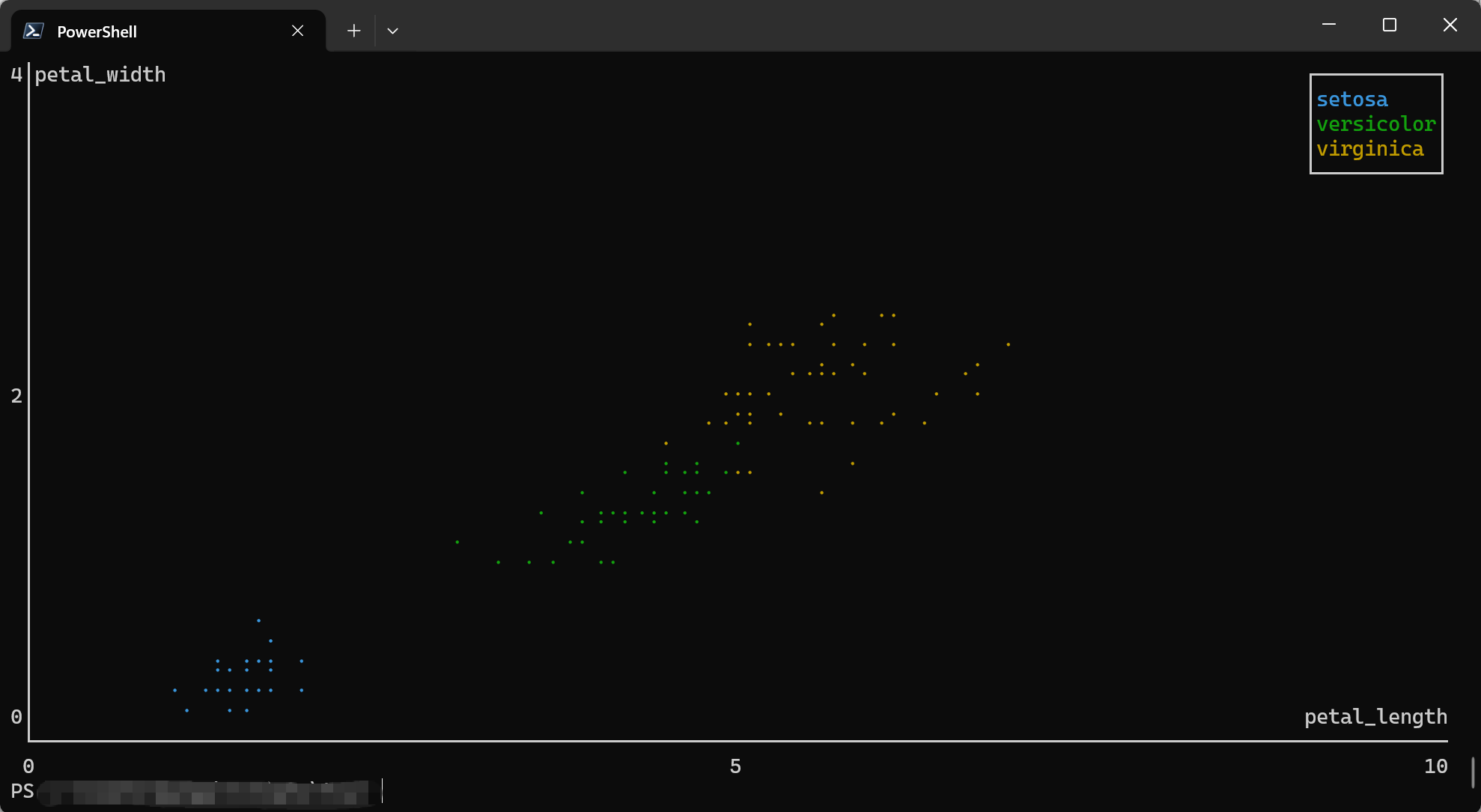
This creates a scatter plot with three colors, one for each iris species (setosa, versicolor, virginica).
The output will show three distinct clusters with different markers/colors:
- Setosa: Small petals, clustered at bottom-left
- Versicolor: Medium petals, in the middle
- Virginica: Large petals, at top-right
3. Line Chart
Use the -l or --line flag to connect points with lines instead of drawing individual points.
tva plot point tests/data/plot/iris.tsv -x sepal_length -y sepal_width --line --cols 1.0 --rows 1.0
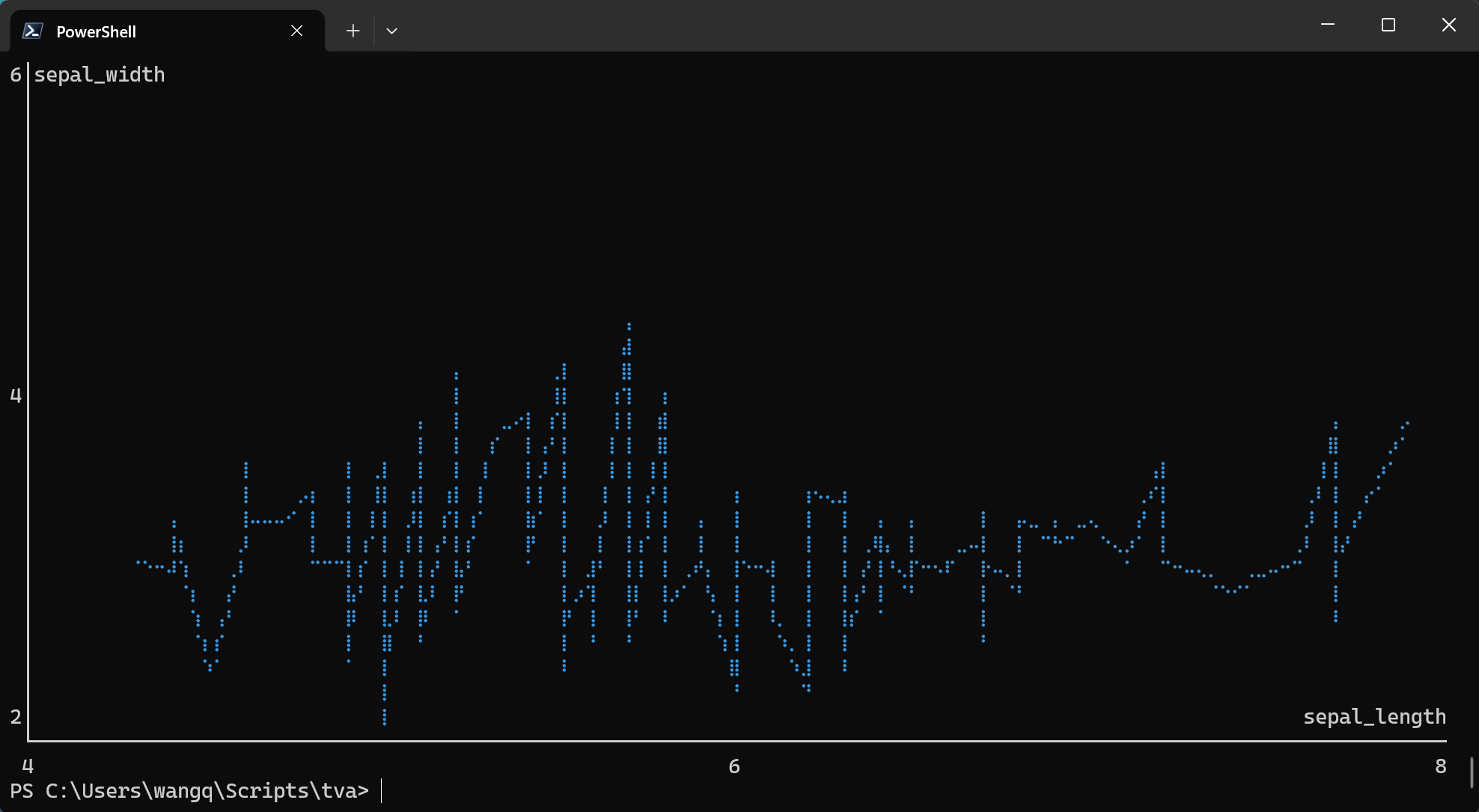
tva plot point tests/data/plot/iris.tsv -x sepal_length -y sepal_width --path --cols 1.0 --rows 1.0
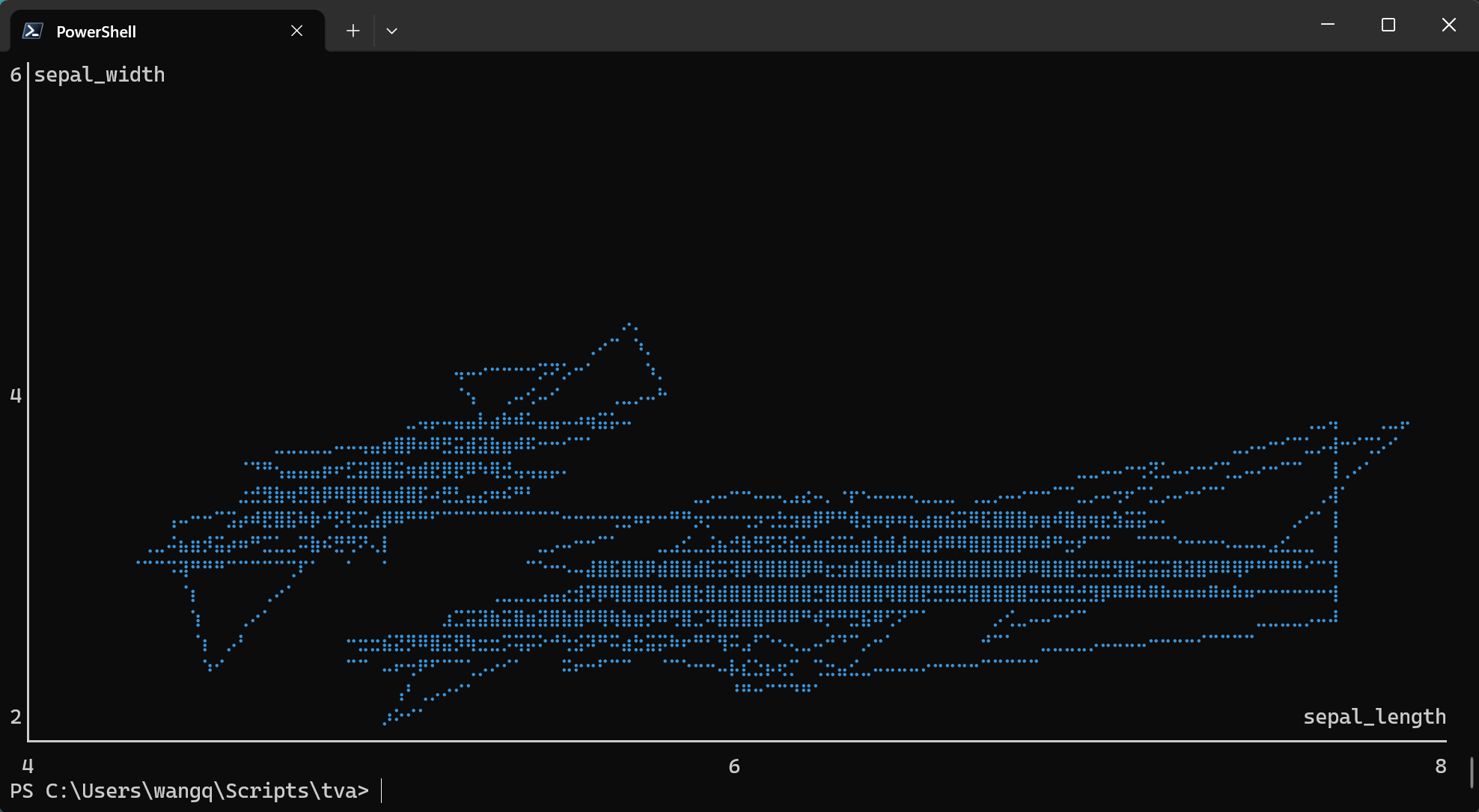
4. Using Column Indices
You can use 1-based column indices instead of header names:
tva plot point tests/data/plot/iris.tsv -x 1 -y 3 --color 5
This maps:
- Column 1 (
sepal_length) to X-axis - Column 3 (
petal_length) to Y-axis - Column 5 (
label) to color
5. Different Marker Styles
Choose from three marker types with -m or --marker:
# Braille markers (default, highest resolution)
tva plot point tests/data/plot/iris.tsv -x sepal_length -y sepal_width -m braille

# Dot markers
tva plot point tests/data/plot/iris.tsv -x sepal_length -y sepal_width -m dot

# Block markers
tva plot point tests/data/plot/iris.tsv -x sepal_length -y sepal_width -m block
7. Regression Line
Use --regression to overlay a linear regression line (least squares fit) on the scatter plot. This
helps visualize trends in the data.
tva plot point tests/data/plot/iris.tsv -x sepal_length -y petal_length -m dot --regression
When combined with --color, a separate regression line is drawn for each group:
tva plot point tests/data/plot/iris.tsv -x sepal_length -y petal_length -m dot --color label --regression --cols 1.0 --rows 1.0
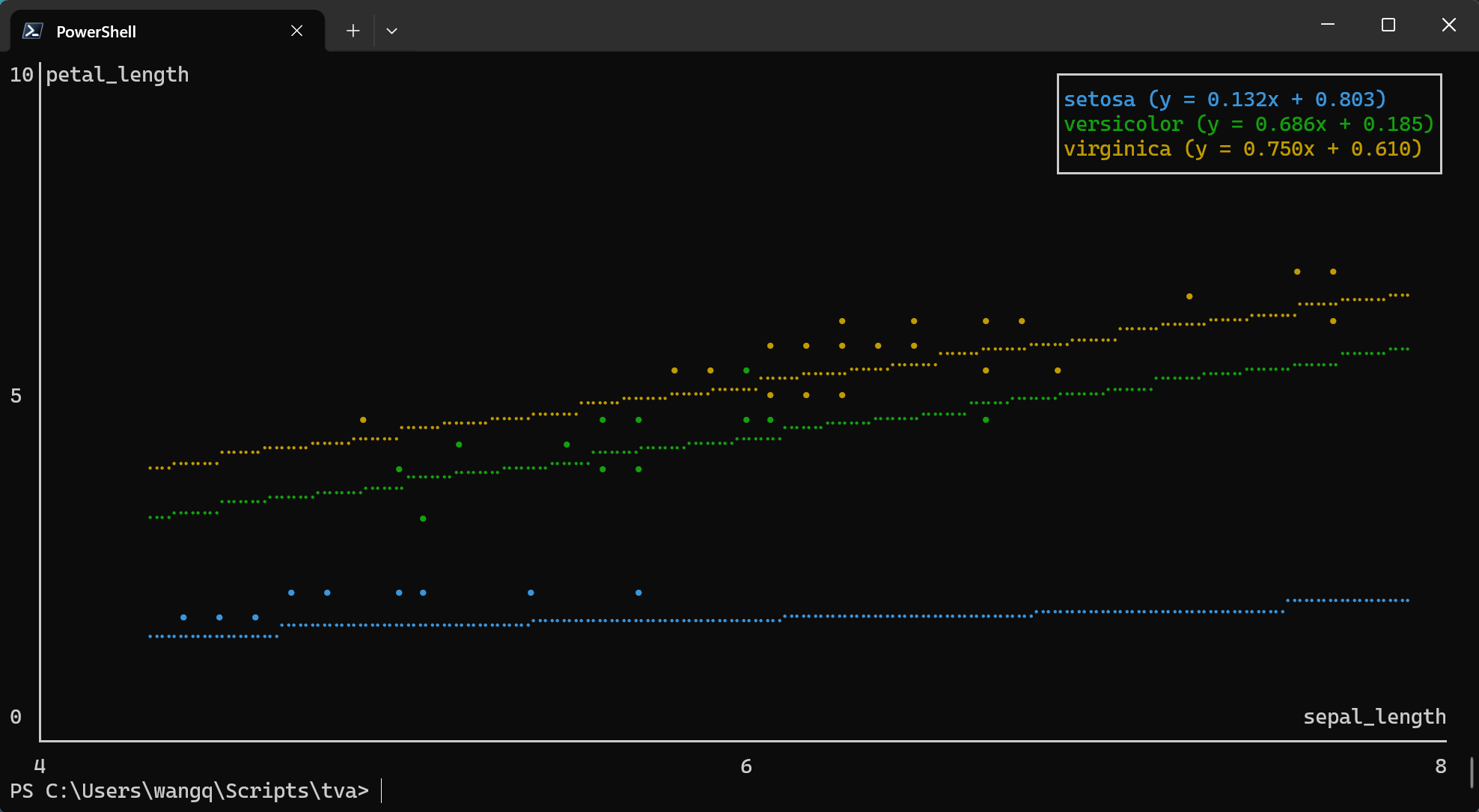
Note: --regression cannot be used with --line or --path.
8. Handling Invalid Data
Use --ignore to skip rows with non-numeric values:
tva plot point data.tsv -x value1 -y value2 --ignore
Detailed Options
| Option | Description |
|---|---|
-x <COL> / --x <COL> | Required. Column for X-axis position. |
-y <COL> / --y <COL> | Required. Column for Y-axis position. |
--color <COL> | Column for grouping/coloring by category. |
-l / --line | Draw line chart instead of scatter plot. |
--path | Draw path chart (connect points in original order). |
-r / --regression | Overlay linear regression line. |
-m <TYPE> / --marker <TYPE> | Marker style: braille (default), dot, or block. |
--cols <N> | Chart width in characters or ratio (default: 1.0, i.e., full terminal width). |
--rows <N> | Chart height in characters or ratio (default: 1.0, i.e., full terminal height minus 1 for prompt). |
--ignore | Skip rows with non-numeric values. |
Comparison with R ggplot2
| Feature | ggplot2::geom_point | tva plot point |
|---|---|---|
| Basic scatter plot | aes(x, y) | -x <col> -y <col> |
| Color by group | aes(color = group) | --color <col> |
| Line chart | geom_line() | --line |
| Path chart | geom_path() | --path |
| Regression line | geom_smooth(method = "lm") | --regression |
| Faceting | facet_wrap() / facet_grid() | Not supported |
| Themes | theme_*() | Terminal-based only |
| Output | Graphics file / Viewer | Terminal ASCII/Unicode |
tva plot point brings the core concepts of the grammar of graphics to the command line, allowing
for quick data exploration without leaving your terminal.
plot box (Box Plots)
The plot box command creates box plots (box-and-whisker plots) directly in your terminal. It
visualizes the distribution of a numeric variable, showing the median, quartiles, and potential
outliers.
Basic Usage
tva plot box [input_file] --y <column> [options]
-y/--y: The column(s) to plot (required). Can specify multiple columns separated by commas.--color: Column for grouping/coloring boxes by category (optional).--outliers: Show outlier points beyond the whiskers.
Examples
1. Basic Box Plot
The simplest use case is plotting a single numeric column.
Using the tests/data/plot/iris.tsv dataset:
tva plot box tests/data/plot/iris.tsv -y sepal_length --cols 60 --rows 20
This creates a box plot showing the distribution of sepal length values.
Output (terminal chart):
10│
  │
  │
  │
  │
 8│        ─┬─
  │         │
  │         │
  │         │
  │         │
  │        ███
 6│        ─┼─
  │        ███
  │        ███
  │         │
  │         │
  │        ─┴─
 4│
  ├─────────────────────────────────────────────────────────
      sepal_length
2. Grouped Box Plot
Use the --color option to create separate box plots for each category:
tva plot box tests/data/plot/iris.tsv -y sepal_length --color label --cols 1.0 --rows 1.0
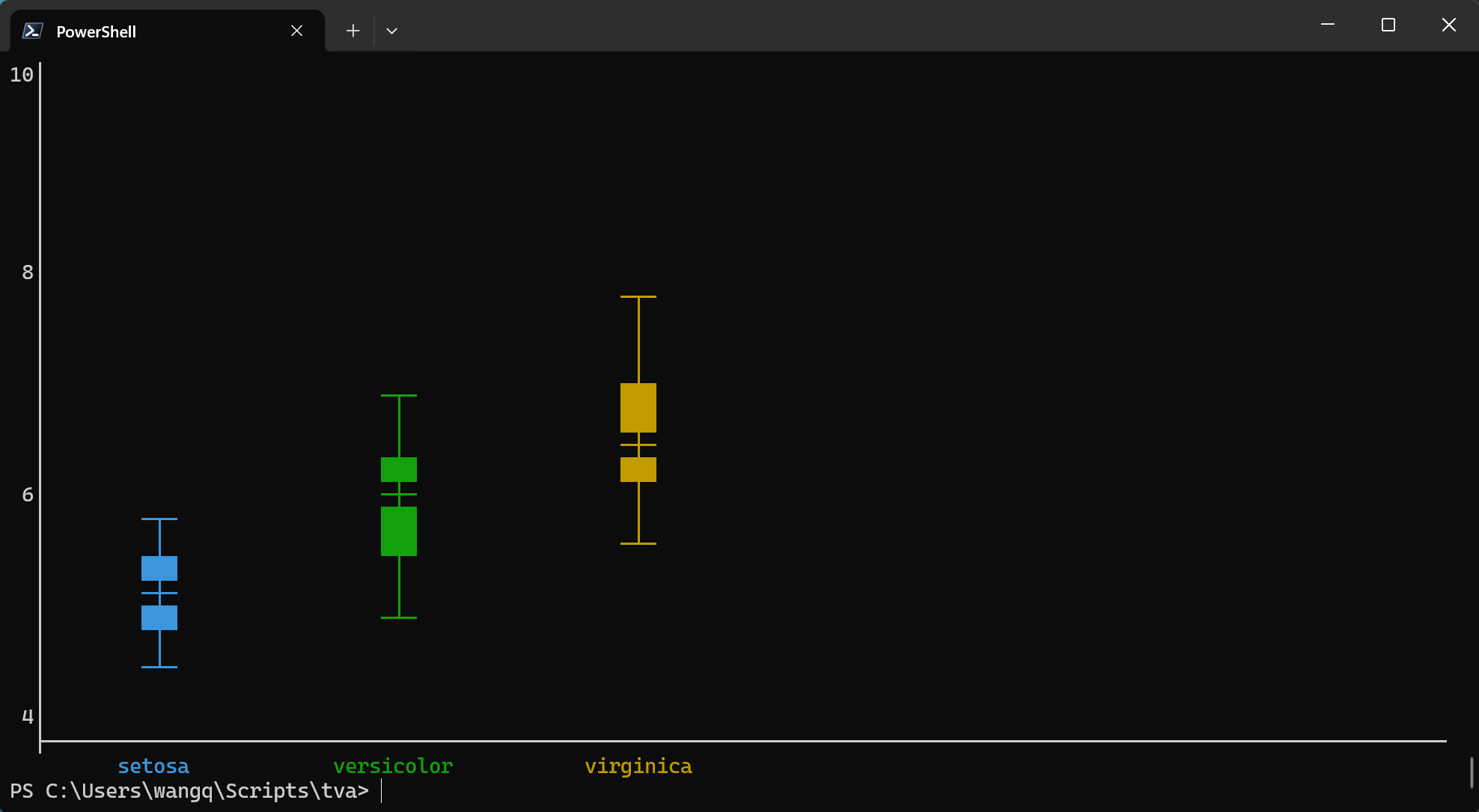
This creates three box plots side by side, one for each iris species (setosa, versicolor, virginica).
3. Multiple Columns
Plot multiple numeric columns for comparison:
tva plot box tests/data/plot/iris.tsv -y "sepal_length,sepal_width" --color label --cols 1.0 --rows 1.0
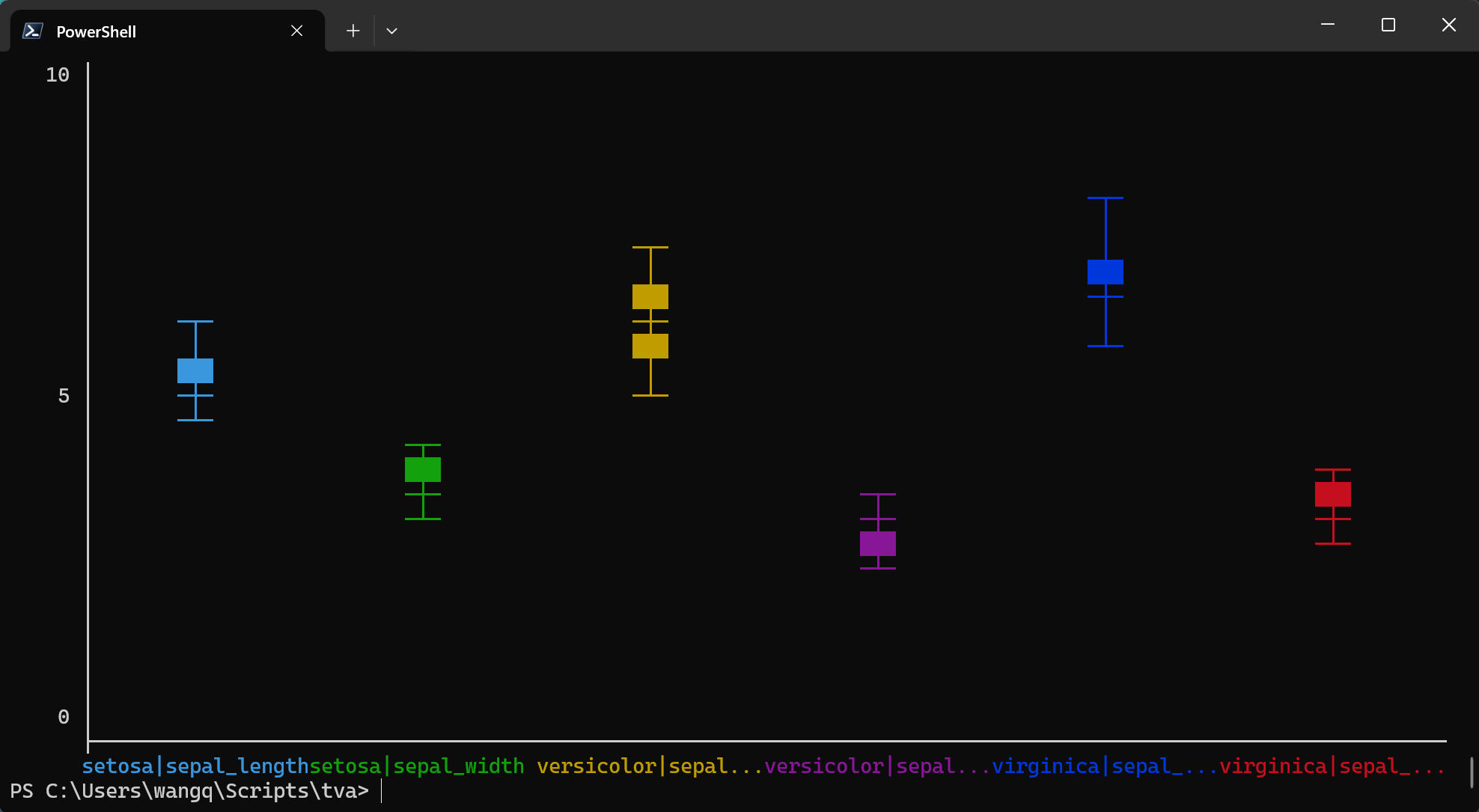
This creates four box plots side by side, one for each measurement column.
4. Show Outliers
Display outlier points that fall beyond the whiskers:
tva plot box tests/data/plot/iris.tsv -y petal_width --color label --outliers --cols 80 --rows 20
 4│
  │
  │
  │
  │                                                ─┬─
 2│                                                ─┼─
  │                            ─┬─                 ███
  │                            ─┼─                 ─┴─
  │                            ─┴─
  │         •
  │        ─┬─
 0│        ─┴─
  │
  │
  │
  │
  │
-2│
  ├─────────────────────────────────────────────────────────────────────────────
         setosa            versicolor           virginica
Detailed Options
| Option | Description |
|---|---|
-y <COL> / --y <COL> | Required. Column(s) to plot. Multiple columns can be comma-separated. |
--color <COL> | Column for grouping by category. |
--outliers | Show outlier points beyond whiskers. |
--cols <N> | Chart width in characters or ratio (default: 1.0). |
--rows <N> | Chart height in characters or ratio (default: 1.0). |
--ignore | Skip rows with non-numeric values. |
Comparison with R ggplot2
| Feature | ggplot2::geom_boxplot | tva plot box |
|---|---|---|
| Basic box plot | aes(y = value) | -y <col> |
| Grouped box plot | aes(x = group, y = value) | -y <col> --color <group> |
| Show outliers | outlier.shape | --outliers |
| Multiple variables | facet_wrap() or multiple geoms | -y "col1,col2" |
| Horizontal boxes | coord_flip() | Not supported |
| Fill color | fill aesthetic | Terminal-based only |
plot bin2d (2D Binning Heatmap)
The plot bin2d command creates 2D binning heatmaps directly in your terminal. It divides the plane
into rectangles, counts the number of cases in each rectangle, and visualizes the density using
character intensity. This is a useful alternative to plot point in the presence of overplotting.
Workflow: Use plot bin2d for quick exploration with automatic binning, then use bin with
manually determined parameters for precise processing.
Basic Usage
tva plot bin2d [input_file] --x <column> --y <column> [options]
-x/--x: The column for X-axis position (required).-y/--y: The column for Y-axis position (required).-b/--bins: Number of bins in each direction (default: 30, orx,yfor different counts).-S/--strategy: Automatic bin count strategy:freedman-diaconis,sqrt,sturges.--binwidth: Width of bins (orx,yfor different widths).
Examples
1. Basic 2D Binning
Using the docs/data/diamonds.tsv dataset (diamond physical dimensions):
This creates a heatmap showing the density distribution of diamond length (x) vs width (y). The output shows the concentration of diamonds in different size ranges.
For better visualization of the main data cluster, you can filter the data first:
tva plot bin2d docs/data/diamonds.48.tsv -x x -y y
Output (terminal chart):
8│y                                                               ·░▒▓█ Max:3908
 │
 │                                                                    ··
 │                                                            ········
 │                                                            ·····
 │                                                     ·····
 │                                                  ···░░···
 │                                             ·····░░░···
 │                                        ·····▒▒▒··
 │                                        ···░░···
 │                                      ░░···
6│                                ···░░░··
 │                           ···░░···
 │                      ···  ·····
 │                      ···░░
 │                 ···▒▒···
 │          ··     ·····
 │       ·····▓▓▓··
 │  ···░░···░░···
 │  ···██····
 │  ······
4│··                                                                           x
 └──────────────────────────────────────────────────────────────────────────────
 4                                       6                                     8
2. Custom Bin Count
You can control the size of the bins by specifying the number of bins in each direction:
# Same bins for both axes
tva plot bin2d docs/data/diamonds.48.tsv -x x -y y --bins 20

# Different bins for X and Y
tva plot bin2d docs/data/diamonds.48.tsv -x x -y y --bins 30,15
3. Specify Bin Width
Or by specifying the width of the bins:
tva plot bin2d docs/data/diamonds.48.tsv -x x -y y --binwidth 0.5,0.5
4. Automatic Bin Selection
Use a strategy to automatically determine the number of bins:
tva plot bin2d docs/data/diamonds.48.tsv -x x -y y --cols 1.0 --rows 1.0 -S freedman-diaconis
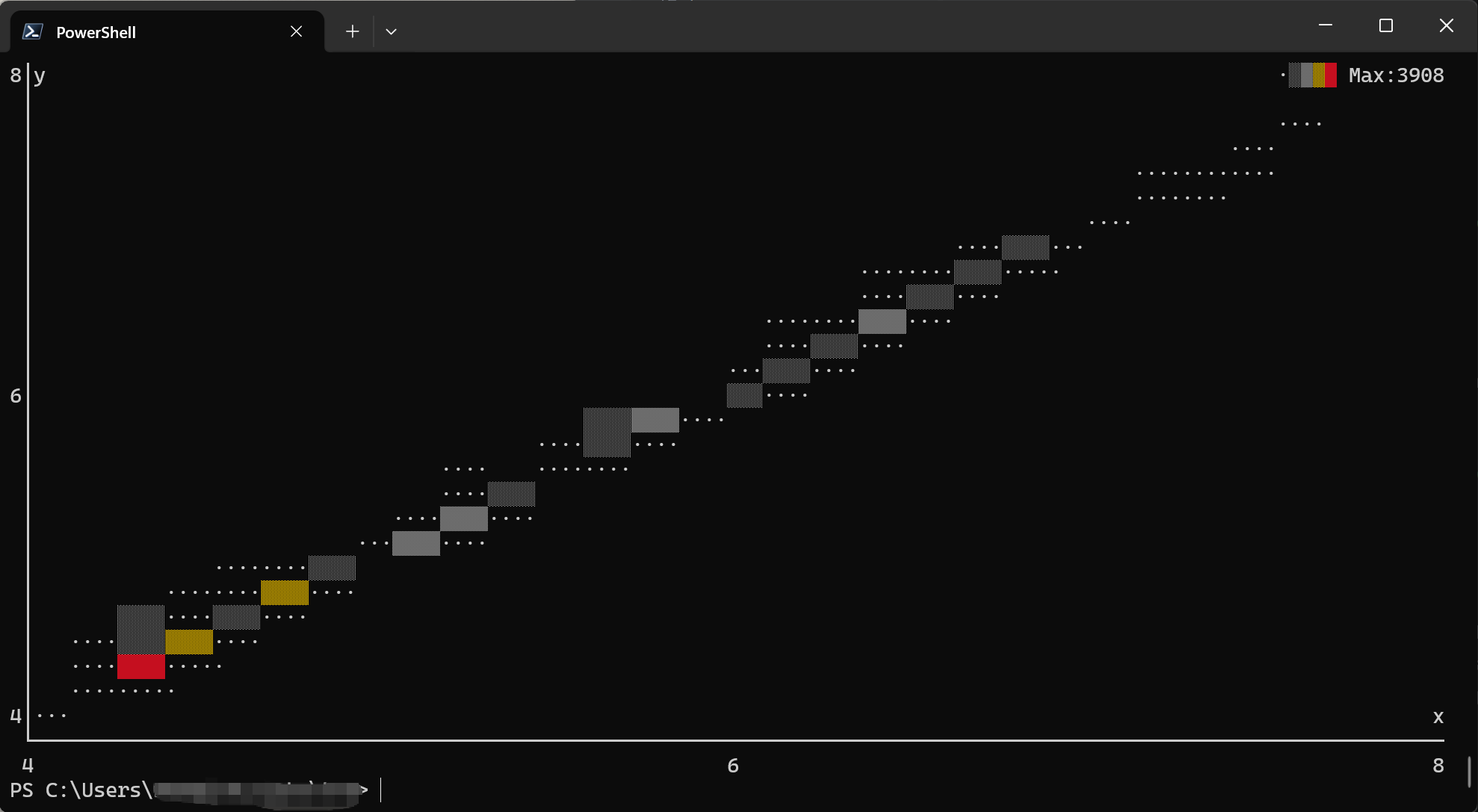
Available strategies:
freedman-diaconis: Based on data distribution (robust to outliers)sqrt: Square root of number of observationssturges: Sturges’ formula (1 + log2(n))
Detailed Options
| Option | Description |
|---|---|
-x <COL> / --x <COL> | Required. X-axis column (1-based index or name). |
-y <COL> / --y <COL> | Required. Y-axis column (1-based index or name). |
-b <N> / --bins <N> | Number of bins (default: 30, or x,y for different counts). |
-S <NAME> / --strategy <NAME> | Auto bin count strategy: freedman-diaconis, sqrt, sturges. |
--binwidth <W> | Bin width (or x,y for different widths). |
--cols <N> | Chart width in characters (default: 80). |
--rows <N> | Chart height in characters (default: 24). |
--ignore | Skip rows with non-numeric values. |
Comparison with R ggplot2
| Feature | ggplot2::geom_bin2d | tva plot bin2d |
|---|---|---|
| Basic heatmap | aes(x, y) | -x <col> -y <col> |
| Bin count | bins | --bins or -S |
| Bin width | binwidth | --binwidth |
| Fill scale | scale_fill_* | Character density (·░▒▓█) |
Workflow: Exploration to Production
plot bin2d is designed for quick data exploration. After visualizing the data distribution:
-
Explore: Use
plot bin2dto see patterns:tva plot bin2d data.tsv -x age -y income -
Determine parameters: Note the optimal bin parameters from the visualization.
-
Process: Use
tva binfor precise, production-ready binning:tva bin data.tsv -f age -w 5 | \ tva bin -f income -w 5000 | \ tva stats -g age,income count
Tips
-
Large datasets: For very large datasets, consider sampling first:
tva sample data.tsv -n 1000 | tva plot point -x x -y y -
Piping data: You can pipe data from other
tvacommands:tva filter data.tsv -H -c value -gt 0 | tva plot point -x x -y y -
Viewing output: The chart is rendered directly to stdout. Use a terminal with good Unicode support for best results with Braille markers.
Formatting & Utilities Documentation
check: Validate TSV file structure.nl: Add line numbers.keep-header: Run a shell command on the body, preserving the header.
check
Checks TSV file structure for consistent field counts.
Usage
tva check [files...]
It validates that every line in the file has the same number of fields as the first line. If a mismatch is found, it reports the error line and exits with a non-zero status.
Examples
Check a single file:
tva check docs/data/household.tsv
Output:
2 lines, 5 fields
nl
Adds line numbers to TSV rows.
Usage
tva nl [files...] [options]
Options:
-H/--header: Treat the first line as a header. The header line is not numbered, and a “line” column is added to the header.-s <STR>/--header-string <STR>: Set the header name for the line number column (implies-H).-n <N>/--start-number <N>: Start numbering from N (default: 1).
Examples
Add line numbers (no header logic):
tva nl docs/data/household.tsv
Output:
1	family	dob_child1	dob_child2	name_child1	name_child2
2	1	1998-11-26	2000-01-29	J	K
Add line numbers with header awareness:
tva nl -H docs/data/household.tsv
Output:
line	family	dob_child1	dob_child2	name_child1	name_child2
1	1	1998-11-26	2000-01-29	J	K
keep-header
Executes a shell command on the body of a TSV file, preserving the header.
Usage
tva keep-header [files...] -- <command> [args...]
The first line of the first input file is printed immediately. The remaining lines (and all lines from subsequent files) are piped to the specified command. The output of the command is then printed.
Examples
Sort a file while keeping the header at the top:
tva keep-header data.tsv -- sort
Grep for a pattern but keep the header:
tva keep-header docs/data/world_bank_pop.tsv -- grep "AFG"
Output:
country	indicator	2000	2001
AFG	SP.URB.TOTL	4436311	4648139
AFG	SP.URB.GROW	3.91	4.66
from Command Documentation
The from command converts other file formats (CSV, XLSX, HTML) into TSV (Tab-Separated Values).
Usage
tva from <SUBCOMMAND> [options]
Subcommands
csv: Convert CSV to TSV.xlsx: Convert XLSX to TSV.html: Extract data from HTML to TSV.
tva from csv
Converts Comma-Separated Values (CSV) files to TSV. It handles standard CSV escaping, quoting, and different delimiters.
Usage
tva from csv [input] [options]
Options
-o <file>/--outfile <file>: Output filename (default: stdout).-d <char>/--delimiter <char>: Specify the input delimiter (default:,).
Examples
Convert a standard CSV file:
tva from csv docs/data/input.csv
Output:
Type    Value1  Value2
Vanilla ABC     123
Quoted  ABC     123
...
Convert a semicolon-separated file:
# Assuming input.csv uses ';'
tva from csv input.csv -d ";"
tva from xlsx
Converts Excel (XLSX) spreadsheets to TSV.
Usage
tva from xlsx [input] [options]
Options
-o <file>/--outfile <file>: Output filename (default: stdout).--sheet <name>: Select a specific sheet by name (default: first sheet).--list-sheets: List all sheet names in the file and exit.
Examples
List sheets in an Excel file:
tva from xlsx docs/data/formats.xlsx --list-sheets
Output:
1: Introduction
2: Fonts
3: Named colors
...
Extract a specific sheet:
tva from xlsx docs/data/formats.xlsx --sheet "Introduction"
Output:
This workbook demonstrates some of
the formatting options provided by
...
tva from html
Extracts data from HTML files using CSS selectors. It supports three modes:
- Query Mode: Extract specific elements (like
pup). - Table Mode: Automatically extract HTML tables to TSV.
- List Mode: Extract structured lists (e.g., product cards, news items) to TSV.
For a complete CSS selector reference, see CSS Selectors.
Usage
tva from html [input] [options]
Options
-o <file>/--outfile <file>: Output filename (default: stdout).-q <query>/--query <query>: Selector + optional display function (e.g.,a attr{href}).--table [selector]: Extract standard HTML tables.--index <N>: Select the N-th table (1-based). Implies--table.--row <selector>: Selector for rows (List Mode).--col <name:selector func>: Column definition (List Mode). Can be used multiple times.
Examples
Query Mode: Extract all links
tva from html -q "a attr{href}" docs/data/sample.html
Table Mode: Extract the first table
tva from html --table docs/data/sample.html
Table Mode: Extract a specific table by class
tva from html --table=".specs-table" docs/data/sample.html
Output:
Feature Value
Weight  1.2 kg
Color   Silver
Warranty        2 Years
List Mode: Extract structured product data
tva from html --row ".product-card" \
    --col "Name:.title" \
    --col "Price:.price" \
    --col "Link:a.buy-btn attr{href}" \
    docs/data/sample.html
Output:
Name    Price   Link
Super Widget    $19.99  /buy/widget
Mega Gadget     $29.99  /buy/gadget
to Command Documentation
The to command converts TSV (Tab-Separated Values) files into other formats (CSV, XLSX, Markdown).
Usage
tva to <SUBCOMMAND> [options]
Subcommands
csv: Convert TSV to CSV.xlsx: Convert TSV to XLSX.md: Convert TSV to Markdown.
tva to csv
Converts TSV files to Comma-Separated Values (CSV).
Usage
tva to csv [input] [options]
Options
-o <file>/--outfile <file>: Output filename (default: stdout).-d <char>/--delimiter <char>: Specify the output delimiter (default:,).
Examples
Convert TSV to CSV:
tva to csv docs/data/household.tsv
Output:
family,dob_child1,dob_child2,name_child1,name_child2
1,1998-11-26,2000-01-29,J,K
...
Convert TSV to semicolon-separated values:
tva to csv docs/data/household.tsv -d ";"
tva to xlsx
Converts TSV files to Excel (XLSX) spreadsheets. Supports conditional formatting.
Usage
tva to xlsx [input] [options]
Options
-o <file>/--outfile <file>: Output filename (default:output.xlsx).-H/--header: Treat the first line as a header.--le <col:val>: Format cells <= value.--ge <col:val>: Format cells >= value.--bt <col:min:max>: Format cells between min and max.--str-in-fld <col:val>: Format cells containing substring.
Examples
Convert TSV to XLSX:
tva to xlsx docs/data/household.tsv -o output.xlsx
Convert TSV to XLSX with formatting:
tva to xlsx docs/data/rocauc.result.tsv -o output.xlsx \
    -H --le 4:0.5 --ge 4:0.6 --bt 4:0.52:0.58 --str-in-fld 1:m03
tva to md
Converts a TSV file to a Markdown table, with support for column alignment and numeric formatting.
Usage
tva to md [file] [options]
Options
--num: Right-align numeric columns automatically.--fmt: Format numeric columns (thousands separators, fixed decimals) and implies--num.--digits <N>: Set decimal precision for--fmt(default: 0).--center <cols>/--right <cols>: Manually set alignment for specific columns (e.g.,1,2-4).
Examples
Basic markdown table:
tva to md docs/data/household.tsv
Output:
| family | dob_child1 | dob_child2 | name_child1 | name_child2 |
| ------ | ---------- | ---------- | ----------- | ----------- |
| 1      | 1998-11-26 | 2000-01-29 | J           | K           |
Format numbers with commas and 2 decimal places:
tva to md docs/data/us_rent_income.tsv --fmt --digits 2
Output:
| GEOID | NAME       | variable |  estimate |    moe |
| ----: | ---------- | -------- | --------: | -----: |
|  1.00 | Alabama    | income   | 24,476.00 | 136.00 |
|  1.00 | Alabama    | rent     |    747.00 |   3.00 |
|  2.00 | Alaska     | income   | 32,940.00 | 508.00 |
|  2.00 | Alaska     | rent     |  1,200.00 |  13.00 |

...
CSS Selectors Reference
tva from html uses the scraper crate which implements a robust subset of CSS selectors. This
document provides a comprehensive reference and examples, inspired by pup.
Basic Selectors
| Selector | Description | Example | Matches |
|---|---|---|---|
tag | Selects elements by tag name. | div | <div>...</div> |
.class | Selects elements by class. | .content | <div class="content"> |
#id | Selects elements by ID. | #header | <div id="header"> |
* | Universal selector, matches everything. | * | Any element |
Combinators
Combinators allow you to select elements based on their relationship to other elements.
| Selector | Name | Description | Example |
|---|---|---|---|
A B | Descendant | Selects B inside A (any depth). | div p (paragraphs inside divs) |
A > B | Child | Selects B directly inside A. | ul > li (direct children list items) |
A + B | Adjacent Sibling | Selects B immediately after A. | h1 + p (paragraph right after h1) |
A ~ B | General Sibling | Selects B after A (same parent). | h1 ~ p (all paragraphs after h1) |
A, B | Grouping | Selects both A and B. | h1, h2 (all h1 and h2 headers) |
Attribute Selectors
Filter elements based on their attributes.
| Selector | Description | Example |
|---|---|---|
[attr] | Has attribute attr. | [href] |
[attr="val"] | Attribute exactly equals val. | [type="text"] |
[attr~="val"] | Attribute contains word val (space separated). | [class~="btn"] |
| `[attr | =“val”]` | Attribute starts with val (hyphen separated). |
[attr^="val"] | Attribute starts with val. | [href^="https"] |
[attr$="val"] | Attribute ends with val. | [href$=".pdf"] |
[attr*="val"] | Attribute contains substring val. | [href*="google"] |
Pseudo-classes
Pseudo-classes select elements based on their state or position in the document tree.
Structural & Position
| Selector | Description | Example |
|---|---|---|
:first-child | First child of its parent. | li:first-child |
:last-child | Last child of its parent. | li:last-child |
:only-child | Elements that are the only child. | p:only-child |
:first-of-type | First element of its type among siblings. | p:first-of-type |
:last-of-type | Last element of its type among siblings. | p:last-of-type |
:only-of-type | Only element of its type among siblings. | img:only-of-type |
:nth-child(n) | Selects the n-th child (1-based). | tr:nth-child(2) |
:nth-last-child(n) | n-th child from end. | li:nth-last-child(1) |
:nth-of-type(n) | n-th element of its type. | p:nth-of-type(2) |
:nth-last-of-type(n) | n-th element of its type from end. | tr:nth-last-of-type(2) |
:empty | Elements with no children (including text). | td:empty |
Note on nth-child arguments:
2: The 2nd child.odd: 1st, 3rd, 5th…even: 2nd, 4th, 6th…2n+1: Every 2nd child starting from 1 (1, 3, 5…).3n: Every 3rd child (3, 6, 9…).
Logic & Content
| Selector | Description | Example |
|---|---|---|
:not(selector) | Elements that do NOT match the selector. | input:not([type="submit"]) |
:is(selector) | Matches any of the selectors in the list. | :is(header, footer) a |
:where(selector) | Same as :is but with 0 specificity. | :where(section, article) |
:has(selector) | (Experimental) Elements containing specific descendants. | div:has(img) |
:contains("text") | Not supported by scraper. | (Use text{} and filter downstream.) |
Display Functions
When using tva from html -q, you can append a display function to format the output. If omitted,
the full HTML of selected elements is printed.
| Function | Description | Example Output |
|---|---|---|
text{} | Prints text content of element and children. | Hello World |
attr{name} | Prints value of attribute name. | https://example.com |
json{} | (Not yet implemented) Output as JSON structure. | N/A |
Note:
pupsupportsjson{}, buttvacurrently focuses on TSV/Text extraction. UseStruct Mode(--row/--col) for structured data extraction.
Known Limitations
The following features from pup are not planned for implementation:
json{}output mode (usetext{}orattr{}with TSV output).pup-specific pseudo-classes (e.g.,:parent-of).:contains()selector (not supported by the underlyingscraperengine).
Examples
Basic Filtering
Extract page title:
tva from html -q "title text{}" index.html
Extract all links from a specific list:
tva from html -q "ul#menu > li > a attr{href}" index.html
Advanced Filtering
Extract rows from the second table on the page, skipping the header:
tva from html -q "table:nth-of-type(2) tr:nth-child(n+2)" index.html
Find all images that are NOT icons:
tva from html -q "img:not(.icon) attr{src}" index.html
Extract meta description:
tva from html -q "meta[name='description'] attr{content}" index.html
tva Common Conventions
This document defines the naming and behavior conventions for parameters shared across tva subcommands to ensure a consistent user experience.
Header Handling
Headers are the column name rows in data files. Different commands have different header processing requirements, but parameter naming should remain consistent.
Quick Selection:
- Need column names for field references? Use
--header(standard TSV) or--header-hash1(TSV with comments). - Just skip header lines? Use
--header-lines N(first N lines) or--header-hash(comment lines only).
Header Detection Modes (mutually exclusive):
- Modes that provide column names (
header_args_with_columns()):--header/-H: FirstLine mode- Takes the first line as column names.
- Simplest mode for standard TSV files.
linesis empty,column_names_lineis the first line.
--header-hash1: HashLines1 mode- Takes consecutive
#lines plus the next line as header. - Graceful degradation: If no
#lines exist, uses the first line as column names ( behaves like--header). linescontains only#lines (empty if no#lines); column names line is stored separately.
- Takes consecutive
Commands using these modes: append, bin, blank, fill, filter, join, longer, nl,
reverse, select, stats, uniq, wider.
- Modes that don’t provide column names (
header_args()):--header-lines N: LinesN mode- Takes up to N lines as header (fewer if file is shorter).
- Does not extract column names.
linescontains up to n lines,column_names_lineis None.
--header-hash: HashLines mode- Takes all consecutive
#lines as header (metadata only). - No column names line is extracted.
linescontains#lines,column_names_lineis None.
- Takes all consecutive
Commands using these modes: check, slice, sort.
Library Implementation:
- Use
TsvReader::read_header_mode(mode)to read headers. - Returns
HeaderInfo { lines, column_names_line }where:lines: all header lines read from inputcolumn_names_line: the line containing column names (None if mode doesn’t provide column names)
- Mode behavior:
FirstLine:linesis empty,column_names_lineis the first lineLinesN(n):linescontains up to n lines read,column_names_lineis NoneHashLines:linescontains all consecutive#lines,column_names_lineis NoneHashLines1:linescontains only#lines (empty if no#lines),column_names_lineis the column names line
Special Commands:
split: Uses--header-in-out(input has header, output writes header, default) or--header-in-only(input has header, output does not write header).--headeris an alias for--header-in-out.keep-header: Uses--lines N/-nto specify number of header lines (default: 1)sample: Uses simple--header/-Hflag (treats first line as header)transpose: Does not support header modes (processes all lines as data)
Multi-file Header Behavior:
- When using multiple input files with header mode enabled, the header from the first file is read and written to output.
- Headers from subsequent files are skipped.
Input/Output Conventions
Parameter Naming
| Type | Parameter Name | Description |
|---|---|---|
| Single file input | infile | Positional argument |
| Multiple file input | infiles | Positional argument, supports multiple |
| Output file | --outfile / -o | Optional, defaults to stdout |
Special Values
stdinor-: Read from standard inputstdout: Output to standard output (used with--outfile)
Field Selection Syntax
Commands that support field selection (e.g., select, filter, sort) use a unified field syntax.
- 1-based Indexing
- Fields are numbered starting from 1 (following Unix
cut/awkconvention). - Example:
1,3,5selects the 1st, 3rd, and 5th columns.
- Fields are numbered starting from 1 (following Unix
- Field Names
- Requires the
--headerflag (or command-specific header option). - Names are case-sensitive.
- Example:
date,user_idselects columns named “date” and “user_id”.
- Requires the
- Ranges
- Numeric Ranges:
start-end. Example:2-4selects columns 2, 3, and 4. - Name Ranges:
start_col-end_col. Selects all columns fromstart_coltoend_colinclusive, based on their order in the header. - Reverse Ranges:
5-3is automatically treated as3-5.
- Numeric Ranges:
- Wildcards
*matches any sequence of characters in a field name.- Example:
user_*selectsuser_id,user_name, etc. - Example:
*_timeselectsstart_time,end_time.
- Escaping
- Special characters in field names (like space, comma, colon, dash, star) must be escaped with
\. - Example:
Order\ IDselects the column “Order ID”. - Example:
run\:idselects “run:id”.
- Special characters in field names (like space, comma, colon, dash, star) must be escaped with
- Exclusion
- Negative selection is typically handled via a separate flag (e.g.,
--excludeinselect), but uses the same field syntax.
- Negative selection is typically handled via a separate flag (e.g.,
Numeric Parameter Conventions
| Parameter | Description | Example |
|---|---|---|
--lines N / -n | Specify line count | --lines 100 |
--fields N / -f | Specify fields | --fields 1,2,3 |
--delimiter | Field delimiter | --delimiter ',' |
Random and Sampling
| Parameter | Description |
|---|---|
--seed N | Specify random seed for reproducibility |
--static-seed | Use fixed default seed |
Boolean Flags
Boolean flags use --flag to enable, without a value:
--headernot--header true--append/-anot--append true
Expr Syntax
The expr command supports a rich expression language for data transformation.
- Column references:
@1,@2(1-based) or@name(when headers provided) - Whole row reference:
@0(original row data) - Variables:
@var_name(bound byas, persists across rows) - Global variables:
@__index,@__file,@__row(built-in) - Arithmetic:
+,-,*,/,%,** - Comparison:
==,!=,<,<=,>,>= - String comparison:
eq,ne,lt,le,gt,ge - Logical:
and,or,not - String concatenation:
++ - Functions:
trim(),upper(),lower(),len(),abs(),round(),min(),max(),if(),default(),substr(),replace(),split(),join(),range(),map(),filter(),reduce() - Pipe operator:
|for chaining functions (e.g.,@name | trim() | upper()) - Underscore placeholder:
_for piped values in multi-argument functions (e.g.,@name | substr(_, 0, 3)) - Lambda expressions:
x => x + 1or(x, y) => x + y - List literals:
[1, 2, 3]or[@a, @b, @c] - Variable binding:
asfor intermediate results (e.g.,@price * @qty as @total; @total * 0.9) - Method call syntax:
@name.upper(),@num.abs()
Full expr syntax documentation is available at here.
Error Handling
All commands follow the same error output format:
tva <command>: <error message>
Serious errors return non-zero exit codes.
Expr Literals
Literals represent constant values in expressions. TVA supports integers, floats, strings, booleans, null, and lists.
Literal Syntax
| Type | Syntax | Examples |
|---|---|---|
| Integer | Digit sequence | 42, -10 |
| Float | Decimal point or exponent | 3.14, -0.5, 1e10 |
| String | Single or double quotes | "hello", 'world' |
| Boolean | true / false | true, false |
| Null | null | null |
| List | Square brackets | [1, 2, 3], ["a", "b"] |
| Lambda | Arrow function | x => x + 1, (x, y) => x + y |
# Integer and float literals
tva expr -E '42 + 3.14'           # Returns: 45.14
tva expr -E '1e6'                 # Returns: 1000000

# String literals
tva expr -E '"hello" ++ " " ++ "world"'  # Returns: hello world

# Boolean literals
tva expr -E 'true and false'      # Returns: false

# Null literal
tva expr -E 'default(null, "fallback")'  # Returns: fallback

# List literal
tva expr -E '[1, 2, 3]'           # Returns: [1, 2, 3]
tva expr -E '[[1,2], "string", true, null, -5]'
# Returns: [[1, 2], "string", true, null, -5]

# Lambda literal
tva expr -E 'map([1, 2, 3], x => x * 2)'  # Returns: [2, 4, 6]
Type System
TVA uses a dynamic type system with automatic type recognition at runtime. Since TSV files store all data as strings, TVA automatically converts values to appropriate types during expression evaluation:
| Type | Description | Conversion Rules |
|---|---|---|
Int | 64-bit signed integer | Returns null on string parse failure |
Float | 64-bit floating point | Integers automatically promoted to float |
String | UTF-8 string | Numbers/booleans can be explicitly converted |
Bool | Boolean value | Empty string, 0, null are falsy |
Null | Null value | Represents missing or invalid data |
List | Heterogeneous list | Elements can be any type |
DateTime | UTC datetime | Used by datetime functions |
Lambda | Anonymous function | Used with higher-order functions |
Type Conversion
- Explicit conversion: Use
int(),float(),string()functions - Numeric operations: Mixed int/float operations promote result to float
- String concatenation:
++operator converts operands to strings - Comparison: Same-type comparison only; different types always return
false
# Explicit type conversion
tva expr -E 'int("42")'           # Returns: 42
tva expr -E 'float("3.14")'       # Returns: 3.14
tva expr -E 'string(42)'          # Returns: "42"

# Automatic promotion in mixed operations
tva expr -E '42 + 3.14'           # Returns: 45.14 (float)
tva expr -E '10 / 4'              # Returns: 2.5 (float)
Null Type and Empty Fields
In TVA, empty fields from TSV data are treated as null, not empty strings. This is important
because null behaves differently from "" in expressions.
Key behaviors:
| Expression | Empty Field (null) | Non-Empty Field ("text") |
|---|---|---|
@col == "" | false | false |
@col == null | true | false |
not @col | true | false |
len(@col) | 0 | length of string |
How to check for empty values:
# Correct way to check for empty field
tva expr -E 'not @1' -r ''              # Output: true
tva expr -E '@1 == null' -r ''          # Output: true

# Incorrect: empty field is not equal to empty string
tva expr -E '@1 == ""' -r ''            # Output: false
Use case: Default values
# Provide default value for empty field
tva expr -E 'if(@email == null, "no-email", @email)' -n 'email' -r '' -r 'user@test.com'
# Output: no-email, user@test.com
String Literals
Strings can be enclosed in single or double quotes:
tva expr -E '"hello"'              # Double quotes
tva expr -E "'hello'"              # Single quotes (in shell)
In regular quoted strings, these escape sequences are recognized:
| Escape | Meaning | Example |
|---|---|---|
\n | Newline | "line1\nline2" |
\t | Tab | "col1\tcol2" |
\r | Carriage return | "\r\n" (Windows line ending) |
\\ | Backslash | "C:\\Users\\name" |
\" | Double quote | q(say "hello") (or "say \"hello\"" in code) |
\' | Single quote | q(it's ok) (or 'it\'s ok' in code) |
# Using escape sequences
tva expr -E '"line1\nline2"'        # Contains newline
tva expr -E '"col1\tcol2"'          # Contains tab
The q() string
For strings containing both single and double quotes, use the q() operator
(like Perl’s q//). Content inside q() is taken literally, only \(, \),
and \\ need escaping:
# No need to escape quotes inside q()
tva expr -E 'q(He said "It is ok!")'     # Returns: He said "It is ok!"
tva expr -E "q(it's a 'test')"            # Returns: it's a 'test'

# For strings containing quotes, q() is often easier:
tva expr -E 'q(say "hello")'        # No need to escape quotes
tva expr -E "q(it's ok)"            # No need to escape quotes

# Escaping parentheses
tva expr -E 'q(test \(nested\) parens)'   # Returns: test (nested) parens

# Escaping backslash
tva expr -E 'q(C:\\Users\\name)'          # Returns: C:\Users\name

# Summary of q() escaping:
#   \(  ->  (
#   \)  ->  )
#   \\  ->  \

tva expr -H -s -E '@cut eq "Premium"' docs/data/diamonds.tsv
tva expr -H -s -E '@cut eq q(Premium)' docs/data/diamonds.tsv
List Literals
Lists are ordered collections that can contain elements of any type:
# Homogeneous lists
tva expr -E '[1, 2, 3]'             # List of integers
tva expr -E '["a", "b", "c"]'       # List of strings

# Heterogeneous lists
tva expr -E '[1, "two", true, null]'  # Mixed types

# Nested lists
tva expr -E '[[1, 2], [3, 4]]'      # List of lists

# Empty list
tva expr -E '[]'                    # Empty list
List Operations
Lists support various operations through functions:
# Access elements
tva expr -E 'nth([10, 20, 30], 1)'  # Returns: 20 (0-based)

# List length
tva expr -E 'len([1, 2, 3])'        # Returns: 3

# Transform
tva expr -E 'map([1, 2, 3], x => x * 2)'  # Returns: [2, 4, 6]

# Filter
tva expr -E 'filter([1, 2, 3, 4], x => x > 2)'  # Returns: [3, 4]

# Join
tva expr -E 'join(["a", "b", "c"], "-")'  # Returns: "a-b-c"
Integer Literals
Integers are 64-bit signed numbers:
tva expr -E '42'                    # Positive integer
tva expr -E '-10'                   # Negative integer
tva expr -E '0'                     # Zero
Float Literals
Floats are 64-bit IEEE 754 floating-point numbers:
# Decimal notation
tva expr -E '3.14'
tva expr -E '-0.5'
tva expr -E '10.0'

# Scientific notation
tva expr -E '1e10'                  # 10 billion
tva expr -E '2.5e-3'                # 0.0025
tva expr -E '-1.5E+6'               # -1,500,000
Boolean Literals
Booleans represent true/false values:
tva expr -E 'true'                  # True
tva expr -E 'false'                 # False
Boolean values can be used in logical operations:
tva expr -E 'true and false'        # Returns: false
tva expr -E 'true or false'         # Returns: true
tva expr -E 'not true'              # Returns: false
Lambda Literals
Lambdas are anonymous functions used with higher-order functions:
# Single parameter
tva expr -E 'map([1, 2, 3], x => x + 1)'

# Multiple parameters
tva expr -E 'reduce([1, 2, 3], 0, (acc, x) => acc + x)'
Expr Variables
TVA expressions support two kinds of @-prefixed identifiers: column references and variables.
Column References
Use @ prefix to reference columns, avoiding conflicts with Shell variables:
| Syntax | Description | Example |
|---|---|---|
@0 | Entire row content (all columns joined with tabs) | @0 |
@1, @2 | 1-based column index | @1 is the first column |
@col_name | Column name reference | @price references the price column |
@"col name" or @'col name' | Column name with spaces | @"user name" references column “user name” |
Design rationale:
- Shell-friendly:
@has no special meaning in bash/zsh, no escaping needed - Concise: Only 2 characters (
Shift+2)
Type Behavior
- Column references return
Stringby default (raw bytes from TSV) - Numeric operations automatically attempt parsing; failure yields
null - Use
int(@col)orfloat(@col)for explicit type specification - Empty fields are treated as
null, not empty strings. See Null Type and Empty Fields for details.
# Column by index
tva expr -n "name,age" -r "John,30" -E '@1'       # Returns: John
tva expr -n "name,age" -r "John,30" -E '@2'       # Returns: 30 (parsed as int)

# Column by name
tva expr -n "name,age" -r "John,30" -E '@name'    # Returns: John
tva expr -n "name,age" -r "John,30" -E '@age'     # Returns: 30

# Entire row
tva expr -n "a,b,c" -r "1,2,3" -E '@0'            # Returns: "1\t2\t3"
tva expr -n "a,b,c" -r "1,2,3" -E 'len(@0)'       # Returns: 5 (length of "1\t2\t3")

# Column name with spaces
tva expr -n "user name" -r "John Doe" -E '@"user name"'  # Returns: John Doe
Variable Binding
Use as keyword to bind expression results to variables. The as form returns the value of the expression,
allowing it to be used in subsequent operations or piped to functions.
# Basic syntax: bind calculation result
tva expr -n "price,qty,tax_rate" -r "10,5,0.1" -E '@price * @qty as @total; @total * (1 + @tax_rate)'
# Returns: 55

# Reuse intermediate results
tva expr -n "name" -r "John Smith" -E '@name | split(" ") as @parts; first(@parts) ++ "." ++ last(@parts)'
# Returns: John.Smith

# Multiple variable bindings
tva expr -n "price,qty" -r "10,5" -E '@price as @p; @qty as @q; @p * @q'
# Returns: 50

# Binding with pipe operations
tva expr -E '[1, 2, 3] as @list | len()'          # Returns: 3
tva expr -E '[1, 2, 3] as @list | len()'          # Returns: 3

# Chain method calls after binding
tva expr -E '("hello" as @s).upper()'     # Returns: HELLO
Variable Scope
- Variables are valid within the current row only
- Variables are cleared when processing the next row
- Variables can shadow column references
- Variables can be rebound (reassigned)
# Variable shadows column
tva expr -n "price" -r "100" -E '
    @price *2 as @price;     // Column @price (100) bound to variable @price
    @price             // Variable @price (now 200)
'
# Returns: 200

# Variable rebinding
tva expr -n "price" -r "10" -E '
    @price as @p;         # @p = 10
    @p * 2 as @p;         # @p = 20 (rebound)
    @p * 2 as @p;         # @p = 40 (rebound again)
    @p
'
# Returns: 40
Resolution Order
When evaluating @name, the engine checks in this order:
- Lambda parameters - If inside a lambda, check lambda parameters first
- Variables - Check variables bound with
as - Column names - Fall back to column name lookup
Design notes:
- Unified
@prefix reduces cognitive burden - References jq syntax but removes
$to avoid Shell conflicts
# Resolution order example
tva expr -n "x" -r "100" -E '
    @x as @y;             # Variable @y = column @x (100)
    map([1, 2, 3], x => x + @y)  # Lambda param x shadows nothing; @y is variable
'
# Returns: [101, 102, 103]
Global Variables
Global variables start with @__ and persist across rows. They are useful for accumulators and counters.
@__index- Current row index (1-based), auto-set per row@__file- Current file path, auto-set per file@__xxx- User-defined variables, initial value isnull(usedefault()to initialize)
Global variables vs regular variables:
- Regular variables (
as @var) are cleared for each new row - Global variables (
@__xxx) persist across rows within the same file
# Accumulator pattern: sum all values
# Use default() to initialize on first row
tva expr -E 'default(@__sum, 0) + @1 as @__sum' input.tsv

# Counter with default() initialization
tva expr -E 'default(@__counter, 0) + 1 as @__counter' input.tsv

# Collect all file names processed (string concatenation)
tva expr -E 'default(@__files, "") ++ @__file ++ "," as @__files' file1.tsv file2.tsv file3.tsv
Lambda Parameters
Lambda expressions introduce their own parameter scope:
# Lambda parameter shadows outer scope
tva expr -E '
    10 as @x;
    map([1, 2, 3], x => x + @x)  # Lambda param x; @x is variable (10)
'
# Returns: [11, 12, 13]

# Lambda captures outer variables
tva expr -E '
    5 as @offset;
    map([1, 2, 3], n => n + @offset)  # @offset is captured from outer scope
'
# Returns: [6, 7, 8]
Lambda parameters:
- Do not use
@prefix (distinguishes from columns/variables) - Are lexically scoped
- Can capture variables from outer scope
Expression Separator
; - Separates multiple expressions. Expressions are evaluated in order, and the value of
the last expression is returned.
# Multiple expressions: bind then use the variable
tva expr -E '[1, 2, 3] as @list; @list | len()'  # Returns: 3

# Calculate and reuse
tva expr -E '@price * @qty as @total; @total * 1.1' -n "price,qty" -r "100,2"
# Returns: 220 (100*2=200, then 200*1.1=220)
Best Practices
- Use descriptive variable names:
@total_priceinstead of@tp - Avoid unnecessary shadowing: Can be confusing
- Bind early, use often: Reduces repetition and improves readability
- Document complex pipelines: Use comments with
//
# Good: clear variable names
tva expr -n "price,qty,discount" -r "100,5,0.1" -E '
    @price * @qty as @subtotal;            // Calculate subtotal
    @subtotal * (1 - @discount) as @total; // Apply discount
    @total
'
# Returns: 450

# Avoid: unclear one-letter names
tva expr -n "price,qty,discount" -r "100,5,0.1" -E '@price * @qty as @a; @a * (1 - @discount)'
Expr Operators
TVA provides a comprehensive set of operators for arithmetic, string, comparison, and logical operations.
Operator Precedence (high to low)
()- Grouping-(unary) - Negation**- Power*,/,%- Multiply, Divide, Modulo+,-(binary) - Add, Subtract++- String concatenation==,!=,<,<=,>,>=- Numeric comparisoneq,ne,lt,le,gt,ge- String comparisonnot- Logical NOTand- Logical ANDor- Logical OR|- Pipe
Arithmetic Operators
-x: Negationa + b: Additiona - b: Subtractiona * b: Multiplicationa / b: Divisiona % b: Moduloa ** b: Power
# Basic arithmetic
tva expr -E '10 + 5'                # Returns: 15
tva expr -E '10 - 5'                # Returns: 5
tva expr -E '10 * 5'                # Returns: 50
tva expr -E '10 / 3'                # Returns: 3.333...
tva expr -E '10 % 3'                # Returns: 1

# Power operator
tva expr -E '2 ** 10'               # Returns: 1024
tva expr -E '3 ** 2'                # Returns: 9
tva expr -E '2 ** 3 + 1'            # Returns: 9 (power before addition)
tva expr -E '2 ** (3 + 1)'          # Returns: 16 (parentheses change order)

# Negation
tva expr -E '3 + -5'                # Returns: -2
# Note: Expressions starting with '-' need special handling
tva expr -E ' -5 + 3'               # Returns: -2
tva expr -E='-5 + 3'                # Returns: -2

# Wrong usage
# tva expr -E '-5 + 3'                # Returns: -2
# tva expr -E '-(5 + 3)'              # Returns: -8
String Operators
Concatenation
a ++ b - Concatenates two values as strings.
tva expr -E '"hello" ++ " " ++ "world"'  # Returns: "hello world"
tva expr -E '"count: " ++ 42'            # Returns: "count: 42"
tva expr -E '1 ++ 2 ++ 3'                 # Returns: "123"
Both operands are converted to strings before concatenation.
Comparison Operators
Numeric Comparison
Compare numbers. Returns boolean.
| Operator | Description | Example |
|---|---|---|
== | Equal | 5 == 5 → true |
!= | Not equal | 5 != 3 → true |
< | Less than | 3 < 5 → true |
<= | Less than or equal | 5 <= 5 → true |
> | Greater than | 5 > 3 → true |
>= | Greater than or equal | 5 >= 3 → true |
tva expr -E '5 == 5'                # Returns: true
tva expr -E '10 > 5'                # Returns: true
tva expr -E '@1 > 100' -r '150'     # Returns: true
Note: Different types always compare as not equal.
tva expr -E '5 == "5"'              # Returns: false (int vs string)
tva expr -E '5 == 5.0'              # Returns: true (numeric comparison)
String Comparison
Lexicographic string comparison. Returns boolean.
| Operator | Description | Example |
|---|---|---|
eq | String equal | "a" eq "a" → true |
ne | String not equal | "a" ne "b" → true |
lt | String less than | "a" lt "b" → true |
le | String less than or equal | "a" le "a" → true |
gt | String greater than | "b" gt "a" → true |
ge | String greater than or equal | "b" ge "a" → true |
tva expr -E '"apple" lt "banana"'   # Returns: true
tva expr -E '"hello" eq "hello"'    # Returns: true
Note: Use string comparison operators for string comparison, not ==.
# Correct: string comparison
tva expr -E '"10" lt "2"'           # Returns: true (lexicographic)

# Incorrect: numeric comparison with strings
tva expr -E '"10" == "10"'          # Returns: true
tva expr -E '"10" < "2"'            # Returns: false (parsed as numbers)
Null Handling
Empty fields are treated as null. See Null Type and Empty Fields for details.
tva expr -E '@1 == null' -r ''      # Returns: true (empty field)
tva expr -E '@1 == ""' -r ''        # Returns: false (null != "")
Logical Operators
Logical NOT
not a - Negates a boolean value.
tva expr -E 'not true'              # Returns: false
tva expr -E 'not false'             # Returns: true
tva expr -E 'not @1' -r ''          # Returns: true (null is falsy)
Logical AND
a and b - Returns true if both operands are true.
tva expr -E 'true and true'         # Returns: true
tva expr -E 'true and false'        # Returns: false
tva expr -E '5 > 3 and 10 < 20'     # Returns: true
Short-circuit evaluation: The right operand is only evaluated if the left is true.
# Right side not evaluated when left is false
tva expr -E 'false and print("hello")'   # Returns: false (print not called)
tva expr -E 'true and print("hello")'    # Prints: hello, returns: true
Logical OR
a or b - Returns true if either operand is true.
tva expr -E 'true or false'         # Returns: true
tva expr -E 'false or false'        # Returns: false
tva expr -E '5 > 10 or 3 < 5'       # Returns: true
Short-circuit evaluation: The right operand is only evaluated if the left is false.
# Right side not evaluated when left is true
tva expr -E 'true or print("hello")'     # Returns: true (print not called)
tva expr -E 'false or print("hello")'    # Prints: hello, returns: true
Practical Examples
# Avoid division by zero
# If @2 is 0, the division is skipped due to short-circuit
tva expr -E '@2 != 0 and @1 / @2 > 2' -r '100,0' -r '100,5'
# Returns: false, true

# Check before accessing
# Only calculate length if @name is not empty
tva expr -E '@name != null and len(@name) > 5' -n 'name' -r '' -r 'Alice' -r 'Alexander'
# Returns: false, false, true

# Default value with or
# Note: returns boolean, not the value
tva expr -E '@email or true' -n 'email' -r '' -r 'user@example.com'
# Returns: true, true

# For actual default value, use if() or default():
tva expr -E 'if(@email == null, "no-email@example.com", @email)' -n 'email' -r '' -r 'user@example.com'
# Returns: no-email@example.com, user@example.com
Pipe Operator
a | f() - Passes the left value as the first argument to the function on the right.
Single Argument Functions
For functions that take one argument, the pipe value is used directly:
tva expr -E '"hello" | upper()'           # Returns: HELLO
tva expr -E '[1, 2, 3] | reverse()'       # Returns: [3, 2, 1]
tva expr -E '@name | trim() | lower()'    # Chain multiple pipes
Multiple Argument Functions
Use _ as a placeholder for the piped value:
tva expr -E '"hello world" | substr(_, 0, 5)'    # Returns: hello
tva expr -E '"a,b,c" | split(_, ",")'            # Returns: ["a", "b", "c"]
tva expr -E '"hello" | replace(_, "l", "x")'     # Returns: hexxo
Complex Pipelines
Combine multiple operations:
# Data transformation
tva expr -n "data" -r "1|2|3|4|5" -E '
    @data |
    split(_, "|") |
    map(_, x => int(x) * 2) |
    join(_, "-")
'
# Returns: "2-4-6-8-10"

# Validation pipeline
tva expr -n "email" -r "  Test@Example.COM  " -E '
    @email
    | trim()
    | lower()
    | regex_match(_, ".*@.*\\.com")
'
# Returns: true
Operator Precedence Examples
# Without parentheses: multiplication before addition
tva expr -E '2 + 3 * 4'             # Returns: 14 (not 20)

# With parentheses: force addition first
tva expr -E '(2 + 3) * 4'           # Returns: 20

# Comparison before logical
tva expr -E '5 > 3 and 10 < 20'     # Returns: true

# Pipe has lowest precedence
tva expr -E '1 + 2 | int()'         # Returns: 3
Best Practices
- Use parentheses for clarity: Even when not strictly necessary, parentheses make intent clear
- Prefer string operators for strings: Use
eqinstead of==for string comparison - Use short-circuit for safety:
not @col or expensive_operation() - Chain with pipes:
@data | trim() | lower()is more readable thanlower(trim(@data))
Expr Functions
TVA expr engine provides a rich set of built-in functions for data processing.
Numeric Operations
- abs(x) -> number: Absolute value
- ceil(x) -> int: Ceiling (round up)
- cos(x) -> float: Cosine (radians)
- exp(x) -> float: Exponential function e^x
- float(val) -> float: Convert to float, returns null on failure
- floor(x) -> int: Floor (round down)
- int(val) -> int: Convert to integer, returns null on failure
- ln(x) -> float: Natural logarithm
- log10(x) -> float: Common logarithm (base 10)
- max(a, b, …) -> number: Maximum value
- min(a, b, …) -> number: Minimum value
- pow(base, exp) -> float: Power operation
- round(x) -> int: Round to nearest integer
- sin(x) -> float: Sine (radians)
- sqrt(x) -> float: Square root
- tan(x) -> float: Tangent (radians)
# Basic numeric operations
tva expr -E 'abs(-42)'                      # Returns: 42
tva expr -E 'ceil(3.14)'                    # Returns: 4
tva expr -E 'floor(3.14)'                   # Returns: 3
tva expr -E 'round(3.5)'                    # Returns: 4
tva expr -E 'sqrt(16)'                      # Returns: 4

# Power and logarithm
tva expr -E 'pow(2, 10)'                    # Returns: 1024
tva expr -E 'ln(1)'                         # Returns: 0
tva expr -E 'log10(100)'                    # Returns: 2
tva expr -E 'exp(0)'                        # Returns: 1

# Min and max
tva expr -E 'max(1, 5, 3, 9, 2)'            # Returns: 9
tva expr -E 'min(1, 5, 3, -2, 2)'           # Returns: -2

# Type conversions
tva expr -E 'int("42")'                     # Returns: 42
tva expr -E 'float("3.14")'                 # Returns: 3.14

# Trigonometric functions
tva expr -E 'sin(0)'                        # Returns: 0
tva expr -E 'cos(0)'                        # Returns: 1
tva expr -E 'tan(0)'                        # Returns: 0
String Manipulation
- trim(string) -> string: Remove leading and trailing whitespace
- upper(string) -> string: Convert to uppercase
- lower(string) -> string: Convert to lowercase
- char_len(string) -> int: String character count (UTF-8)
- substr(string, start, len) -> string: Substring
- split(string, pat) -> list: Split string by pattern
- contains(value, item) -> bool: Check if string contains substring, or list contains element
- starts_with(string, prefix) -> bool: Check if string starts with prefix
- ends_with(string, suffix) -> bool: Check if string ends with suffix
- replace(string, from, to) -> string: Replace substring
- truncate(string, len, end?) -> string: Truncate string
- wordcount(string) -> int: Word count
- fmt(template, …args) -> string: Format string with placeholders
See String Formatting (fmt) for detailed documentation.
# String manipulation examples
tva expr -E 'trim("  hello  ")'             # Returns: "hello"
tva expr -E 'upper("hello")'                # Returns: "HELLO"
tva expr -E 'lower("WORLD")'                # Returns: "world"
tva expr -E 'len("hello")'                  # Returns: 5
tva expr -E 'char_len("你好")'               # Returns: 2 (UTF-8 characters)
tva expr -E 'substr("hello world", 0, 5)'   # Returns: "hello"

tva expr -E 'split("1,2,3", ",")'           # Returns: ["1", "2", "3"]
tva expr -E 'split("1,2,3", ",") | join(_, "-")'  # Returns: "1-2-3"

tva expr -E 'contains("hello", "ll")'       # Returns: true
tva expr -E 'starts_with("hello", "he")'    # Returns: true
tva expr -E 'ends_with("hello", "lo")'      # Returns: true

tva expr -E 'replace("hello", "l", "x")'    # Returns: "hexxo"
tva expr -E 'truncate("hello world", 5)'    # Returns: "he..."
tva expr -E 'wordcount("hello world")'      # Returns: 2

# fmt() - String formatting (see fmt.md for complete documentation)
tva expr -E 'fmt("Hello %()!", "World")'                    # Returns: "Hello World!"
tva expr -E 'fmt("%(1) has %(2) points", "Alice", 100)'      # Returns: "Alice has 100 points"
tva expr -E 'fmt("Hex: %(1:#x)", 255)'                       # Returns: "Hex: 0xff"

# Column references with %(@n)
tva expr -E 'fmt("%(@1) has %(@2) points")' -r "Alice,100"

# Lambda variable references
tva expr -E 'map([1, 2, 3], x => fmt("value: %(x)"))'

# Using different delimiters to avoid conflicts
tva expr -E 'fmt(q(The "value" is %[1]), 42)'
Generic Functions
These functions have different implementations for different argument types. The implementation is selected at runtime based on the first argument type.
- len(value) -> int: Returns length of string (bytes) or list (element count)
- is_empty(value) -> bool: Check if string or list is empty
- contains(value, item) -> bool: Check if string contains substring, or list contains element
- take(value, n) -> T: Take first n elements from string or list
- drop(value, n) -> T: Drop first n elements from string or list
- concat(value1, value2, …) -> T: Concatenate strings or lists
# Check if string/list is empty
tva expr -E 'is_empty("")'                # Returns: true
tva expr -E 'is_empty("hello")'           # Returns: false
tva expr -E 'is_empty([])'                # Returns: true
tva expr -E 'is_empty([1, 2, 3])'         # Returns: false

# Take first n elements from string or list
tva expr -E 'take("hello", 3)'            # Returns: "hel"
tva expr -E 'take([1, 2, 3, 4, 5], 3)'    # Returns: [1, 2, 3]

# Drop first n elements from string or list
tva expr -E 'drop("hello", 2)'            # Returns: "llo"
tva expr -E 'drop([1, 2, 3, 4, 5], 2)'    # Returns: [3, 4, 5]

# Concatenate multiple strings or lists
tva expr -E 'concat("hello", " ", "world")'  # Returns: "hello world"
tva expr -E 'concat([1, 2], [3, 4], [5, 6])'   # Returns: [1, 2, 3, 4, 5, 6]
Range Generation
- range(upto) -> list: Generate numbers from 0 to upto (exclusive), step 1
- range(from, upto) -> list: Generate numbers from from (inclusive) to upto (exclusive), step 1
- range(from, upto, by) -> list: Generate numbers from from (inclusive) to upto (exclusive), step by
The range function produces a list of numbers. Similar to jq’s range:
tva expr -E 'range(4) | join(_, ", ")'          # Returns: "0, 1, 2, 3"
tva expr -E 'range(2, 5) | join(_, ", ")'        # Returns: "2, 3, 4"
tva expr -E 'range(0, 10, 3) | join(_, ", ")'    # Returns: "0, 3, 6, 9"
tva expr -E 'range(0, -5, -1) | join(_, ", ")'   # Returns: "0, -1, -2, -3, -4"
Note: If step direction doesn’t match the range direction (e.g., positive step with from > upto), returns empty list.
List Operations
- first(list) -> T: First element
- join(list, sep) -> string: Join list elements
- last(list) -> T: Last element
- nth(list, n) -> T: nth element (0-based, negative indices return null)
- reverse(list) -> list: Reverse list
- replace_nth(list, n, value) -> list: Return new list with nth element replaced by value (original list unchanged)
- slice(list, start, end?) -> list: Slice list
- sort(list) -> list: Sort list
- unique(list) -> list: Remove duplicates
- flatten(list) -> list: Flatten nested list by one level
- zip(list1, list2, …) -> list: Zip multiple lists into list of tuples
- grouped(list, n) -> list: Group list into chunks of size n
Note: These functions operate on expression List type (e.g., returned by split()), different
from column-level aggregation in stats command.
# Basic list operations
tva expr -E 'first([1, 2, 3])'           # Returns: 1
tva expr -E 'last([1, 2, 3])'            # Returns: 3
tva expr -E 'nth([1, 2, 3], 1)'          # Returns: 2 (0-based index)

# Using variables with multiple expressions
tva expr -E '
    [1, 2, 3] as @list;
    first(@list) + last(@list)
'
# Returns: 4

# List length
tva expr -E 'len([1, 2, 3, 4, 5])'        # Returns: 5
tva expr -E 'len(split("a,b,c", ","))'    # Returns: 3
tva expr -E '
    [1, 2, 3] as @list;
    @list.len()
'
# Returns: 3

# Replace element at index (returns new list, original unchanged)
tva expr -E 'replace_nth([1, 2, 3], 1, 99)'    # Returns: [1, 99, 3]
tva expr -E '
    [1, 2, 3] as @list;
    replace_nth(@list, 0, 100) as @new_list;
    [@list, @new_list]
'
# Returns: [[1, 2, 3], [100, 2, 3]]

# Flatten nested list
tva expr -E 'flatten([[1, 2], [3, 4]])'        # Returns: [1, 2, 3, 4]
tva expr -E 'flatten([[1, 2], 3, [4, 5]])'     # Returns: [1, 2, 3, 4, 5]

# Zip multiple lists
tva expr -E 'zip([1, 2], ["a", "b"])'          # Returns: [[1, "a"], [2, "b"]]
tva expr -E 'zip([1, 2, 3], ["a", "b"])'       # Returns: [[1, "a"], [2, "b"]] (truncated to shortest)

# Group list into chunks
tva expr -E 'grouped([1, 2, 3, 4, 5], 2)'      # Returns: [[1, 2], [3, 4], [5]]
tva expr -E 'grouped([1, 2, 3, 4], 2)'         # Returns: [[1, 2], [3, 4]]
Logic & Control
- if(cond, then, else?) -> T: Conditional expression, returns then if cond is true, else otherwise (or null)
- default(val, fallback) -> T: Returns fallback if val is null or empty
# Conditional expressions
tva expr -E 'if(true, "yes", "no")'       # Returns: "yes"
tva expr -E 'if(false, "yes", "no")'      # Returns: "no"

# Default values for null/empty
tva expr -E 'default(null, "fallback")'     # Returns: "fallback"
Higher-Order Functions
- map(list, lambda) -> list: Apply lambda to each element
- filter(list, lambda) -> list: Filter list elements
- filter_index(list, lambda) -> list: Return indices of elements satisfying the predicate
- reduce(list, init, lambda) -> value: Reduce list to single value
- sort_by(list, lambda) -> list: Sort list by lambda expression
- take_while(list, lambda) -> list: Take elements while lambda is true
- partition(list, lambda) -> list: Partition list into [satisfying, not_satisfying]
- flat_map(list, lambda) -> list: Map and flatten result by one level
# Double each number
tva expr -E 'map([1, 2, 3], x => x * 2) | join(_, ", ")'
# Returns: "2, 4, 6"

# Keep numbers greater than 2
tva expr -E 'filter([1, 2, 3, 4], x => x > 2) | join(_, ", ")'
# Returns: "3, 4"

# Sum all numbers (0 + 1 + 2 + 3)
tva expr -E 'reduce([1, 2, 3], 0, (acc, x) => acc + x)'
# Returns: 6

# Count elements in a list
tva expr -E 'reduce(["a", "b", "c"], 0, (acc, _) => acc + 1)'
# Returns: 3

# Find maximum value
tva expr -E 'reduce([3, 1, 4, 1, 5], 0, (acc, x) => if(x > acc, x, acc))'
# Returns: 5

# Sort by string length
tva expr -E 'sort_by(["cherry", "apple", "pear"], s => len(s))'
# Returns: ["pear", "apple", "cherry"]

# Sort by absolute value
tva expr -E 'sort_by([-5, 3, -1, 4], x => abs(x))'
# Returns: [-1, 3, 4, -5]

# Sort records by first element
tva expr -E 'sort_by([[3, "c"], [1, "a"], [2, "b"]], r => r.first())'
# Returns: [[1, "a"], [2, "b"], [3, "c"]]

# Sort strings case-insensitively
tva expr -E 'sort_by(["Banana", "apple", "Cherry"], s => lower(s))'
# Returns: ["apple", "Banana", "Cherry"]

# Sort by multiple criteria (composite key)
tva expr -E 'sort_by([[2, "b"], [1, "c"], [1, "a"]], r => [r.nth(0), r.nth(1)])'
# Returns: [[1, "a"], [1, "c"], [2, "b"]]

# Take elements while condition is true
tva expr -E 'take_while([1, 2, 3, 4, 5], x => x < 4)'
# Returns: [1, 2, 3]

# Take elements from start while they are even
tva expr -E 'take_while([2, 4, 6, 7, 8, 10], x => x % 2 == 0)'
# Returns: [2, 4, 6]

# Take strings while they start with "a"
tva expr -E 'take_while(["apple", "apricot", "banana", "avocado"], s => s.starts_with("a"))'
# Returns: ["apple", "apricot"]

# Find indices of elements satisfying condition
tva expr -E 'filter_index([10, 15, 20, 25, 30], x => x > 18)'
# Returns: [2, 3, 4]

# Find indices of even numbers
tva expr -E 'filter_index([1, 2, 3, 4, 5], x => x % 2 == 0)'
# Returns: [1, 3]

# Partition list by predicate
tva expr -E 'partition([1, 2, 3, 4], x => x % 2 == 0)'
# Returns: [[2, 4], [1, 3]]

# Partition by value comparison
tva expr -E 'partition([1, 2, 3, 4, 5], x => x > 3)'
# Returns: [[4, 5], [1, 2, 3]]

# Flat map (map then flatten)
tva expr -E 'flat_map([1, 2], x => [x, x * 2])'          # Returns: [1, 2, 2, 4]
tva expr -E 'flat_map(["a", "b"], x => split(x, ""))'    # Returns: ["a", "b"]
Regular Expressions
Note: Regex operations can be expensive, use with caution.
- regex_match(string, pattern) -> bool: Check if matches regex
- regex_extract(string, pattern, group?) -> string: Extract capture group
- regex_replace(string, pattern, to) -> string: Regex replace
# Check if string matches regex pattern
tva expr -E 'regex_match("hello", "h.*o")'           # Returns: true

# Extract capture group from string
tva expr -E 'regex_extract("hello world", "(\\w+)", 1)'  # Returns: "hello"

# Replace using regex
tva expr -E 'regex_replace("hello 123", "\\d+", "XXX")'  # Returns: "hello XXX"
Encoding & Hashing
- md5(string) -> string: MD5 hash (hex)
- sha256(string) -> string: SHA256 hash (hex)
- base64(string) -> string: Base64 encode
- unbase64(string) -> string: Base64 decode
# MD5 hash
tva expr -E 'md5("hello")'           # Returns: "5d41402abc4b2a76b9719d911017c592"

# SHA256 hash
tva expr -E 'sha256("hello")'        # Returns: "2cf24dba5fb0a30e26e83b2ac5b9e29e1b161e5c1fa7425e73043362938b9824"

# Base64 encoding and decoding
tva expr -E 'base64("hello")'        # Returns: "aGVsbG8="
tva expr -E 'unbase64("aGVsbG8=")'   # Returns: "hello"
Date & Time
- now() -> datetime: Current time
- strptime(string, format) -> datetime: Parse datetime
- strftime(datetime, format) -> string: Format datetime
# Current datetime
tva expr -E 'now()'                  # Returns: current datetime (e.g., "2026-03-19T10:30:00+08:00")

# Parse datetime from string (requires full datetime format)
tva expr -E 'strptime("2024-03-15T00:00:00", "%Y-%m-%dT%H:%M:%S")'           # Returns: datetime(2024-03-15T00:00:00)
tva expr -E 'strptime("15/03/2024 14:30:00", "%d/%m/%Y %H:%M:%S")'  # Returns: datetime(2024-03-15T14:30:00)

# Format datetime to string
tva expr -E 'strftime(now(), "%Y-%m-%d")'                   # Returns: "2026-03-19"
tva expr -E 'strftime(now(), "%H:%M:%S")'                   # Returns: "14:30:00"
tva expr -E 'strftime(strptime("2024-12-25T00:00:00", "%Y-%m-%dT%H:%M:%S"), "%B %d, %Y")'  # Returns: "December 25, 2024"

# Parse and format combined
tva expr -E 'strptime("2024-03-15T00:00:00", "%Y-%m-%dT%H:%M:%S") | strftime(_, "%d/%m/%Y")'  # Returns: "15/03/2024"
IO
- print(val, …): Print to stdout, returns last argument
- eprint(val, …): Print to stderr, returns last argument
# Print to stdout (returns the value, so it can be used in expressions)
tva expr -E 'print("Hello", "World")'     # Prints: Hello World to stdout, returns: "World"
tva expr -E 'print(42)'                     # Prints: 42 to stdout, returns: 42
tva expr -E 'print("Result:", 1 + 2)'       # Prints: Result: 3 to stdout, returns: 3

# Print to stderr (useful for debugging)
tva expr -E 'eprint("Error message")'       # Prints: Error message to stderr, returns: "Error message"
tva expr -E 'eprint("Debug:", [1, 2, 3])'   # Prints: Debug: [1, 2, 3] to stderr

# Using print in pipelines
tva expr -E '[1, 2, 3] | print("List:", _) | len(_)'  # Prints: List: [1, 2, 3], returns: 3
Meta Functions
- type(value) -> string: Returns the type name of the value
- Returns: “int”, “float”, “string”, “bool”, “null”, or “list”
- is_null(value) -> bool: Returns true if value is null
- is_int(value) -> bool: Returns true if value is an integer
- is_float(value) -> bool: Returns true if value is a float
- is_numeric(value) -> bool: Returns true if value is int or float
- is_string(value) -> bool: Returns true if value is a string
- is_bool(value) -> bool: Returns true if value is a boolean
- is_list(value) -> bool: Returns true if value is a list
- env(name) -> string: Get environment variable value
- Returns
nullif variable not set
- Returns
- cwd() -> string: Returns the current working directory
- version() -> string: Returns the TVA version
- platform() -> string: Returns the operating system name
- Returns: “windows”, “macos”, “linux”, or “unknown”
# type() examples
tva expr -E '[[1,2], "string", true, null, -5]'
# [List([Int(1), Int(2)]), String("string"), Bool(true), Null, Int(-5)]

tva expr -E '[[1,2], "string", true, null, -5, x => x + 1].map(x => type(x)).join(",")'
# list,string,bool,null,int,lambda

# Type checking functions
tva expr -E 'is_null(null)'                # Returns: true
tva expr -E 'is_null("hello")'             # Returns: false
tva expr -E 'is_int(42)'                   # Returns: true
tva expr -E 'is_int(3.14)'                 # Returns: false
tva expr -E 'is_float(3.14)'               # Returns: true
tva expr -E 'is_numeric(42)'               # Returns: true
tva expr -E 'is_numeric(3.14)'             # Returns: true
tva expr -E 'is_string("hello")'           # Returns: true
tva expr -E 'is_bool(true)'                # Returns: true
tva expr -E 'is_list([1, 2, 3])'           # Returns: true

# env() examples
tva expr -E 'env("HOME")'        # Returns: "/home/user"
tva expr -E 'env("PATH")'        # Returns: "/usr/bin:/bin"
tva expr -E 'default(env("DEBUG"), "false")'  # Returns: "false" (if DEBUG not set)

# version() and platform() examples
tva expr -E 'version()'          # Returns: "0.2.5"
tva expr -E 'platform()'         # Returns: "windows" / "macos" / "linux"

# cwd() example
tva expr -E 'cwd()'              # Returns: "/path/to/current/dir"
String Formatting (fmt)
The fmt() function provides powerful string formatting capabilities, inspired by Rust’s format! macro and Perl’s q// operator.
Overview
fmt(template: string, ...args: any) -> string
The fmt function uses % as the prefix for placeholders and supports three types of delimiters to avoid conflicts with different content:
%(...)- Parentheses (default)%[...]- Square brackets%{...}- Curly braces
Placeholder Forms
| Form | Description | Example |
|---|---|---|
%() | Next positional argument | fmt("%() %()", a, b) |
%(n) | nth positional argument (1-based) | fmt("%(2) %(1)", a, b) |
%(var) | Lambda parameter reference | fmt("%(name)") |
%(@n) | Column by index | fmt("%(@1) and %(@2)") |
%(@var) | Variable reference | fmt("%(@name)") |
Format Specifiers
Format specifiers follow the colon : after the placeholder content:
%(placeholder:format_spec)
Fill and Align
| Align | Description | Example %(:*<10) |
|---|---|---|
< | Left align | hello***** |
> | Right align | *****hello |
^ | Center | **hello*** |
Sign
| Sign | Description | Example |
|---|---|---|
- | Only negative (default) | -42 |
+ | Always show sign | +42, -42 |
Alternative Form (#)
| Type | Effect | Example %(:#x) |
|---|---|---|
x | Add 0x prefix | 0xff |
X | Add 0X prefix | 0XFF |
b | Add 0b prefix | 0b1010 |
o | Add 0o prefix | 0o77 |
Width and Precision
- Width: Minimum field width
- Precision: For integers - zero pad; for floats - decimal places; for strings - max length
Type Specifiers
| Type | Description | Example |
|---|---|---|
| (omit) | Default | Auto-select by type |
b | Binary | 1010 |
o | Octal | 77 |
x / X | Hexadecimal | ff / FF |
e / E | Scientific notation | 1.23e+04 |
Basic Examples
# Basic formatting
tva expr -E 'fmt("Hello, %()!", "world")'           # "Hello, world!"
tva expr -E 'fmt("%() + %() = %()", 1, 2, 3)'        # "1 + 2 = 3"

# Position arguments (1-based)
tva expr -E 'fmt("%(2) %(1)", "world", "Hello")'    # "Hello world"

# Format specifiers
tva expr -E 'fmt("%(:>10)", "hi")'                  # "        hi"
tva expr -E 'fmt("%(:*<10)", "hi")'                 # "hi********"
tva expr -E 'fmt("%(:^10)", "hi")'                  # "    hi    "

# Number formatting
tva expr -E 'fmt("%(:+)", 42)'                      # "+42"
tva expr -E 'fmt("%(:08)", 42)'                     # "00000042"
tva expr -E 'fmt("%(:.2)", 3.14159)'                # "3.14"

# Number bases
tva expr -E 'fmt("%(:b)", 42)'                      # "101010"
tva expr -E 'fmt("%(:x)", 255)'                     # "ff"
tva expr -E 'fmt("%(:#x)", 255)'                    # "0xff"

# String truncation
tva expr -E 'fmt("%(:.5)", "hello world")'          # "hello"
Column References
Use %(@n) to reference columns directly without passing them as arguments:
# Reference columns by index
tva expr -E 'fmt("%(@1) has %(@2) points")' -r "Alice,100"
# Output: Alice has 100 points

# With format specifiers (note: column values are treated as strings by default)
tva expr -E 'fmt("%(@1): %(@2) points")' -r "Alice,100"
# Output: Alice: 100 points

tva expr -E 'fmt("%(): %(@2) points", @1)' -r "Alice,100"
Lambda Variables
Reference lambda parameters within fmt:
# Using %(var) in lambda
tva expr -E 'map([1, 2, 3], x => fmt("value: %(x)"))'
# Output: value: 1    value: 2    value: 3

# Using %[var] to avoid conflicts
tva expr -E 'map([1, 2, 3], x => fmt(q(value: %[x])))'
# Output: value: 1    value: 2    value: 3
Variable References
Use %(@var) to reference variables defined with as @var:
# Basic variable reference
tva expr -E '
    "Bob" as @name;
    fmt("Hello, %(@name)!")
'
# Output: Hello, Bob!

# Variable with format specifier
tva expr -E '
    3.14159 as @pi;
    fmt("Pi = %(@pi:.2)")
'
# Output: Pi = 3.14

# Multiple variables
tva expr -E '
    42 as @num;
    fmt("Hex: %(@num:#x), Bin: %(@num:b)")
'
# Output: Hex: 0x2a, Bin: 101010

# Using with -r option and global variables
tva expr -r "Alice,100" -r "Bob,200" -E '
    fmt("Hello, %(@1)! from line %(@__index)")
'
# Output: Hello, Alice! from line 1
#         Hello, Bob! from line 2

# Accumulating values across rows
tva expr -r "Alice,100" -r "Bob,200" -E '
    default(@__sum, 0) + @2 as @__sum;
    fmt("Hello, %(@1)! sum: %(@__sum)")
'
# Output: Hello, Alice! sum: 100
#         Hello, Bob! sum: 300
Delimiter Selection
Choose different delimiters to avoid conflicts with your content:
# Use %[] when template contains ()
tva expr -E 'fmt("Result: %[:.2]", 3.14159)'
# Output: Result: 3.14

# Use %{} when template contains []
tva expr -E 'fmt("%{1:+}", 42)'
# Output: +42

# Using q() with %[] to avoid escaping quotes
tva expr -E 'fmt(q(The "value" is %[1]), 42)'
# Output: The "value" is 42
Note: q() strings cannot contain unescaped ( or ). Use %[] or %{} instead.
Using with GNU Parallel
The %() syntax doesn’t conflict with GNU parallel’s {}:
# Safe to use together
parallel 'tva expr -E "fmt(q(Processing: %[] at %[]), {}, now())"' ::: *.tsv

# Format file names
parallel 'tva expr -E '"'"'fmt("File: %(1)", {})'"'"'' ::: *.txt
Comparison with Rust format!
| Feature | Rust | tva fmt |
|---|---|---|
| Placeholder | {} | %() / %[] / %{} |
| Position index | 0-based | 1-based |
| Named parameters | format!("{name}", name="val") | Use %(var) with lambda |
| Dynamic width | format!("{:>1$}", x, width) | Not supported |
| Dynamic precision | format!("{:.1$}", x, prec) | Not supported |
Debug format (?) | {:?} | Not supported |
| Argument counting | Compile-time check | Runtime check |
Escape Sequences
Use %% to output a literal percent sign:
tva expr -E 'fmt("100%% complete")' # "100% complete"
Expr Syntax Guide
This document provides a comprehensive guide to TVA expr syntax, covering function calls, pipelines, lambda expressions, and multi-expression evaluation.
Expression Elements
TVA expressions are composed of the following atomic elements:
| Element | Syntax | Description |
|---|---|---|
| Column Reference | @1, @col_name | Reference input data columns |
| Variable | @var_name | Variables bound via as |
| Literal | 42, "hello", true, null, [1, 2, 3] | Constant values |
| Function Call | func(args...) | Built-in functions |
| Lambda | x => x + 1 | Anonymous functions |
Evaluation Rules
- Expressions are evaluated left-to-right according to operator precedence
- The pipe operator
|has the lowest precedence, used to connect multiple processing steps - The last expression’s value is the result
Function Call Syntax
Prefix Call
func(arg1, arg2, ...) - Traditional function call syntax.
tva expr -E 'trim("  hello  ")'             # Returns: hello
tva expr -E 'substr("hello world", 0, 5)'   # Returns: hello
tva expr -E 'max(1, 5, 3)'                   # Returns: 5
Method Call
Method call is syntactic sugar for function calls:
# Method call is equivalent to function call
@name.trim()           # Equivalent to: trim(@name)
@price.round()         # Equivalent to: round(@price)

# Method chaining
@name.trim().upper().substr(0, 5)
# Equivalent to: substr(upper(trim(@name)), 0, 5)

# Method call with arguments
@name.substr(0, 5)     # Equivalent to: substr(@name, 0, 5)
@price.pow(2)          # Equivalent to: pow(@price, 2)
Pipe Call (Single Argument)
arg | func() or arg | func(_) - Pipe left value to function. The _ placeholder can be omitted for single-argument functions.
tva expr -E '"hello" | upper()'             # Returns: HELLO
tva expr -E '"hello" | upper(_)'            # Returns: HELLO
tva expr -E '[1, 2, 3] | reverse()'         # Returns: [3, 2, 1]
tva expr -E '"  hello  " | trim() | upper()'      # Chain multiple pipes
Pipe Call (Multiple Arguments)
arg | func(_, arg2) - Use _ to represent the piped value.
tva expr -E '"hello world" | substr(_, 0, 5)'   # Returns: hello
tva expr -E '"a,b,c" | split(_, ",")'           # Returns: ["a", "b", "c"]
tva expr -E '"hello" | replace(_, "l", "x")'    # Returns: "hexxo"
Expression Composition
Expressions can be combined in several ways:
- Operator Composition:
@a + @b,@x > 10 and @y < 20 - Pipe Composition:
@name | trim() | upper() - Variable Binding:
expr as @var; @var + 1 - Function Nesting:
if(@age > 18, "adult", "minor")
Lambda Expressions
Lambda expressions create anonymous functions, primarily used with higher-order functions like
map, filter, and reduce:
Syntax
| Form | Syntax | Example |
|---|---|---|
| Single parameter | param => expr | x => x + 1 |
| Multiple parameters | (p1, p2, ...) => expr | (x, y) => x + y |
Note: Lambda parameters are lexically scoped and do not use the @ prefix. This
distinguishes them from column references (@col) and variables (@var).
Examples
# Single-parameter lambda
tva expr -E 'map([1, 2, 3], x => x * 2)'
# Returns: [2, 4, 6]

# Multi-parameter lambda
tva expr -E 'reduce([1, 2, 3], 0, (acc, x) => acc + x)'
# Returns: 6

# Filter with lambda
tva expr -E 'filter([1, 2, 3, 4], x => x > 2)'
# Returns: [3, 4]

# Sort by computed key
tva expr -E 'sort_by(["cherry", "apple", "pear"], s => len(s))'
# Returns: ["pear", "apple", "cherry"]
Lambda bodies can reference columns (@col) and variables (@var) from the outer scope.
Complex Pipelines
The pipe operator | enables powerful function chaining:
# Chain single-argument functions
tva expr -n "name" -r "  john doe  " -E '@name | trim() | upper()'
# Returns: JOHN DOE

# Mix single and multi-argument functions
tva expr -n "desc" -r "hello world" -E '@desc | substr(_, 0, 5) | upper()'
# Returns: HELLO

# Complex validation pipeline
tva expr -n "email" -r "  Test@Example.COM  " -E '@email | trim() | lower() | regex_match(_, ".*@.*\\.com")'
# Returns: true

# Data transformation pipeline
tva expr -n "data" -r "1|2|3|4|5" -E '@data | split(_, "|") | map(_, x => int(x) * 2) | join(_, "-")'
# Returns: "2-4-6-8-10"
Multiple Expressions
Use ; to separate multiple expressions, evaluated sequentially:
# Multiple expressions with variable binding
tva expr -n "price,qty" -r "10,5" -E '@price as @p; @qty as @q; @p * @q'
# Returns: 50

# Pipeline and semicolons
tva expr -n "price,qty" -r "10,5" -E '
    @price | int() as @p;
    @p * 2 as @p;
    @qty | int() as @q;
    @q * 3 as @q;
    @p + @q
'
# Returns: 35
Rules:
- Each expression can have side effects (like variable binding)
- Only the last expression’s value is returned
- Variables are scoped to the current expression evaluation
Comments
TVA supports line comments starting with //. Comments are only valid inside expressions; comments
in command line are handled by the Shell.
# With comments explaining the logic
tva expr -n "total,tax" -r "100,0.1" -E '
    @total | int() as @t;  // Convert to integer
    @tax | float() as @r;  // Convert tax rate to float
    @t * (1 + @r)          // Calculate total with tax
'
# Returns: 110

tva expr -n "price,qty,tax_rate" -r "10,5,0.1" -E '
    // Calculate total price
    @price * @qty as @total;
    @total * (1 + @tax_rate)  // With tax
'
# Returns: 55
Output Behavior
In tva expr, the last expression’s value is printed to stdout:
# Simple expression output
tva expr -E '42 + 3.14'           # Prints: 45.14

# Column reference output
tva expr -n "name" -r "John" -E '@name'   # Prints: John

# List output
tva expr -E '[1, 2, 3]'             # Prints: [1, 2, 3]
The print(val, ...) function outputs multiple arguments sequentially and returns the last
argument’s value. If print() is the last expression, the value won’t be printed twice:
# Print intermediate values
tva expr -n "price,qty" -r "10,5" -E '
    @price | print("price:", _);
    print("qty:", @qty);
    @price * @qty
'
# 10 price:
# qty: 5
# 50
Error Handling
Expression evaluation can produce several types of errors:
| Error | Example | Description |
|---|---|---|
| Column not found | @nonexistent | Column name doesn’t exist in headers |
| Column index out of bounds | @100 | Index exceeds number of columns |
| Type error | "hello" + 5 | Invalid operation for type |
| Division by zero | 10 / 0 | Cannot divide by zero |
| Unknown function | unknown() | Function not defined |
| Wrong arity | substr("a") | Wrong number of arguments |
Best Practices
- Use parentheses for clarity:
(a + b) * cvsa + b * c - Chain with pipes for readability:
@data | trim() | upper()instead ofupper(trim(@data)) - Bind intermediate results: Complex expressions benefit from variable binding
- Use comments: Explain non-obvious logic with
//comments - Handle nulls explicitly: Use
default()orif()for null handling
Rosetta Code Examples
This document demonstrates the capabilities of TVA’s expression engine by implementing tasks from Rosetta Code.
Tasks
Hello World
Display the string “Hello world!” on a text console.
tva expr -E '"Hello world!"'
Output:
Hello world!
This demonstrates:
tva expr- Command for standalone expression evaluation- The result of the last expression is printed to stdout
99 Bottles of Beer
Display the complete lyrics for the song: 99 Bottles of Beer on the Wall.
Using range() and string concatenation:
tva expr -E '
map(
    range(99, 0, -1),
    n =>
    n ++ " bottles of beer on the wall,\n" ++
    n ++ " bottles of beer!\n" ++
    "Take one down, pass it around,\n" ++
    (n - 1) ++ " bottles of beer on the wall!\n"
) | join(_, "\n")
'
This demonstrates:
range(99, 0, -1)- Generate countdown from 99 to 1.map()method with lambda - Transform each number to a verse++for string concatenation.join()method to combine verses with double newlines
FizzBuzz
Write a program that prints the integers from 1 to 100 (inclusive). But for multiples of three, print “Fizz” instead of the number; for multiples of five, print “Buzz”; for multiples of both three and five, print “FizzBuzz”.
tva expr -E '
map(
    range(1, 101),
    n =>
    if(n % 15 == 0, "FizzBuzz",
        if(n % 3 == 0, "Fizz",
            if(n % 5 == 0, "Buzz", n)
        )
    )
) | join(_, "\n")
'
This demonstrates:
range(1, 101)- Generate numbers from 1 to 100- Nested
if()for multiple conditions - Modulo operator
%for divisibility checks .join("\n")to output one item per line
Factorial
The factorial of 0 is defined as 1. The factorial of a positive integer n is defined as the product n × (n-1) × (n-2) × … × 1.
Using reduce() for iterative approach:
# Factorial of 5: 5! = 5 × 4 × 3 × 2 × 1 = 120
tva expr -E 'reduce(range(1, 6), 1, (acc, n) => acc * n)'
Output:
120
Computing factorials for 0 through 10:
tva expr -E '
map(
    range(0, 11),
    n =>
        if(
            n == 0,
            1,
            reduce(range(1, n + 1), 1, (acc, x) => acc * x)
        )
) | join(_, "\n")
'

tva expr -E '
range(0, 11)
.map(n =>
    if(
        n == 0,
        1,
        reduce(range(1, n + 1), 1, (acc, x) => acc * x)
    )
)
.join("\n")
'
This demonstrates:
reduce(list, init, op)- Aggregate list values with an accumulator- Lambda with two parameters
(acc, n)for accumulator and current item - Special case handling for
0! = 1
Fibonacci sequence
The Fibonacci sequence is a sequence Fn of natural numbers defined recursively:
- F0 = 0
- F1 = 1
- Fn = Fn-1 + Fn-2, if n > 1
Generate the first 20 Fibonacci numbers:
tva expr -E '
map(
    range(0, 20),
    n => if(n == 0, 0,
        if(n == 1, 1,
            reduce(
                range(2, n + 1),
                [0, 1],
                (acc, _) => [acc.nth(1), acc.nth(0) + acc.nth(1)]
            ).nth(1)
        )
    )
) | join(_, ", ")
'
Output:
0, 1, 1, 2, 3, 5, 8, 13, 21, 34, 55, 89, 144, 233, 377, 610, 987, 1597, 2584, 4181
This demonstrates:
- Iterative Fibonacci computation using
reduce() - Tuple-like list
[prev, curr]to track state - List access with
.nth()method to get previous values range(2, n + 1)to iterate (n-1) times for the nth Fibonacci number
Palindrome detection
A palindrome is a phrase which reads the same backward and forward.
Check if a string is a palindrome:
tva expr -E '
"A man, a plan, a canal: Panama" |
    lower() |
    regex_replace(_, "[^a-z0-9]", "") as @cleaned;
@cleaned.split("").reverse().join("") as @reversed;
@cleaned == @reversed
'
Output:
true
This demonstrates:
lower()- Convert to lowercase for case-insensitive comparisonregex_replace()- Remove non-alphanumeric charactersas @var- Bind intermediate results to variables- Method chaining -
split().reverse().join()to reverse a string
Word frequency
Given a text file and an integer n, print/display the n most common words in the file (and the
number of their occurrences) in decreasing frequency.
tva expr -E '
"the quick brown fox jumps over the lazy dog the quick brown fox" |
    lower() |
    split(_, " ") as @words;

// Get unique words
@words | unique() as @unique_words;

// Count occurrences of each unique word
// Note: Lambda body must be a single expression, so we use nested function calls
map(@unique_words, word =>
    [word, filter(@words, w => w == word) | len()]
) as @word_counts;

// Sort by count in descending order
sort_by(@word_counts, pair => [-pair.nth(1), pair.nth(0)])
    .map(pair => pair.join(": "))
    .join("\n")
'
Output:
the: 3
brown: 2
fox: 2
quick: 2
dog: 1
jumps: 1
lazy: 1
over: 1
This demonstrates:
unique()- Remove duplicate words- Nested
mapandfilter- For each unique word, count occurrences len()- Get list length as count- List construction - Build
[word, count]pairs sort_by()- Sort by frequency (using negation for descending order)
Sieve of Eratosthenes
Implement the Sieve of Eratosthenes algorithm, with the only allowed optimization that the outer loop can stop at the square root of the limit, and the inner loop may start at the square of the prime just found.
Find all prime numbers up to 100:
tva expr  -r '100' -E '
int(@1) as @limit;
int(sqrt(@limit)) as @sqrt_limit;

// Initialize: all numbers >= 2 are potentially prime
map(range(0, @limit + 1), n => n >= 2) as @is_prime;

// Sieve: for each prime p, mark its multiples as not prime
// Outer loop stops at sqrt(limit), inner loop starts at p*p
reduce(
    range(2, @sqrt_limit + 1),
    @is_prime,
    (primes, p) =>
        if(primes.nth(p),
            reduce(
                range(p * p, @limit + 1, p),
                primes,
                (acc, m) => acc.replace_nth(m, false)
            ),
            primes
        )
) as @sieved;

// Collect all prime numbers
filter(range(2, @limit + 1), n => @sieved.nth(n)) |
    join(_, ", ")
'
Output:
2, 3, 5, 7, 11, 13, 17, 19, 23, 29, 31, 37, 41, 43, 47, 53, 59, 61, 67, 71, 73, 79, 83, 89, 97
This demonstrates:
sqrt()andint()- Calculate square root for outer loop limit- Boolean list as sieve - Index represents number, value represents primality
- Nested
reduce()- Outer loop iterates candidates, inner loop marks multiples replace_nth()- Immutable list update for marking compositesfilter()with predicate - Collect numbers where sieve value is true- Optimization: inner loop starts at
p * p(smaller multiples already marked)
Greatest common divisor
Find the greatest common divisor (GCD) of two integers.
Using take_while() to find the GCD by searching from largest to smallest:
# GCD of 48 and 18: gcd(48, 18) = 6
tva expr -r '48,18' -E '
int(@1) as @a;
int(@2) as @b;
min(@a, @b) as @limit;

// Generate candidates from largest to smallest
reverse(range(1, @limit + 1)) as @candidates;

// Take while we haven not found a common divisor yet
// Then get the first one that is a common divisor
take_while(@candidates, d => @a % d != 0 or @b % d != 0) as @not_common;
len(@not_common) as @skip_count;
nth(@candidates, @skip_count)
'
Output:
6
This demonstrates:
take_while()to skip non-divisors until finding the GCDreverse()to search from largest to smallest for efficiencynth()with calculated offset to extract the first matching element
select
Selects and reorders TSV fields.
Behavior:
- One of
--fields/-for--exclude/-eis required. --fields/-fkeeps only the listed fields, in the order given.--exclude/-edrops the listed fields and keeps all others.- Use
--restto control where unlisted fields appear in the output.
Input:
- Reads from files or standard input.
- Files ending in
.gzare transparently decompressed.
Output:
- By default, output is written to standard output.
- Use
--outfileto write to a file instead.
Header behavior:
- Supports
--header/-Hand--header-hash1modes. - In header mode, field names from the header can be used in field lists.
Field syntax:
- Field lists support 1-based indices, ranges (
1-3,5-7), header names, name ranges (run-user_time), and wildcards (*_time). - Run
tva --help-fieldsfor a full description shared across tva commands.
Examples:
-
Select by name
tva select input.tsv -H -f Name,Age -
Select by index
tva select input.tsv -f 1,3 -
Exclude columns
tva select input.tsv -H -e Password,SSN
filter
Filters TSV rows by field-based tests.
Behavior:
- Multiple tests can be specified. By default, all tests must pass (logical AND).
- Use
--orto require that at least one test passes (logical OR). - Use
--invertto invert the overall match result (select non-matching rows). - Use
--countto print only the number of matching data rows.
Labeling:
- Use
--labelto add a column indicating whether each row passed the filter tests. - Use
--label-valuesto customize the pass/fail values (format:PASS:FAIL, default:1:0). - When no tests are specified, all rows are considered passing.
- This is useful for adding a constant column to all rows.
Input:
- Reads from files or standard input.
- Files ending in
.gzare transparently decompressed.
Header behavior:
- Supports
--header/-Hand--header-hash1modes. - When using header mode with multiple files, only the header from the first file is written; headers from subsequent files are skipped.
Field syntax:
- All tests that take a
<field-list>argument accept the same field list syntax as other tva commands: 1-based indices, ranges, header names, name ranges, and wildcards. - Run
tva --help-fieldsfor a full description shared across tva commands.
Output:
- By default, output is written to standard output.
- Use
--outfileto write to a file instead.
Examples:
-
Filter rows where column 2 is greater than 100
tva filter data.tsv --gt 2:100 -
Add a ‘year’ column with value ‘2021’ to all rows
tva filter data.tsv -H --label year --label-values 2021:any -
Label rows as ‘pass’/‘fail’ based on filter tests
tva filter data.tsv -H --label status --label-values pass:fail --gt score:60
slice
Slice rows by index (keep or drop).
Behavior:
- Selects specific rows by 1-based index (Keep Mode) or excludes them (Drop Mode).
- Row indices refer to absolute line numbers (including header lines when header mode is enabled).
- Range syntax:
N- Single row (e.g.,5).N-M- Row range from N to M (e.g.,10-20).N-- From row N to end of file (e.g.,10-).-M- From row 1 to row M (e.g.,-5is equivalent to1-5).
- Multiple ranges can be specified with multiple
-r/--rowsflags. - Use
--invertto drop selected rows instead of keeping them.
Input:
- Reads from files or standard input.
- Files ending in
.gzare transparently decompressed.
Output:
- By default, output is written to standard output.
- Use
--outfileto write to a file instead.
Header behavior:
- Supports all four header modes. See
tva --help-headersfor details. - When header is enabled, header lines are preserved in the output.
Examples:
-
Keep rows 10 to 20
tva slice -r 10-20 file.tsv -
Keep first 5 rows
tva slice -r -5 file.tsv -
Drop row 5 (exclude it)
tva slice -r 5 --invert file.tsv -
Preview with header (keep rows 100-110 plus header)
tva slice -H -r 100-110 file.tsv
sample
Samples or shuffles tab-separated values (TSV) rows using simple random algorithms.
Behavior:
- Default shuffle: With no sampling options, all input data rows are read and written in random order.
- Fixed-size sampling (
--num/-n): Selects a random sample of N data rows and writes them in random order. - Bernoulli sampling (
--prob/-p): For each data row, independently includes the row in the output with probability PROB (0.0 < PROB <= 1.0). Row order is preserved. - Weighted sampling: Use
--weight-fieldto specify a column containing positive weights for weighted sampling. - Distinct sampling: Use
--key-fieldswith--probfor distinct Bernoulli sampling where all rows with the same key are included or excluded together. - Random value printing: Use
--print-randomto prepend a random value column to sampled rows. Use--gen-random-inorderto generate random values for all rows without changing input order.
Input:
- Reads from files or standard input.
- Files ending in
.gzare transparently decompressed.
Output:
- By default, output is written to standard output.
- Use
--outfileto write to a file instead.
Header behavior:
--header/-H: Treats the first line of the input as a header. The header is always written once at the top of the output. Sampling and shuffling are applied only to the remaining data rows.
Field syntax:
--key-fields/-kand--weight-field/-waccept the same field list syntax as other tva commands: 1-based indices, ranges, header names, name ranges, and wildcards.- Run
tva --help-fieldsfor a full description shared across tva commands.
Examples:
-
Shuffle all rows randomly
tva sample data.tsv -
Select a random sample of 100 rows
tva sample --num 100 data.tsv -
Sample with 10% probability per row
tva sample --prob 0.1 data.tsv -
Keep header and sample 50 rows
tva sample --header --num 50 data.tsv
longer
Reshapes a table from wide to long format by gathering multiple columns into key-value pairs. This command is useful for “tidying” data where some column names are actually values of a variable.
Behavior:
- Converts wide-format data to long format by melting specified columns.
- ID columns (those not specified in
--cols) are preserved and repeated for each melted row. - The first line is always treated as a header.
- When multiple files are provided, the first file’s header determines the schema.
- Subsequent files must have the same column structure; their headers are skipped.
- Output is produced in row-major order (all melted rows for each input row are output together).
Input:
- Reads from one or more TSV files or standard input.
- Files ending in
.gzare transparently decompressed. - The first line is ALWAYS treated as a header.
- When multiple files are provided, the first file’s header determines the schema (columns to reshape). Subsequent files must have the same column structure; their headers are skipped.
Output:
- By default, output is written to standard output.
- Use
--outfile/-oto write to a file instead. - Output columns: ID columns + name column(s) + value column.
Column selection:
--cols/-c: Specifies which columns to reshape (melt).- Columns can be specified by 1-based indices, ranges (e.g.,
3-5), or names (with wildcards likeQ*). - All columns not specified in
--colsbecome ID columns and are preserved.
Names transformation:
--names-to: The name(s) of the new column(s) that will contain the original column headers. Multiple names can be specified when using--names-sepor--names-pattern.--values-to: The name of the new column that will contain the data values (default: “value”).--names-prefix: A string to remove from the start of each variable name.--names-sep: A separator to split column names into multiple columns.--names-pattern: A regex with capture groups to extract parts of column names into separate columns.
Field syntax:
- Field lists support 1-based indices, ranges (
1-3,5-7), header names, name ranges (run-user_time), and wildcards (*_time). - Run
tva --help-fieldsfor a full description shared across tva commands.
Missing values:
--values-drop-na: If set, rows where the value is empty will be omitted from the output.- Note: Whitespace-only values are not considered empty and will not be dropped.
Examples:
-
Reshape columns 3, 4, and 5 into default “name” and “value” columns
tva longer data.tsv --cols 3-5 -
Reshape columns starting with “wk”, specifying new column names
tva longer data.tsv --cols "wk*" --names-to week --values-to rank -
Reshape all columns except the first two
tva longer data.tsv --cols 3- -
Process multiple files and save to output
tva longer data1.tsv data2.tsv --cols 2-5 --outfile result.tsv -
Split column names into multiple columns using separator
tva longer data.tsv --cols 2-5 --names-sep "_" --names-to type num -
Extract parts of column names using regex pattern
tva longer data.tsv --cols 2-3 --names-pattern "new_?(.*)_(.*)" --names-to diag gender -
Remove prefix from column names before using as values
tva longer data.tsv --cols 2-4 --names-prefix "Q" --names-to question -
Drop rows with empty values
tva longer data.tsv --cols 2-5 --values-drop-na
wider
Reshapes a table from long to wide format by spreading a key-value pair across
multiple columns. This is the inverse of longer and similar to crosstab.
Behavior:
- Converts long-format data to wide format by spreading columns.
- ID columns (specified by
--id-cols) are preserved and identify each row. - The
--names-fromcolumn values become the new column headers. - The
--values-fromcolumn values populate the new columns. - When multiple values map to the same cell, an aggregation operation is performed.
- Missing cells are filled with the value specified by
--values-fill(default: empty).
Input:
- Reads from one or more TSV files or standard input.
- Files ending in
.gzare transparently decompressed. - The first line is ALWAYS treated as a header.
- When multiple files are provided, they must have the same column structure.
Output:
- By default, output is written to standard output.
- Use
--outfile/-oto write to a file instead.
Header behavior:
- Supports
--header/-Hand--header-hash1modes. - The first line is always treated as a header to resolve column names.
Field syntax:
- Use
--names-fromto specify the column containing new column headers. - Use
--values-fromto specify the column containing data values. - Use
--id-colsto specify columns that identify each row. - Field lists support 1-based indices, ranges (
1-3,5-7), header names, name ranges (run-user_time), and wildcards (*_time). - Run
tva --help-fieldsfor a full description shared across tva commands.
Examples:
-
Spread
keyandvaluecolumns back into wide format tva wider –names-from key –values-from value data.tsv -
Spread
measurementcolumn, usingresultas values tva wider –names-from measurement –values-from result data.tsv -
Specify ID columns explicitly (dropping others) tva wider –names-from key –values-from val –id-cols id,date data.tsv
-
Count occurrences (crosstab) tva wider –names-from category –id-cols region –op count data.tsv
-
Calculate sum of values tva wider –names-from category –values-from amount –id-cols region –op sum data.tsv
-
Fill missing values with custom string tva wider –names-from key –values-from val –values-fill “NA” data.tsv
-
Sort resulting column headers alphabetically tva wider –names-from key –values-from val –names-sort data.tsv
fill
Fills missing values in selected columns using the last non-missing value (down/LOCF) or a constant value.
Behavior:
- Down (LOCF): By default, missing values are replaced with the most recent non-missing value in the same column.
- Constant: If
--value/-vis provided, missing values are replaced with this constant string. - Missing Definition: A value is considered “missing” if it matches the string provided by
--na(default: empty string). - Filling is stateful across file boundaries when multiple files are provided.
Input:
- Reads from files or standard input.
- Files ending in
.gzare transparently decompressed.
Header behavior:
- Supports
--header/-Hand--header-hash1modes. - When using header mode with multiple files, only the header from the first file is written; headers from subsequent files are skipped.
Field syntax:
- Use
-f/--fieldto specify columns to fill. - Columns can be specified by 1-based index or, if
-His used, by header name. - Run
tva --help-fieldsfor a full description shared across tva commands.
Output:
- By default, output is written to standard output.
- Use
--outfileto write to a file instead.
Examples:
-
Fill missing values in column 1 downwards
tva fill -H -f 1 data.tsv -
Fill missing values in columns ‘category’ and ‘type’ downwards
tva fill -H -f category -f type data.tsv -
Fill missing values in column 2 with “0”
tva fill -H -f 2 -v "0" data.tsv -
Treat “NA” as missing and fill downwards
tva fill -H -f 1 --na "NA" data.tsv
blank
Replaces consecutive identical values in selected columns with a blank string (or a custom value).
Behavior:
- For each selected column, the current value is compared with the value in the previous row.
- If the values are identical, the current cell is replaced with an empty string (or the specified replacement value).
- If the values differ, the current value is written, and it becomes the new reference for subsequent rows.
- Blanking is stateful across file boundaries when multiple files are provided.
- Use
-i/--ignore-caseto compare values case-insensitively.
Input:
- Reads from files or standard input.
- Files ending in
.gzare transparently decompressed.
Header behavior:
- Supports
--header/-Hand--header-hash1modes. - When using header mode with multiple files, only the header from the first file is written; headers from subsequent files are skipped.
Field syntax:
- Use
-f/--fieldto specify columns to blank. - Format:
COL(blank with empty string) orCOL:REPLACEMENT(blank with custom string). - Columns can be specified by 1-based index or, if
-His used, by header name. - Run
tva --help-fieldsfor a full description shared across tva commands.
Output:
- By default, output is written to standard output.
- Use
--outfileto write to a file instead.
Examples:
-
Blank the first column
tva blank -H -f 1 data.tsv -
Blank the ‘category’ column with “—”
tva blank -H -f category:--- data.tsv -
Blank multiple columns
tva blank -H -f 1 -f 2 data.tsv
transpose
Transposes a tab-separated values (TSV) table by swapping rows and columns.
Behavior:
- Reads a single TSV input as a whole table and performs a matrix transpose.
- Uses the number of fields in the first line as the expected width.
- All subsequent lines must have the same number of fields.
- On mismatch, an error is printed and the command exits with non-zero status.
- This command only operates in strict mode; non-rectangular tables are rejected.
Input:
- Reads from files or standard input.
- Files ending in
.gzare transparently decompressed.
Output:
- By default, output is written to standard output.
- Use
--outfile/-oto write to a file instead. - For an MxN matrix (M lines, N fields), writes an NxM matrix.
- If the input is empty, no output is produced.
Examples:
-
Transpose a TSV file
tva transpose data.tsv -
Transpose and save to a file
tva transpose data.tsv -o output.tsv -
Transpose with custom delimiter
tva transpose --delimiter "," data.csv
expr
Evaluates the expr language for each row.
Behavior:
- Parses and evaluates an expression against each row of input data.
- Default mode outputs only the expression result (original row data is not included).
- Supports arithmetic, string, logical operations, function calls, and lambda expressions.
- See
tva --help-exprfor a quick reference to the expr language and the detailed CLI instructions.
Input:
- Reads from files or standard input.
- Files ending in
.gzare transparently decompressed. - Use
stdinto explicitly read from stdin, this is different behavior from other commands. - Use
-rfor inline row data without file input.
Output:
- Default: outputs the evaluated result for each row.
- Use
-mflag to change output mode:eval(default),add,mutate,skip-null,filter.
Header behavior:
- Supports basic header mode. See
tva --help-headersfor details. - When headers are enabled, column names can be referenced with
@namesyntax. - The output header is determined by the expression:
as @namebinding: usesnameas the header@column_namereference: usescolumn_nameas the header@1with input headers: uses the first input column name- Other expressions: uses the formatted last expression string
Examples:
-
Simple arithmetic
tva expr -E '2 + 3 * 4' -
Calculate total from price and quantity
tva expr -H -E '@price * @qty' data.tsv -
Named output column with
astva expr -H -E '@price * @qty as @total' data.tsv -
Chain functions with pipe
tva expr -H -E '@name | trim() | upper()' data.tsv -
Conditional expression
tva expr -H -E 'if(@score >= 70, "pass", "fail")' data.tsv -
Add new column(s) to original row
tva expr -H -m extend -E '@price * @qty as @total' data.tsv -
Mutate (modify) existing column value
tva expr -H -m mutate -E '@age + 1 as @age' data.tsv -
Filter rows by condition
tva expr -H -m filter -E '@age > 25' data.tsv -
Skip null results
tva expr -H -m skip-null -E 'if(@score >= 70, @name, null)' data.tsv -
Test with inline row data
tva expr -n 'price,qty' -r '100,2' -E '@price * @qty'
sort
Sorts TSV records by one or more keys.
Behavior:
- By default, comparisons are lexicographic.
- With
-n/--numeric, comparisons are numeric (floating point). - With
-r/--reverse, the final ordering is reversed. - Empty fields compare as empty strings in lexicographic mode and as 0 in numeric mode.
Input:
- Reads from files or standard input.
- Files ending in
.gzare transparently decompressed.
Output:
- By default, output is written to standard output.
- Use
--outfileto write to a file instead.
Header behavior:
- Supports all four header modes. See
tva --help-headersfor details. - When header is enabled, header lines are preserved at the top of the output.
Field syntax:
- Use
-k/--keyto specify 1-based field indices or ranges (e.g.,2,4-5). - Multiple keys are supported and are applied in the order given.
- Run
tva --help-fieldsfor a full description shared across tva commands.
Examples:
-
Sort by first column
tva sort -k 1 file.tsv -
Sort numerically by second column
tva sort -k 2 -n file.tsv -
Sort by multiple columns
tva sort -k 1,2 file.tsv -
Sort in reverse order
tva sort -k 1 -r file.tsv
reverse
Reverses the order of lines (like tac).
Behavior:
- Reads all lines into memory. Large files may exhaust memory.
- Supports plain text and gzipped (
.gz) TSV files.
Input:
- Reads from files or standard input.
- Files ending in
.gzare transparently decompressed.
Output:
- By default, output is written to standard output.
- Use
--outfileto write to a file instead.
Header behavior:
- Supports
--header/-H(FirstLine mode) and--header-hash1(HashLines1 mode). Seetva --help-headersfor details. - The header is written once at the top of the output, followed by reversed data lines.
Examples:
-
Reverse a file
tva reverse file.tsv -
Reverse a file, keeping the header at the top
tva reverse --header file.tsv -
Reverse a file with hash comment lines and column names
tva reverse --header-hash1 file.tsv
join
Joins lines from a TSV data stream against a filter file using one or more key fields.
Behavior:
- Reads the filter file into memory and builds a hash map of keys to append values.
- Processes data files sequentially, extracting keys and looking up matches.
- Supports inner join (default), left outer join (–write-all), and anti-join (–exclude).
- When using –header, field names can be used in key-fields, data-fields, and append-fields.
- Keys are compared as byte strings for exact matching.
- By default, duplicate keys in the filter file with different append values will cause an error.
Use
--allow-duplicate-keys/-zto allow duplicates (last entry wins).
Input:
- The filter file is specified with
--filter-file/-fand is read into memory. - Data is read from files or standard input.
- Files ending in
.gzare transparently decompressed.
Output:
- By default, only matching lines from the data stream are written (inner join).
- Use
--write-all/-wto output all data records with a fill value for unmatched rows (left outer join). - Use
--exclude/-eto output only non-matching records (anti-join). - By default, output is written to standard output.
- Use
--outfile/-oto write to a file instead.
Header behavior:
- Supports
--header/-Hand--header-hash1modes. - When using header mode, exactly one header line is written at the top of output.
- Appended fields from the filter file are added to the data header with an optional prefix.
Keys:
--key-fields/-k: Selects key fields from the filter file (default: 0 = entire line).--data-fields/-d: Selects key fields from the data stream, if different from –key-fields.- Use 0 to indicate the entire line should be used as the key.
- Multiple fields can be specified for composite keys (e.g., “1,2” or “col1,col2”).
Append fields:
--append-fields/-a: Specifies fields from the filter file to append to matching records.- Fields are appended in the order specified, separated by the delimiter.
- Use
--prefix/-pto add a prefix to appended header field names.
Field syntax:
- Field lists support 1-based indices, ranges (
1-3,5-7), header names, name ranges (run-user_time), and wildcards (*_time). - Run
tva --help-fieldsfor a full description shared across tva commands.
Examples:
-
Basic inner join using entire line as key
tva join -f filter.tsv data.tsv -
Join on specific column by index
tva join -f filter.tsv -k 1 -d 2 data.tsv -
Join using header field names, appending specific columns
tva join -H -f filter.tsv -k id -a name,value data.tsv -
Left outer join (output all data rows with fill value for non-matches)
tva join -H -f filter.tsv -k id -a name --write-all "NA" data.tsv -
Anti-join (output only non-matching rows)
tva join -H -f filter.tsv -k id --exclude data.tsv -
Multi-key join with different key fields in filter and data
tva join -H -f filter.tsv -k first,last -d fname,lname data.tsv -
Use custom delimiter and append fields with prefix
tva join --delimiter ":" -H -f filter.tsv -k 1 -a 2,3 --prefix "f_" data.tsv
append
Concatenates tab-separated values (TSV) files, similar to Unix cat, but with
header awareness and optional source tracking.
Input:
- Reads from files or standard input.
- Files ending in
.gzare transparently decompressed.
Header behavior:
- Supports
--header/-Hand--header-hash1modes. - When using header mode with multiple files, only the header from the first file is written; headers from subsequent files are skipped.
Source tracking:
--track-source/-t: Adds a column containing the source name for each data row. For regular files, the source name is the file name without extension. For standard input, the source name isstdin.--source-header/-s STR: Sets the header for the source column. Implies--headerand--track-source. Default header name isfile.--file/-f LABEL=FILE: Reads FILE and uses LABEL as the source value. Implies--track-source.
Output:
- By default, output is written to standard output.
- Use
--outfileto write to a file instead.
Examples:
-
Concatenate multiple files with header
tva append -H file1.tsv file2.tsv file3.tsv -
Track source file for each row
tva append -H -t file1.tsv file2.tsv -
Use custom source labels
tva append -H -f A=file1.tsv -f B=file2.tsv
split
Splits TSV rows into multiple output files.
Behavior:
- Line count mode (
--lines-per-file/-l): Writes a fixed number of data rows to each output file before starting a new one. - Random assignment (
--num-files/-n): Assigns each data row to one of N output files using a pseudo-random generator. - Random assignment by key (
--num-files/-n,--key-fields/-k): Uses selected fields as a key so that all rows with the same key are written to the same output file. - Files are written to the directory given by
--dir(default: current directory). - File names are formed as:
<prefix><index><suffix>. - By default, existing files are rejected; use
--append/-ato append to them.
Input:
- Reads from files or standard input.
- Files ending in
.gzare transparently decompressed.
Output:
- Files are written to the directory specified by
--dir. - By default, output files are named
<prefix><index><suffix>.
Header behavior:
--header-in-out/-H: Treats the first line as header and writes it to every output file. The header is not counted against--lines-per-file.--header-in-only/-I: Treats the first line as header and does NOT write it to output files.
Field syntax:
--key-fields/-kaccepts 1-based field indices and ranges (e.g.,1,3-5).- Run
tva --help-fieldsfor a full description shared across tva commands.
Examples:
-
Split into files with 1000 lines each
tva split -l 1000 data.tsv --dir output/ -
Randomly assign rows to 5 files
tva split -n 5 data.tsv --dir output/ -
Split by key field (same key goes to same file)
tva split -n 5 -k 1 data.tsv --dir output/
stats
Calculates summary statistics for TSV data.
Behavior:
- Supports various statistical operations: count, sum, mean, median, min, max, stdev, variance, mode, quantiles, and more.
- Use
--group-byto calculate statistics per group. - Multiple operations can be specified in a single command.
Input:
- Reads from files or standard input.
- Files ending in
.gzare transparently decompressed.
Output:
- By default, output is written to standard output.
- Use
--write-headerto write an output header even if there is no input header.
Header behavior:
- Supports
--header/-Hand--header-hash1modes. - In header mode, field names from the header can be used in field lists.
Field syntax:
--group-by/-gand all operation flags accept 1-based field indices, ranges, header names, and wildcards.- Run
tva --help-fieldsfor a full description shared across tva commands.
Examples:
-
Calculate basic stats for a column
tva stats docs/data/us_rent_income.tsv --header --mean estimate --max estimate -
Group by a column
tva stats docs/data/us_rent_income.tsv -H --group-by variable --mean estimate -
Count rows per group
tva stats docs/data/us_rent_income.tsv -H --group-by NAME --count -
List unique values in a group
tva stats docs/data/us_rent_income.tsv -H --group-by variable --unique estimate -
Pick a random value from a group
tva stats docs/data/us_rent_income.tsv -H --group-by variable --rand estimate
bin
Discretizes numeric values into bins. Useful for creating histograms or grouping continuous data.
Behavior:
- Replaces the value in the target field with the bin start (lower bound).
- Formula:
floor((value - min) / width) * width + min. - Use
--new-nameto append as a new column instead of replacing. - Commonly used with
stats --groupbyto compute statistics per bin.
Input:
- Reads from files or standard input.
- Files ending in
.gzare transparently decompressed.
Header behavior:
- Supports
--header/-Hand--header-hash1modes. - When using header mode with multiple files, only the header from the first file is written; headers from subsequent files are skipped.
Field syntax:
- The
--fieldargument accepts a 1-based index or a header name (when using--header). - Run
tva --help-fieldsfor a full description shared across tva commands.
Output:
- By default, output is written to standard output.
- Use
--outfileto write to a file instead.
Examples:
-
Bin a numeric column with width 10
tva bin --width 10 --field 2 file.tsv -
Bin a column, aligning bins to start at 5
tva bin --width 10 --min 5 --field 2 file.tsv -
Bin a named column (requires header)
tva bin --header --width 0.5 --field score file.tsv -
Bin a column and append as new column
tva bin --header --width 10 --field Price --new-name Price_bin file.tsv
uniq
Deduplicates TSV rows from one or more files without sorting.
Behavior:
- Keeps a 64-bit hash for each unique key; ~8 bytes of memory per unique row.
- Only the first occurrence of each key is kept by default.
- Use
--repeated/-rto output only lines that are repeated. - Use
--at-least/-ato output only lines repeated at least N times. - Use
--max/-mto limit the number of occurrences output per key. - Use
--equiv/-eto append equivalence class IDs. - Use
--number/-zto append occurrence numbers for each key.
Input:
- Reads from files or standard input.
- Files ending in
.gzare transparently decompressed.
Output:
- By default, output is written to standard output.
- Use
--outfile/-oto write to a file instead.
Header behavior:
- Supports
--header/-Hand--header-hash1modes. - When using header mode with multiple files, only the header from the first file is written; headers from subsequent files are skipped.
Field syntax:
- Use
--fields/-fto specify columns to use as the deduplication key. - Use
0to indicate the entire line should be used as the key (default behavior). - Field lists support 1-based indices, ranges (
1-3,5-7), header names, name ranges (run-user_time), and wildcards (*_time). - Run
tva --help-fieldsfor a full description shared across tva commands.
Examples:
-
Deduplicate whole rows
tva uniq data.tsv -
Deduplicate by column 2
tva uniq data.tsv -f 2 -
Deduplicate with header using named fields
tva uniq --header -f name,age data.tsv -
Output only repeated lines
tva uniq --repeated data.tsv -
Output lines repeated at least 3 times
tva uniq --at-least 3 data.tsv -
Output with equivalence class IDs
tva uniq --header -f 1 --equiv --number data.tsv -
Deduplicate multiple files with header
tva uniq --header file1.tsv file2.tsv file3.tsv -
Ignore case when comparing
tva uniq --ignore-case data.tsv
plot point
Draws a scatter plot, line chart, or path chart in the terminal.
Behavior:
- Maps TSV columns to visual aesthetics (position, color).
- Supports scatter plots (default), line charts (
--line), or path charts (--path). - Supports overlaying linear regression lines (
--regression). --regressioncannot be used with--lineor--path.
Input:
- Reads from files or standard input.
- Files ending in
.gzare transparently decompressed. - Assumes the first line is a header row with column names.
Output:
- Renders an ASCII/Unicode chart to standard output.
- Chart dimensions can be controlled with
--colsand--rows.
Chart types:
- Scatter plot (default): Individual points without connecting lines.
--line/-l: Connect points with lines, sorted by X value (good for trends).--path: Connect points with lines, preserving original data order (good for trajectories).--regression/-r: Overlay linear regression line (least squares fit). Cannot be used with--lineor--path.
Examples:
-
Basic scatter plot
tva plot point data.tsv -x age -y income -
Grouped by category
tva plot point iris.tsv -x petal_length -y petal_width --color label -
Line chart (sorted by X, good for trends)
tva plot point timeseries.tsv -x time -y value --line --cols 100 --rows 30 -
Path chart (preserves data order, good for trajectories)
tva plot point trajectory.tsv -x x -y y --path --cols 100 --rows 30 -
With regression line (linear fit)
tva plot point iris.tsv -x sepal_length -y petal_length --regression -
Using column indices
tva plot point data.tsv -x 1 -y 3 --color 5 -
Multiple Y columns
tva plot point data.tsv -x time -y value1,value2
plot box
Draws a box plot (box-and-whisker plot) showing the distribution of continuous variable(s).
Behavior:
- Visualizes five summary statistics for each group:
- Min: Lower whisker (smallest non-outlier value)
- Q1: First quartile (25th percentile) - bottom of the box
- Median: Second quartile (50th percentile) - line inside the box
- Q3: Third quartile (75th percentile) - top of the box
- Max: Upper whisker (largest non-outlier value)
- Outliers are values beyond 1.5 * IQR (inter-quartile range) from the quartiles.
Input:
- Reads from files or standard input.
- Files ending in
.gzare transparently decompressed. - Assumes the first line is a header row with column names.
Output:
- Renders a box plot to the terminal.
Examples:
-
Draw a simple box plot
tva plot box -y age data.tsv -
Draw box plots by category
tva plot box -y age --color species data.tsv -
Show outliers beyond the whiskers
tva plot box -y age --outliers data.tsv -
Plot multiple columns
tva plot box -y value1,value2 data.tsv
plot bin2d
Creates a 2D binning heatmap (density plot) of two numeric columns.
Behavior:
- Divides the plane into rectangular bins and counts the number of points in each bin.
- Visualizes the density using character intensity in the terminal.
- Supports automatic bin count strategies or custom bin counts/widths.
- Density scale (low to high):
·≥5% (dark grey)░≥20% (grey)▒≥40% (white)▓≥60% (yellow)█≥80% (red)
- Values below 5% are not shown.
Input:
- Reads from files or standard input.
- Files ending in
.gzare transparently decompressed. - Assumes the first line is a header row with column names.
Output:
- Renders a heatmap to the terminal using character density.
Examples:
-
Basic 2D binning
tva plot bin2d data.tsv -x age -y income -
Specify number of bins
tva plot bin2d data.tsv -x age -y income --bins 20 -
Different bins for x and y
tva plot bin2d data.tsv -x age -y income --bins 30,10 -
Use automatic bin count strategy
tva plot bin2d data.tsv -x age -y income -S freedman-diaconis -
Specify bin width
tva plot bin2d data.tsv -x age -y income --binwidth 5 -
Custom chart size
tva plot bin2d data.tsv -x age -y income --cols 100 --rows 30
check
Validates the structure of TSV input by ensuring that all lines have the same number of fields.
Behavior:
- Without header mode: The number of fields on the first line is used as the expected count.
- With header mode: The number of fields in the header’s column names line is used as the expected count.
- Each subsequent line must have the same number of fields.
- On mismatch, details about the failing line and expected field count are printed to stderr and the command exits with a non-zero status.
Input:
- Reads from files or standard input.
- Files ending in
.gzare transparently decompressed.
Header behavior:
- Supports all four header modes. See
tva --help-headersfor details. - When header mode is enabled, the header lines are skipped from structure checking.
- The field count from the header’s column names line is used as the expected count.
Output:
- On success, prints:
<N> lines total, <M> data lines, <P> fields
nl
Adds line numbers to TSV rows. This is a simplified, TSV-aware version of the Unix
nl program with support for treating the first input line as a header.
Behavior:
- Prepends a line number column to each row of input data.
- Line numbers increase by 1 for each data line, continuously across all input files.
- Header lines are never numbered.
- Completely empty files are skipped and do not consume line numbers.
- Supports custom delimiters between the line number and line content.
Input:
- Reads from files or standard input.
- Files ending in
.gzare transparently decompressed. - When multiple files are given, lines are numbered continuously across files.
- Empty files (including files with only blank lines) are skipped.
Output:
- By default, output is written to standard output.
- Use
--outfile/-oto write to a file instead. - Each output line starts with the line number, followed by a delimiter, then the original line content.
Header behavior:
--header/-H: Treats the first line of the input as a header. The header is written once at the top of the output with the line number column header prepended.--header-string/-s: Sets the header text for the line number column (default: “line”). This option implies--header.- When using header mode with multiple files, only the header from the first non-empty file is written; subsequent header lines are skipped and not numbered.
Numbering:
--start-number/-n: The number to use for the first line (default: 1, can be negative).- Numbers increase by 1 for each data line across all input files.
Examples:
-
Number lines of a TSV file
tva nl data.tsv -
Number lines with a header for the line number column
tva nl --header --header-string LINENUM data.tsv -
Number lines starting from 100
tva nl --start-number 100 data.tsv -
Number multiple files, preserving continuous line numbers
tva nl input1.tsv input2.tsv -
Read from stdin
cat input1.tsv | tva nl -
Use a custom delimiter
tva nl --delimiter ":" data.tsv
keep-header
Runs an external command in a header-aware fashion. The first line of each input file is treated as a header. The first header line is written to standard output unchanged. All remaining lines (from all files) are sent to the given command via standard input, excluding header lines from subsequent files. The output produced by the command is appended after the initial header line.
Behavior:
- Preserves the specified number of header lines from the first non-empty input file.
- Header lines from subsequent files are skipped (only data lines are processed).
- The command is run with its standard input connected to the concatenated data lines (all lines after the header lines from each file).
- The command’s standard output and standard error are passed through to this process.
- If no input files are given, data is read from standard input.
Input:
- Reads from files or standard input.
- Files ending in
.gzare transparently decompressed. - Use
-to explicitly read from standard input.
Output:
- Header lines are written directly to standard output.
- Command output is appended after the header.
- Command exit code is propagated (non-zero exit codes are passed through).
Header behavior:
--lines/-n: Number of header lines to preserve from the first non-empty input (default: 1).- If set to 0, it defaults to 1.
Command execution:
- Usage:
tva keep-header [OPTIONS] [FILE...] -- <COMMAND> [ARGS...] - A double dash (
--) must be used to separate input files from the command to run, similar to how the pipe operator (|) separates commands in a shell pipeline. - The command is required and must be specified after
--. - The command receives all data lines (excluding headers) on its standard input.
- The command’s standard output and standard error streams are passed through unchanged.
Examples:
-
Sort a file while keeping the header line first
tva keep-header data.tsv -- sort -
Sort multiple TSV files numerically on field 2, preserving one header
tva keep-header data1.tsv data2.tsv -- sort -t $'\t' -k2,2n -
Read from stdin, filter with grep, and keep the original header
cat data.tsv | tva keep-header -- grep red -
Preserve multiple header lines
tva keep-header --lines 2 data.tsv -- sort
from csv
Converts CSV (Comma-Separated Values) input to TSV output.
Behavior:
- Parsing is delegated to the Rust
csvcrate, handling quoted fields, embedded delimiters, and newlines according to the CSV specification. - TAB and newline characters found inside CSV fields are replaced with the
strings specified by
--tab-replacementand--newline-replacement(default: space).
Input:
- Reads from files or standard input.
- Files ending in
.gzare transparently decompressed. - Use
stdinor omit the file argument to read from standard input.
Output:
- Each CSV record becomes one TSV line.
- Fields are joined with TAB characters.
- By default, output is written to standard output.
- Use
--outfileto write to a file instead.
Examples:
-
Convert a CSV file to TSV
tva from csv data.csv > data.tsv -
Read CSV from stdin and convert to TSV
cat data.csv | tva from csv > data.tsv -
Use a custom delimiter (e.g., semicolon)
tva from csv --delimiter ';' data.csv
from xlsx
Converts Excel (.xlsx/.xls) input to TSV output.
Behavior:
- Reads data from Excel spreadsheets and converts each row to a TSV line.
- By default, reads from the first sheet in the workbook.
- Use
--sheetto specify a sheet by name. - Use
--list-sheetsto list all available sheet names. - Cell values are converted to strings:
- Empty cells become empty strings.
- TAB, newline, and carriage return characters are replaced with spaces.
Input:
- Requires an Excel file path (.xlsx or .xls).
Output:
- Each spreadsheet row becomes one TSV line.
- Cells are joined with TAB characters.
- By default, output is written to standard output.
- Use
--outfileto write to a file instead.
Examples:
-
Convert an Excel file to TSV (first sheet)
tva from xlsx data.xlsx > data.tsv -
Convert a specific sheet by name
tva from xlsx --sheet "Sheet2" data.xlsx -
List all sheet names in a workbook
tva from xlsx --list-sheets data.xlsx
from html
Extracts data from HTML files using CSS selectors.
Behavior:
This command converts HTML content into TSV format using three different modes:
- Query Mode: For quick extraction of specific elements.
- Table Mode: For automatically converting HTML tables (
<table>). - Struct Mode: For extracting lists of objects into rows and columns.
Input:
- Reads from standard input if no input file is given or if the input file is ‘stdin’.
- Supports plain text HTML files.
Output:
- Writes to standard output by default.
- Use
--outfile/-oto write to a file ([stdout]for screen).
Query Mode:
- Activated by the
--query/-qflag. - Syntax:
selector [display_function] - Selectors: Standard CSS selectors (e.g.,
div.content,#main a). - Display Functions:
text{}ortext(): Print the text content of the selected elements.attr{name}orattr("name"): Print the value of the specified attribute.- If omitted, prints the full HTML of selected elements.
- Empty results are kept by default (prints blank lines for empty text or missing attributes).
- For advanced CSS selector reference, see:
docs/selectors.md.
Table Mode:
- Activated by the
--tableflag. - Extracts data from HTML
<table>elements. - Use
--index Nto select the N-th matched table (1-based). Implies--table. - Use
--table=<css>to target specific tables (e.g.,div.result table).
Struct Mode (List Extraction):
- Activated by using
--rowand--colflags. - Designed to extract repetitive structures (like cards, list items) into a TSV table.
--row <selector>: Defines the container for each record (e.g.,div.product,li).--col "Name:Selector [Function]": Defines a column in the output TSV.Name: The column header name.Selector: CSS selector relative to the row element.Function:text{}(default) orattr{name}.- Example:
--col "Link:a.title attr{href}" - Missing elements or attributes result in empty TSV cells.
Input:
- Reads from files or standard input.
- Use
stdinor omit the file argument to read from standard input.
Output:
- By default, output is written to standard output.
- Use
--outfileto write to a file instead.
Examples:
-
Extract all links (Query Mode)
tva from html -q "a attr{href}" index.html -
Extract the first table (Table Mode)
tva from html --table data.html -
Extract product list (Struct Mode) tva from html –row “div.product-card”
–col “Title: h2.title text{}”
–col “Price: .price”
–col “URL: a.link attr{href}”
products.html
to csv
Converts TSV input to CSV format.
Behavior:
- Converts TSV data into CSV format.
- Fields containing delimiters, quotes, or newlines are properly escaped and quoted according to the CSV specification.
- Use
--delimiterto specify a custom CSV field delimiter (default: comma).
Input:
- Reads from files or standard input.
- Files ending in
.gzare transparently decompressed.
Output:
- By default, output is written to standard output.
- Use
--outfileto write to a file instead.
Examples:
-
Convert a TSV file to CSV
tva to csv data.tsv > data.csv -
Read from stdin and convert to CSV
cat data.tsv | tva to csv > data.csv -
Use a custom delimiter
tva to csv --delimiter ';' data.tsv > data.csv
to xlsx
Converts TSV input to Excel (.xlsx) format.
Behavior:
- Creates an Excel spreadsheet from TSV data.
- Writes all input rows into a single sheet.
- Supports conditional formatting with
--le,--ge,--bt, and--str-in-fld. - Numeric fields are written as numbers; non-numeric fields are written as strings.
Input:
- Reads from files (stdin is not supported for binary xlsx output).
- Files ending in
.gzare transparently decompressed.
Output:
- An Excel (.xlsx) file.
- Use
--outfileto specify the output filename (default:<infile>.xlsx). - Use
--sheetto specify the sheet name (default: input file basename).
Header behavior:
--header/-H: Treats the first non-empty row as header and styles it.- When header is enabled, the header row is frozen in the output.
Examples:
-
Convert a TSV file to Excel
tva to xlsx data.tsv -
Specify output filename
tva to xlsx data.tsv --outfile output.xlsx -
Specify sheet name and header
tva to xlsx data.tsv --sheet "MyData" --header -
Apply conditional formatting
tva to xlsx data.tsv --header --le "2:100" --ge "3:50"